
Tag: image editing
-
Reducing the File Size of an Image
Pictures can dramatically increase the file size of your document. You can control the file size by making choices about the resolution, quality, or compression of an image. One easy way to balance this tradeoff is to match the picture resolution to the use of the document. For example, if you are emailing the picture,…
-
Adjust an Image’s Appearance
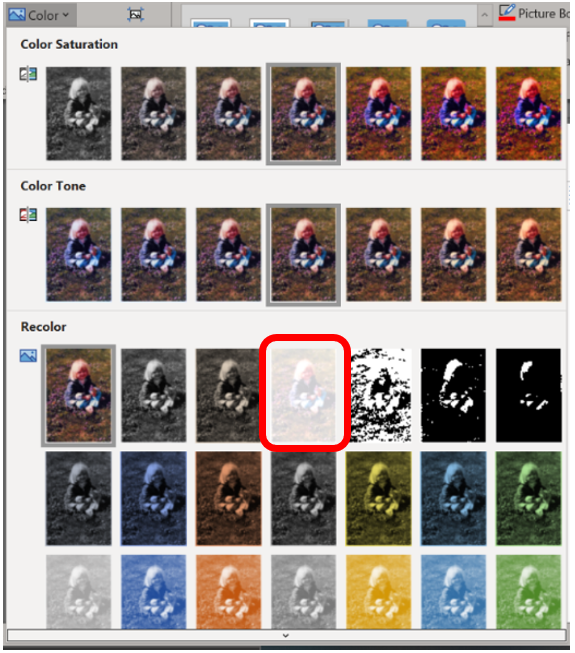
Pictures can be manipulated by using the tools found in the Adjust group on the Picture Format tab. Only a few tools are available, but the good news is that each tool’s button shows a menu full of options, previewing how the image will be affected. To make the change, simply choose an option from…
-
Rotate an Image

There are two ways to rotate an image: Fixed rotation: Use the Rotate option found in the Picture Format tab Arrange group. From the menu, you can choose to rotate the image 90 degrees to the left or right or to flip the image horizontally or vertically. Free rotation: Use the mouse to grab the…
-
Cropping an Image in Word

You’re likely already familiar with the terms “crop” and “cropping” an image. It’s when you make an image smaller by eliminating content rather than sizing the image down. Like when you have to remove your cheating-scumbag ex from all your pictures or just because there’s too much space around the subject. See examples below. To…
-
Resizing an Image in Word

As graphics programs go, Word is not among them. However, there are some basic adjustments you can perform within the program. For any major editing Illustrator, Photoshop, PowerPoint, or even MS Paint are better performers. Yeah, I said it, Paint. For this section, you will frequently use the Picture Format tab, which only appears when…
 Ryn Nicol