
Pictures can dramatically increase the file size of your document. You can control the file size by making choices about the resolution, quality, or compression of an image. One easy way to balance this tradeoff is to match the picture resolution to the use of the document. For example, if you are emailing the picture, you can specify a lower resolution to reduce the file size. On the other hand, if picture quality is more important to you than file size, you can specify that pictures are never compressed.
To save room on your hard disk drive, to reduce download times and upload times on websites, or to meet customer file-size specifications, you can reduce picture resolution or apply compression with no visible loss of quality, and discard unwanted information, such as the cropped parts of a picture or other picture editing information.
You may choose to compress individual images or all images in a file. When you add a picture to your document, it is automatically compressed using the default number specified in the Image Size and Quality options. By default, this is set for print at 220 ppi; however, you can change this. To check or alter the default, go to the File tab and at the bottom, click Options on the left. (You may need to scroll down for it to appear.)
The Word Options pop-up menu will appear. On the left side of that window, click Advanced, then scroll to the section labeled Image Size and Quality.
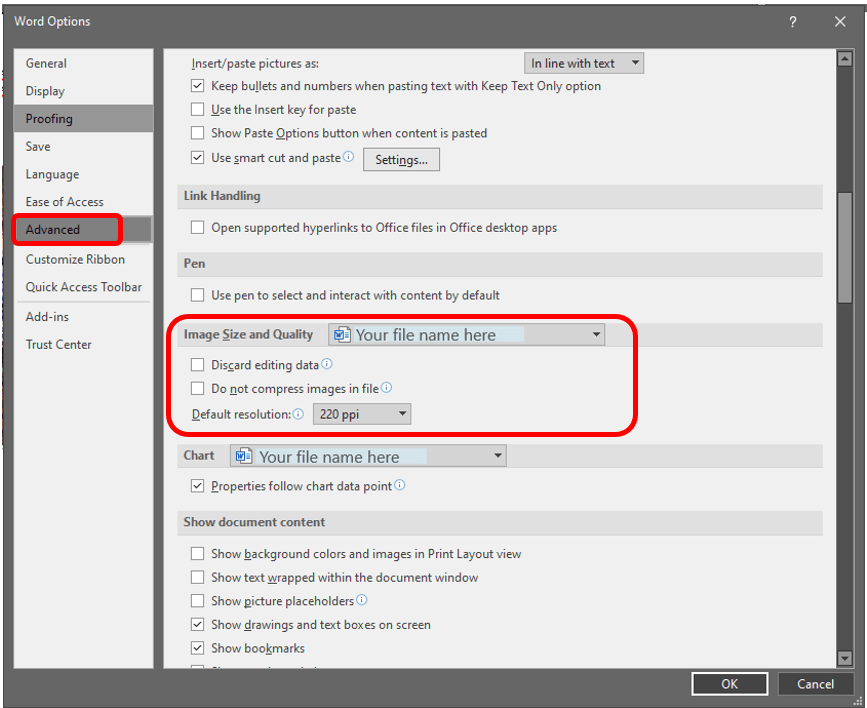
You will see that our Default resolution is at 220 ppi (pixels per inch). This is a medium-sized file. Anything over 300 is considered high resolution.
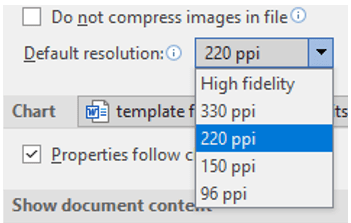
Compressing a picture by reducing the ppi in order to reduce the memory size of the file changes the amount of detail retained in the image. This means that after compression, the picture can look different than before it was compressed, and print quality may be affected. No, you cannot increase the ppi of an image. Why? You’re asking the machine to create information from the machine’s imagination, and it doesn’t have an imagination. For all of these reasons, you should save the file before applying this effect.
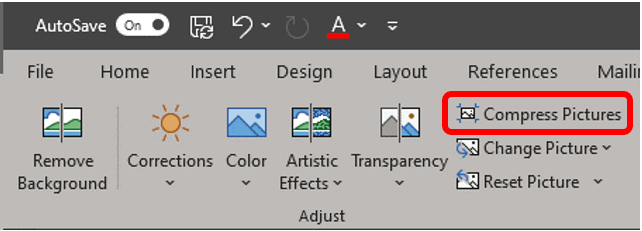
If you decide to compress an image, select the picture or pictures for which you want to reduce the resolution by going to the Picture Format tab in the Adjust group, click Compress Pictures.
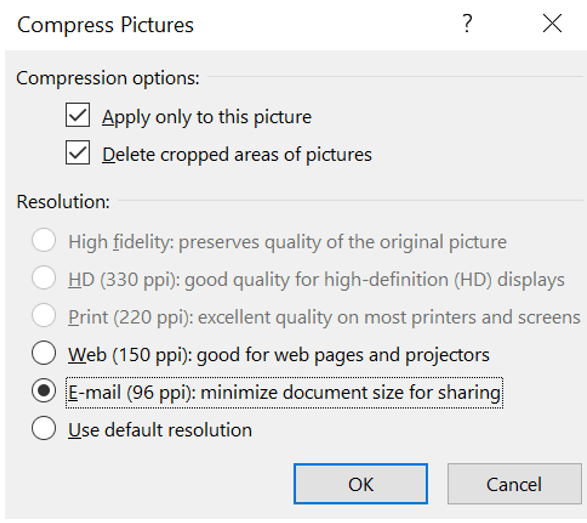
The Compress Pictures dialog box will appear. To change the resolution for the selected pictures only and not all of the pictures in the document, check the Apply only to this picture check box. Under Resolution, click the resolution that you want. The program will gray out the resolution options, which are not possible. The Use default resolution option applies the Default resolution set in the Image Size and Quality setting as covered earlier.
You can change or undo the compression even after saving the file as long as you have not closed the document you are working in if the compression is not the look you want. Again, whenever you compress an image, it will affect print quality to some degree, depending on how much you compress the image.

