
Category: Word
-
Image Anchors
The boat anchor attached to objects (eg., shapes, pictures, etc.) appears sometimes on floating objects, such as images when you click the object. Anchors indicate the specific paragraph to which an object is associated. This is important for object positioning especially when the paragraph the object is anchored to is spread over a page break.…
-
Text Wrapping
To control how an image and text interact, in the Picture Format tab in the Arrange group, click the Wrap Text. You may also right-click an image for these options. Let’s define each of the displayed options. In Line with Text: The image is treated as text — specifically, like a large, single character. The…
-
Reducing the File Size of an Image
Pictures can dramatically increase the file size of your document. You can control the file size by making choices about the resolution, quality, or compression of an image. One easy way to balance this tradeoff is to match the picture resolution to the use of the document. For example, if you are emailing the picture,…
-
Adjust an Image’s Appearance
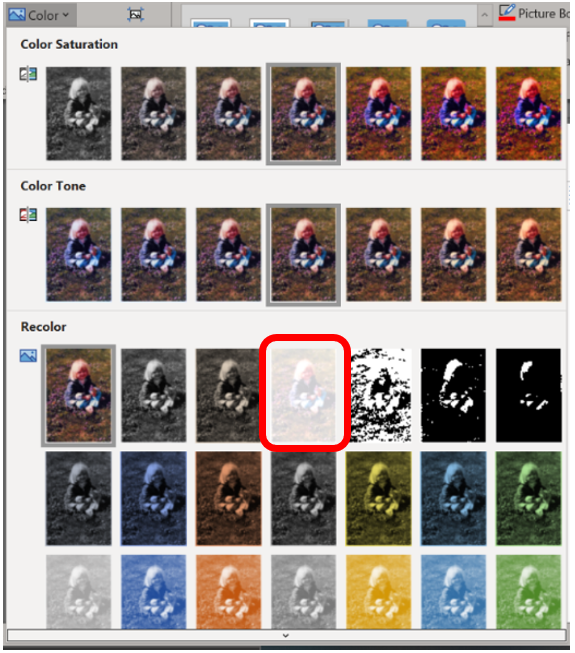
Pictures can be manipulated by using the tools found in the Adjust group on the Picture Format tab. Only a few tools are available, but the good news is that each tool’s button shows a menu full of options, previewing how the image will be affected. To make the change, simply choose an option from…
-
Table Header Row Not Repeating
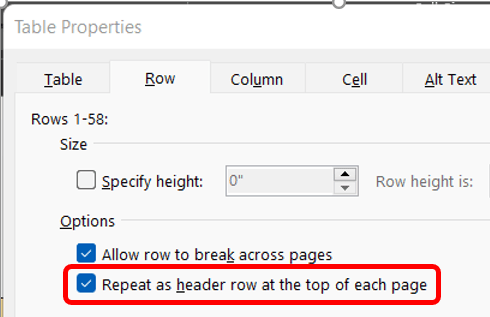
This week’s reader request for help involved a multi-page tale where the builder wanted the header row to repeat on each page. Easy enough. Click into the table then on the (table) Layout tab in the Table group click the Properties button. This prompts the Table Properties dialog box which opens on the Table tab.…
-
Track Changes Options

Like so many things in Word, how you view track changes is highly customizable. Today’s post will be long due to detail. Does the color red upset you? Are you colorblind and having trouble telling reviewers apart based on color? Do you not care about formatting changes and are sick of seeing them notated? If…
-
Isolating Specific Reviewers

From the Review ribbon in the Tracking group, expand the Show Markup dropdown menu, where you may enable or disable specific options if you only need to review certain types of changes or changes from specific reviewers. For example, if you want to observe any changes regarding insertion or deletion of content, then disable (uncheck)…
-
Lock Tracking On

If you’ve ever dealt with multiple editors in a document, you’re likely already familiar with the Tracking group on the Review ribbon. The Comments, Tracking, and Changes groups are used to track any and all changes or comments made to a document. For the Tracking and Changes groups to be effective, the Track Changes toggle…
-
Secrets of the Review Ribbon – When It All Goes Wrong

You performed a Compare or Combine and you’re not seeing the changes you think should be there or there are so many differences that you can’t find the changes you’re looking for in the docs. First go back and restart the process but swap the documents. Whatever was your original make your revised and vice…
-
Secrets of the Review Ribbon – Combining Documents

Have you ever received a document where you know editors/writers worked on different sections, and you don’t need to review for approval their changes? Maybe you have more than one editor in your documents. You could compare documents, or you could combine. Before starting the two files will need to have different names for this…
 Ryn Nicol