

Have you ever received a document where you know editors/writers worked on different sections, and you don’t need to review for approval their changes? Maybe you have more than one editor in your documents. You could compare documents, or you could combine. Before starting the two files will need to have different names for this process to work. Then you can use Word to combine the two documents. On the Review ribbon in the Compare group, click the Compare button and choose Combine from the dropdown.

The Combine Documents dialog box will appear. You’ll notice from a visual standpoint it looks exactly like the Compare Documents dialog box so be careful when you use this tool to ensure you have chosen the correct option.
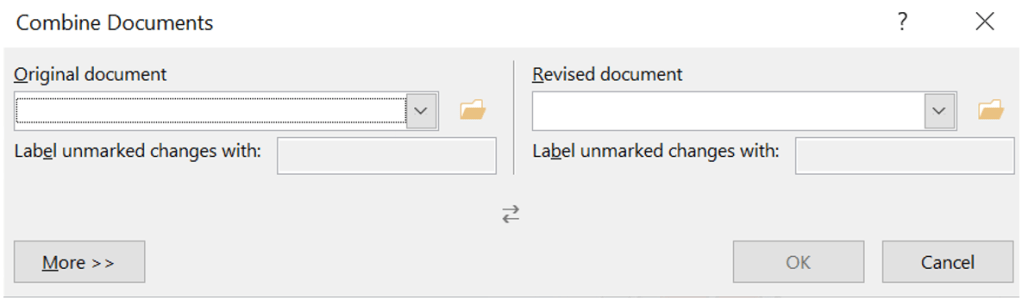
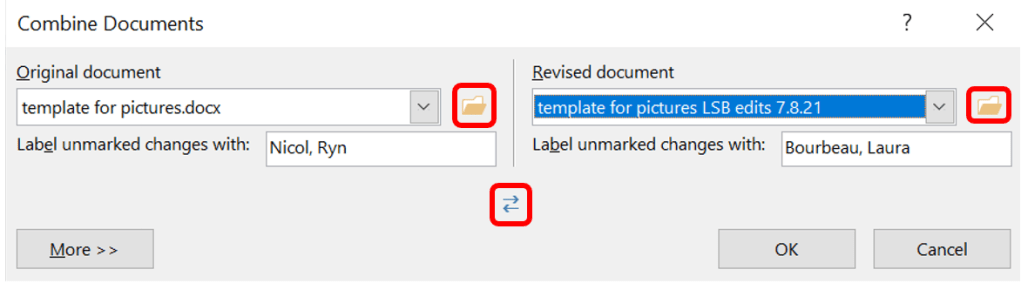
Select the file from which you want to compare from as the Original Document either from the dropdown list, clicking Browse in the dropdown list, or click the wee folder icon next to the file name to browse for it. Then select the file for comparison, such as the document emailed to you without any changes tracked, under the Revised Document dropdown list. Again, you can click the file name in the dropdown list, clicking Browse in the dropdown list, or click the wee folder icon next to the file name to browse for it. Word auto-fills the Label changes with fields. You may change this label only after Word has created the initial label. If you messed up, and you want to reverse how you want the documents to be compared click the swap button. Click OK when you are done.
If either of your documents contains tracked changes, Word prompts you to choose which set to keep. Clicking Cancel you will end the combining process. Click the radio button for the correct file and then click Continue with Merge.

Clicking Continue with Merge to combine the two documents while noting all changes. The screen displays a sidebar listing all differences known as the Revisions pane, a combined document marking all differences as tracked changes, plus the original and revised documents as another sidebar. If you see only one document, go to the Review ribbon in the Compare group, click on the dropdown, and at the bottom where Show Source Documents now darkened click Show Both.

Now you should be seeing something similar to the image below.
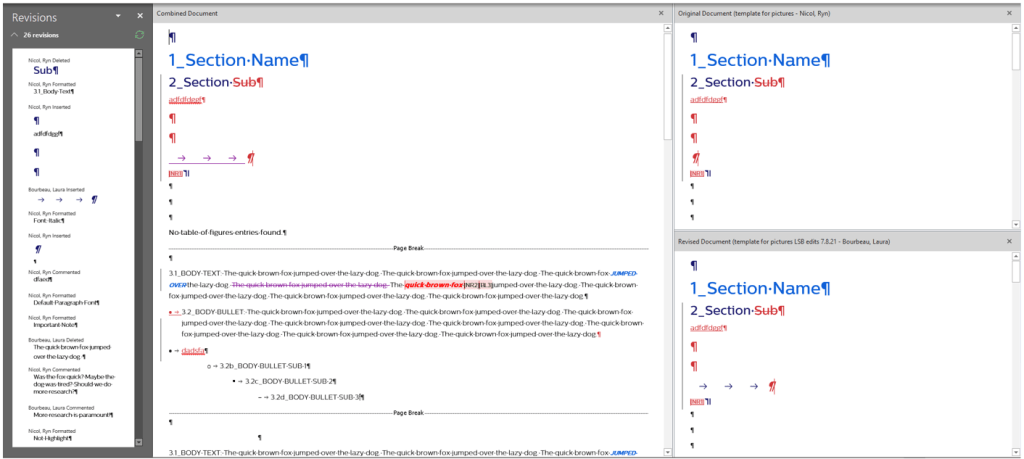
You may have noticed this looks very much like the Compare option. Although Compare and Combine appear to provide the same functionality, there are distinct differences between the two options. Compare should be used when examining the differences between two documents, whereas Combine should be used when you need to compare two or more documents as well as identifying who changed what in the document. Notice Compare only gives us one editor of all the changes whereas Combine notes a difference in the two editors.

