

Have you ever received a document from two reviewers and both of them didn’t track changes? Or maybe you’ve spent all day updating a document only to receive an older version from someone who didn’t track their changes. After you quietly (or not so quietly – I don’t know your life) curse them, you could spend hours combing through text to find that one vital word or comma they changed.
Before we start the two files will need to have different names for this process to work. Then you can use Word to compare the two documents to see exactly what’s been changed.
On the Review ribbon in the Compare group, choose Compare from the dropdown.
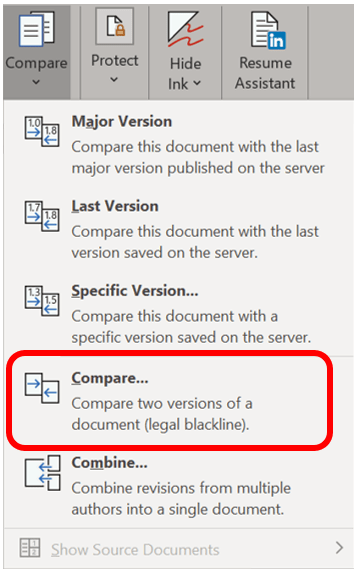
The Compare Documents dialog box will appear.
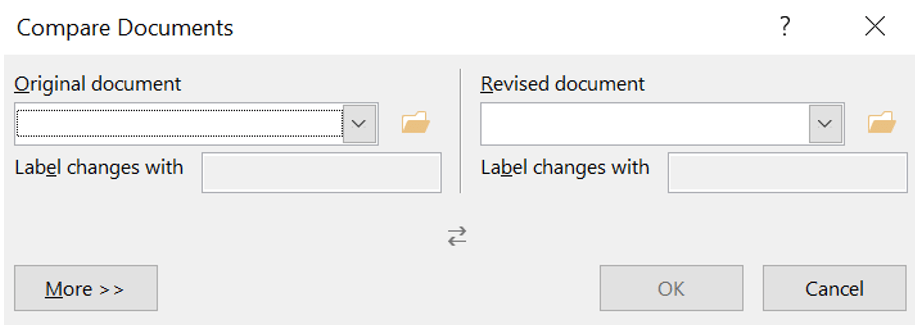
Select the file from which you want to compare from as the Original Document either from the dropdown list, clicking Browse in the drop-down list, or click the wee folder icon next to the file name to browse for it.

Select the file for comparison, such as the document emailed to you without any changes tracked, under the Revised Document dropdown list. Again, you can click the file name in the dropdown list, clicking Browse in the dropdown list, or click the wee folder icon next to the file name to browse for it.

If you messed up, and you want to reverse how you want the documents to be compared click the swap button.
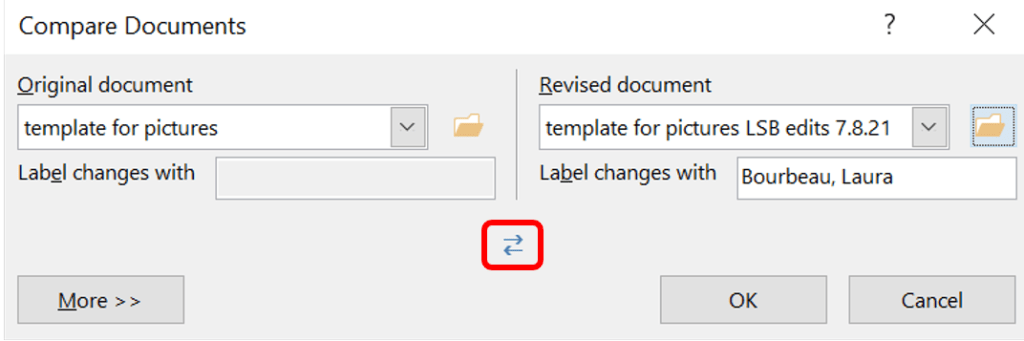
Word auto-fills the Label changes with fields. You may change this label only after Word has created the initial label. Click OK when you are done.
If either of your documents contains tracked changes, Word auto accepts all changes. If you click No you will end the comparison process.

Word will now compare the two documents noting all differences. A new document will be created that combines the two. If your screen is not filled with a sidebar listing all differences known as the Reviewing Pane, a combined document marking all differences as tracked changes, plus the original and revised documents as another sidebar. If you see only one document go to the Review ribbon in the Compare group, click on the dropdown, and at the bottom where Show Source Documents now darkened click Show Both.
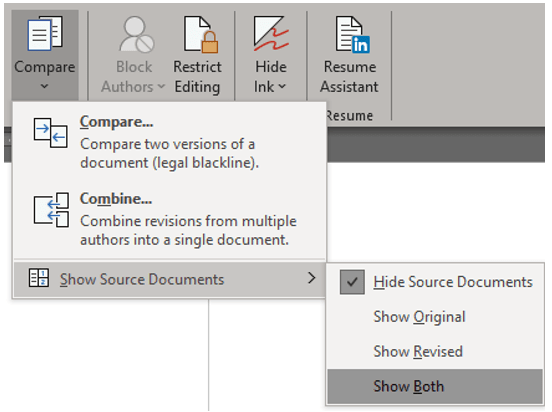
Now you should be seeing something similar to the image below.

Now you can examine changes made to your beautiful document by the barbaric nitwit who didn’t track their changes. Use the Revisions pane to review each change individually. Click changes in the pane to jump to specific items.
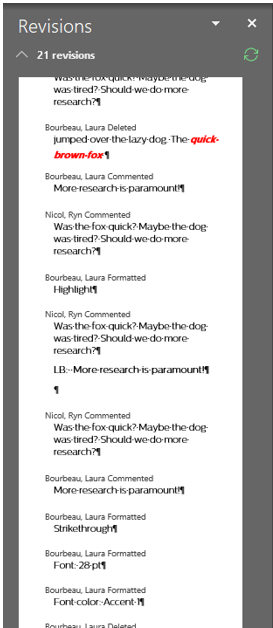
Each reviewer is given his or her own randomly selected color on your screen. For example, the writer’s revision marks may appear in purple, but if a second person reviewed the text, those comments would appear in a second color, and so on for other reviewers.
You may have noticed this looks very much like the Combine option. Although Compare and Combine appear to provide the same functionality, there are distinct differences between the two options. Compare should be used when examining the differences between two documents, whereas Combine should be used when you need to compare two or more documents as well as identifying who changed what in the document. Notice Compare only gives us one editor of all the changes whereas Combine notes a difference in the two editors.

