

If you need to edit the various levels of a list, you will use the Multilevel List option. Similar to the Bullets and Numbering libraries, multilevel list styles are provided in their own library. If those styles are not what you are looking for, you can create or modify new hierarchical levels of items in a list. You can use your new list style each time you begin a new multilevel list in a single document. The new list style is automatically added to the library of list styles. Remember, when you define a multilevel list style, you can mix numbers with bullets in the same list.
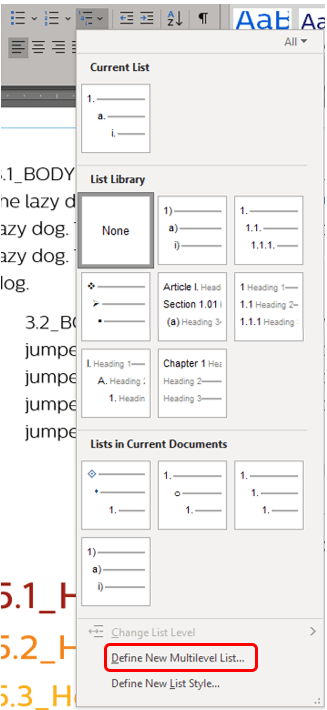
On the Home ribbon in the Paragraph group, click Multilevel List. If creating a new style, click Define New Multilevel List.
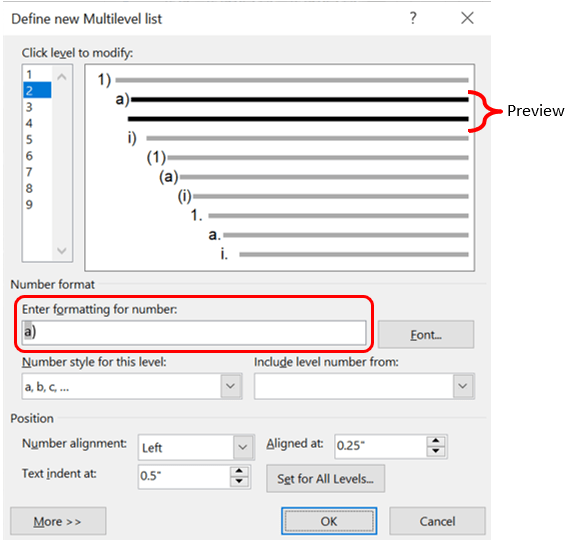
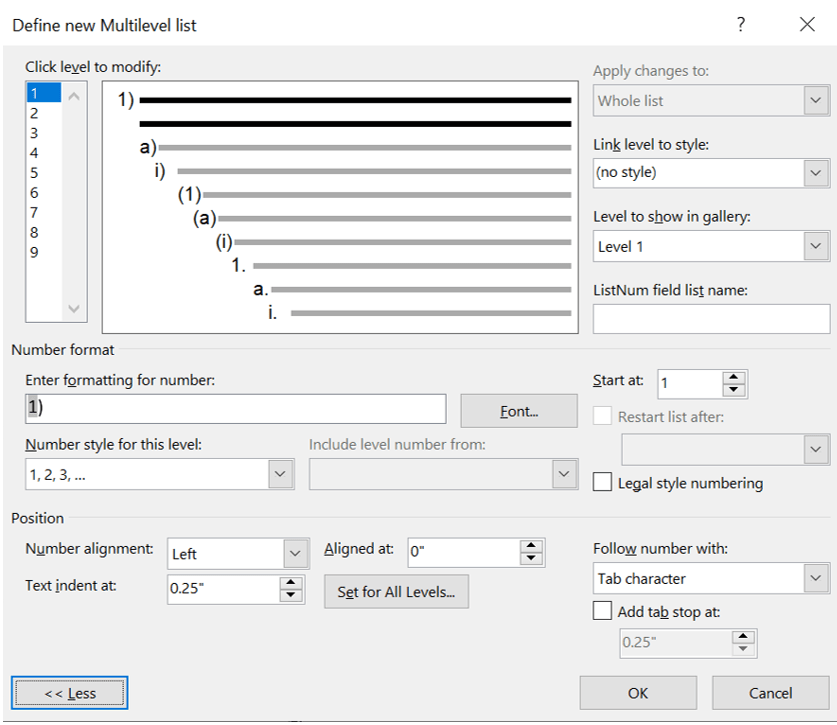
Begin with the level you desire to edit, which will appear in black on the preview to the right. Begin entering modifications beyond the number field, such as dashes, parentheses, spaces, out-of-sequence numbering, or another value by typing into the Enter formatting for number field.
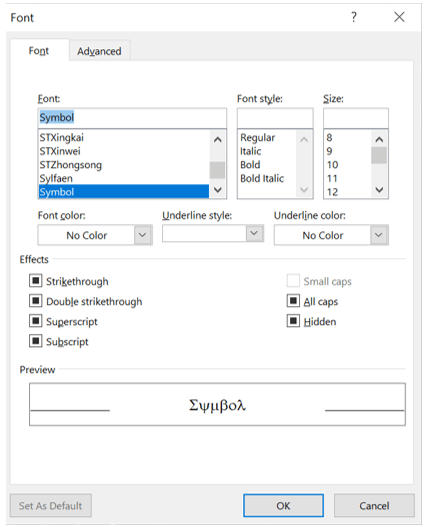
Use Font to open the font popup, where you can change the font, style, size, color, and other features.
In the Number style for this level drop-down, change the type of sequence (e.g., numerals, letters, etc.) for the selected level.

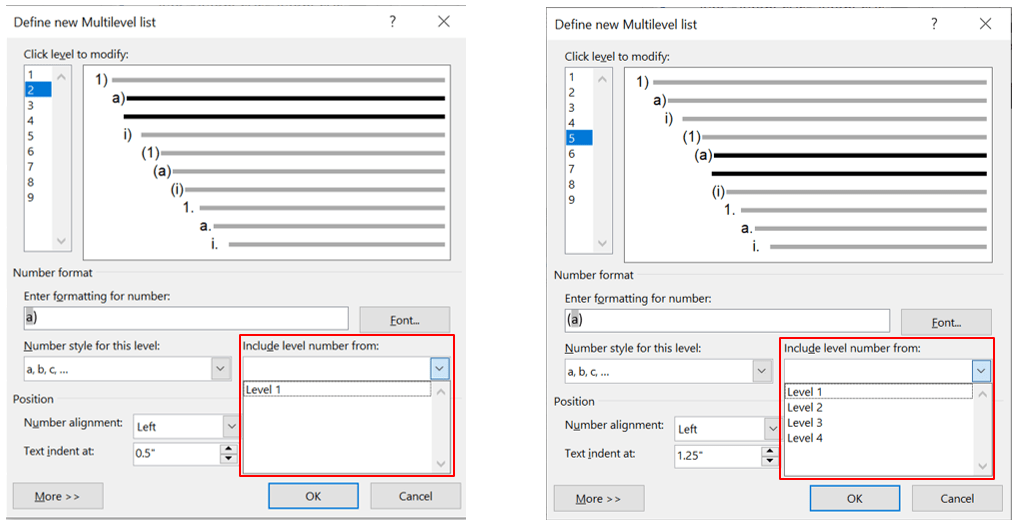
The Include level number from drop-down will be grayed out if you have selected Level 1. If you have selected a lower level, all the prior numbers will appear. So, for instance, if you select Level 2 to edit, only Level 1 will appear, but if you select Level 5, Levels 1 through 4 will appear. The reason to do this is if you include the number from a previous level, you can create line numbers, such as 1.1 or 1.1.1, and so on.
In the Position section, you can specify the alignment and tab stops/indents for each level or indentation choice.
Number alignment specifies the justification of the list in a drop-down menu (e.g. left, centered, or right).
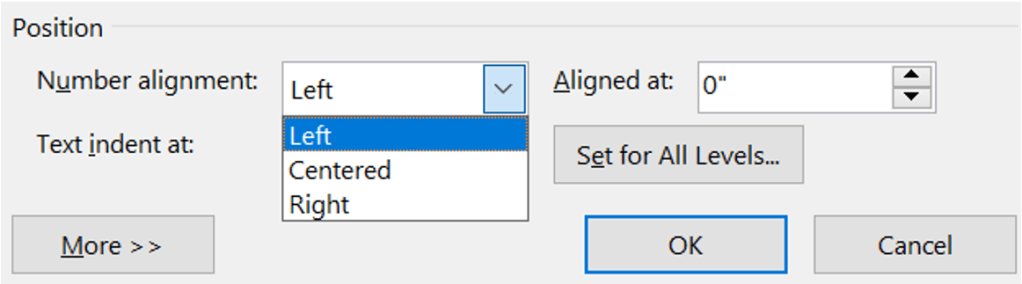
Text indent at and Aligned at have to do with the paragraph tab. If you have the Ruler enabled, note the indent markers.
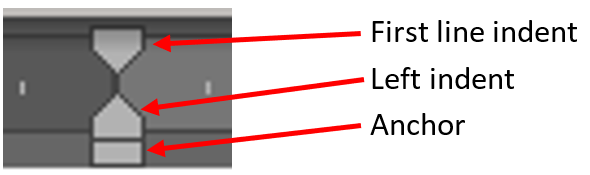
To simplify the interaction, Text indent at specifies where the Left indent (bottom triangle) sits, and Aligned at indicates where the First line indent (top triangle) sits. So, if you changed these items to increase the indent or alignment as in the example below (alignment at 0.5” and indent at 0.35”),
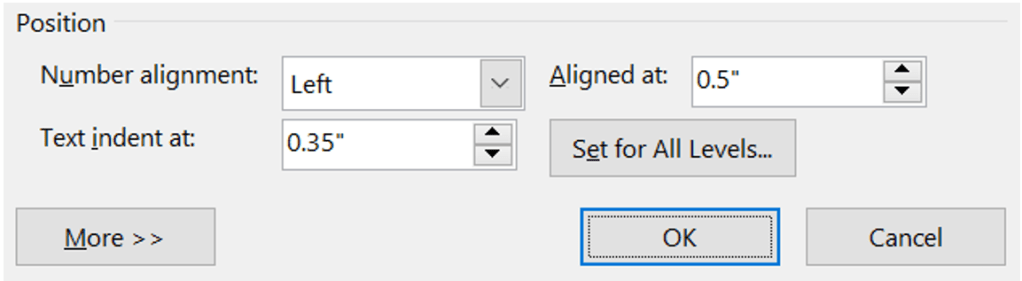
your ruler tab stop would look like this.

This would mean that the first line of every list item would start further to the right than the second line of an item and would look like the list below.

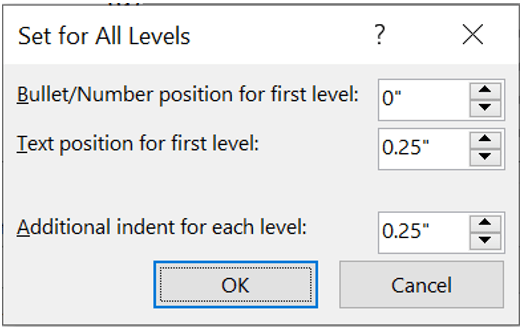
To apply these values to every list level, choose Set for All Levels, and enter numerical values for the amount of space that should follow each bullet or number. Text position for first level refers to the first line indent and Additional indent for each level refers to the next level down, not the second line of an item.
Advanced Options
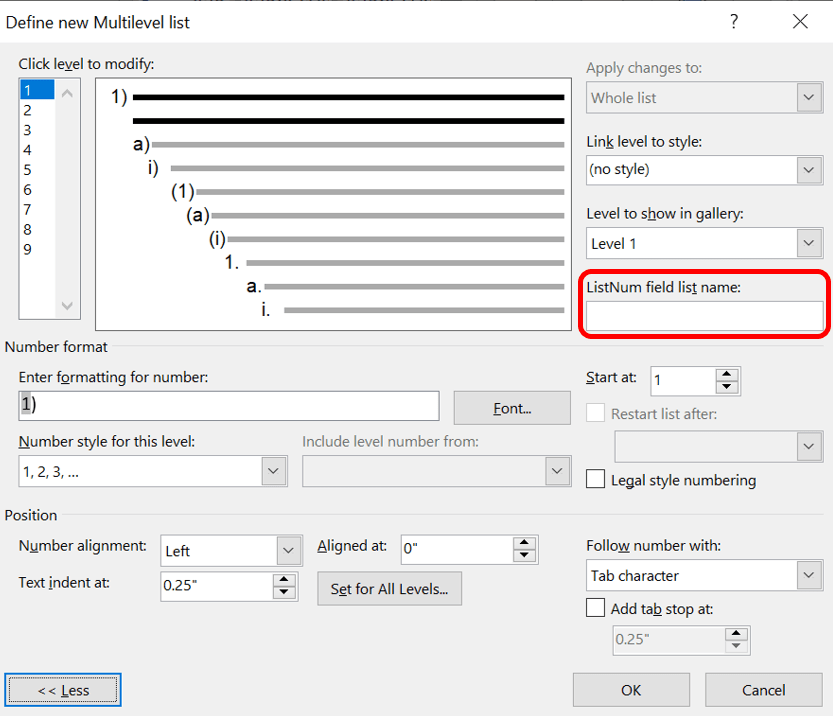
Clicking the More button in the lower-left will expand the Define new Multilevel list popup and change the button to say, Less. Clicking Less is abnormal. Clicking this opens an advanced world of potential frustration. The writer does not recommend this, but if you insist, keep reading. If you’re afraid, don’t click that button. Click OK instead and move forth in blissful ignorance with fewer opportunities for errors.
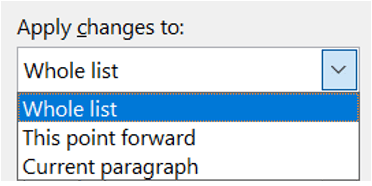
The Apply changes to will be grayed out if your cursor is not within a list as in a regular paragraph. If you started from within a list, the drop-down will allow you to define whether you want to apply changes to the whole list, from the cursor level forward (this point forward), or only to the levels you’ve selected (current paragraph).
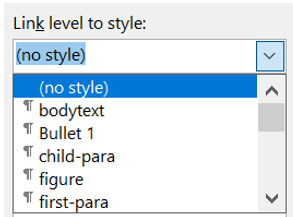
Link level to style allows you to connect your selected level to a style, such as those in the Style gallery or ones you have created not in the gallery and the built-in Word styles. This is handy for linking levels to heading styles. (See the post about Creating a Table of Content for why headings are important.) If desired, select the style from the drop-down, which shows all styles available in the document.
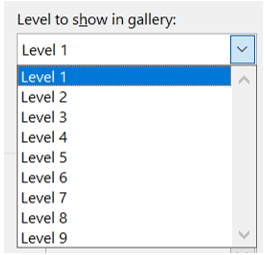
The Level to show in gallery drop-down allows you to choose the list level to be shown in the Style gallery. As for useful tools within Word, this is not one of them. Most would recommend leaving it on the default of Level 1.
If you want to associate a level with a name to use along with Word’s LISTNUM function, type the label identifier in the ListNum field list name. This is useful if you’re creating functions to generate lists.
If you want to start your list out of sequence, with a number other than 1 or a letter other than a, change the number/letter in the Start at field in the Number format section.

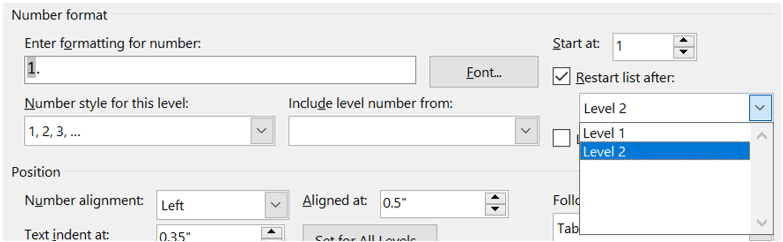
For the list to start over after it reaches a certain letter or number, click Restart list after, and then click on the list level. All prior levels will be listed. If this area is grayed out, it is because the level you have selected is a bullet, which is not an item that Word can sequence.
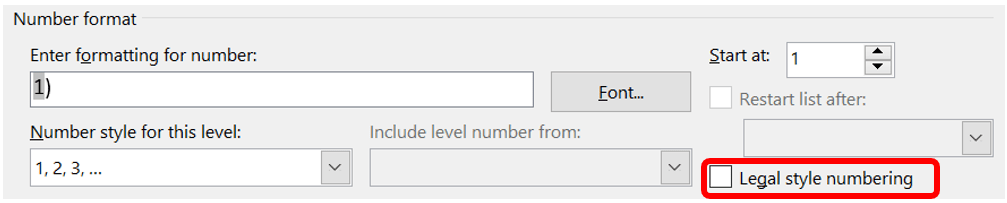
The checkbox for Legal style numbering is a confusing little world. It is not pleading paper. If you don’t know what pleading paper is, that likely means you have never had to file court documents on the American west coast. Congratulations. Googling this will return fun answers like how this checkbox allows you to set up numbering formats that use Roman and Arabic numerals together within a list, which you can already do, but this converts the numbers to Arabic numerals (e.g., Exhibit IV changes to Exhibit 4) or how the checkbox turns I.1 to 1.1. But how is that useful? Say you want a list that looks like this:
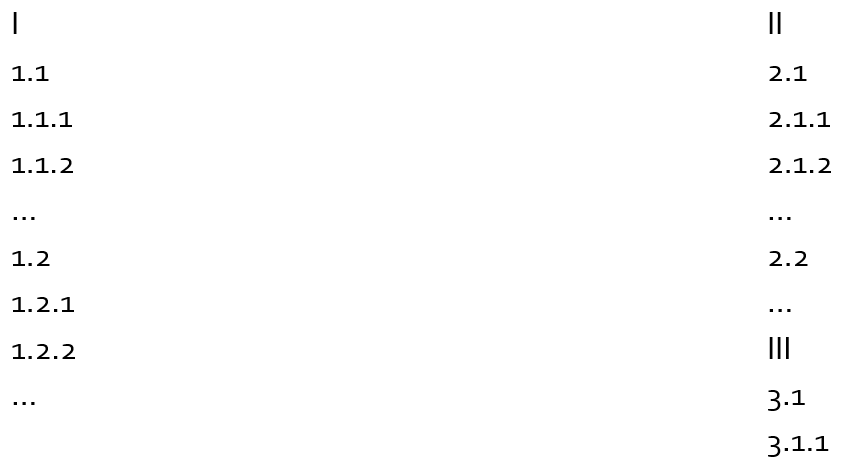
One of the ways to do that would be to set up the numbering for Level 1 as Roman numerals (I, II, III) and so on. Then for Levels 2 on down, click on the checkbox for Legal style numbering which converts I, II, III to 1, 2, 3 for those levels. Still confused? Then ignore it.
Numbers and bullets are defaulted to be followed by a tab. To change the default, in this expanded view, choose from the drop-down menu under Follow number with to change or return to the tab character default to a space or no character at all.


