

You’re making a list and for whatever reason you don’t like the default appearance. I’m not talking fonts and colors rather the bullet or the numbering. If you need suggestions or want to set a specific list style, go to the Home ribbon in the Paragraph group, access either the Bullet or Numbering Library and choose the preloaded format you prefer.
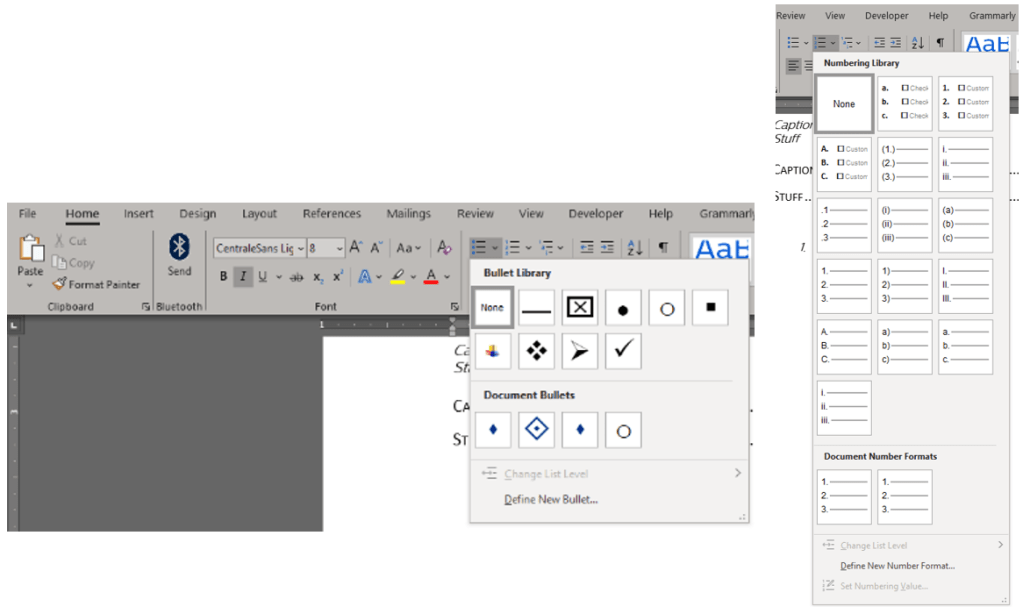
You can also format bullets or numbers separately from the text of a list using basic formatting from the Font group. For example, highlight a number and change the color of that number to update the entire list without making changes to the body text of the list.
Defining New Bulleted Lists
If the Bullet Library doesn’t contain the visual style you are looking for, you can design a new bullet style or edit the preexisting models. You can use your new list/bullet style each time you begin a new list in the document in which you are currently working. The new list/bullet style is automatically added to the library of list styles (not the style gallery). On the Home ribbon in the Paragraph group, click the down arrow next to Bullets and then click Define New Bullet.
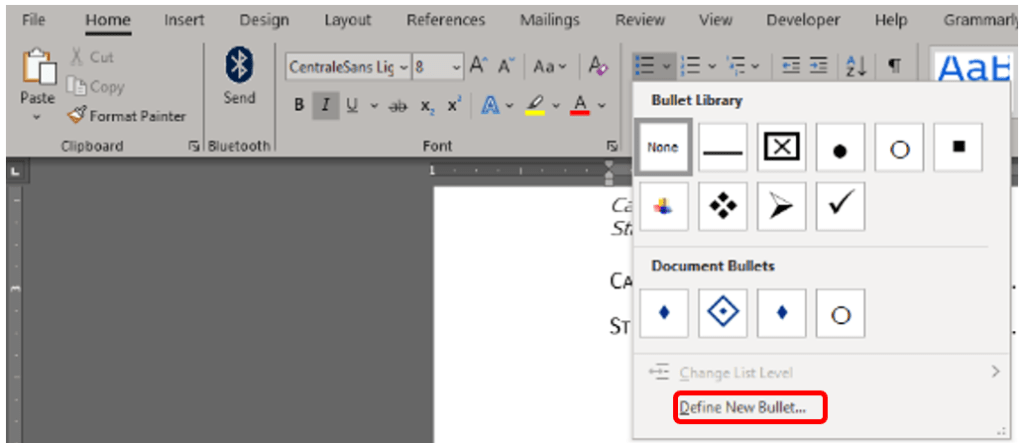
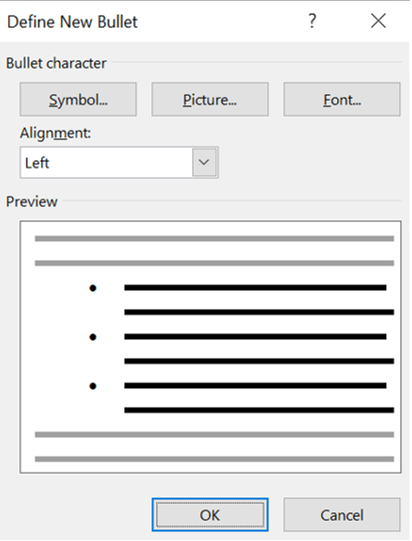
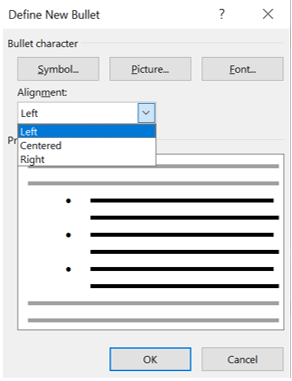
This will open the Define New Bullet popup menu, where you can choose the type of bullet and alignment.
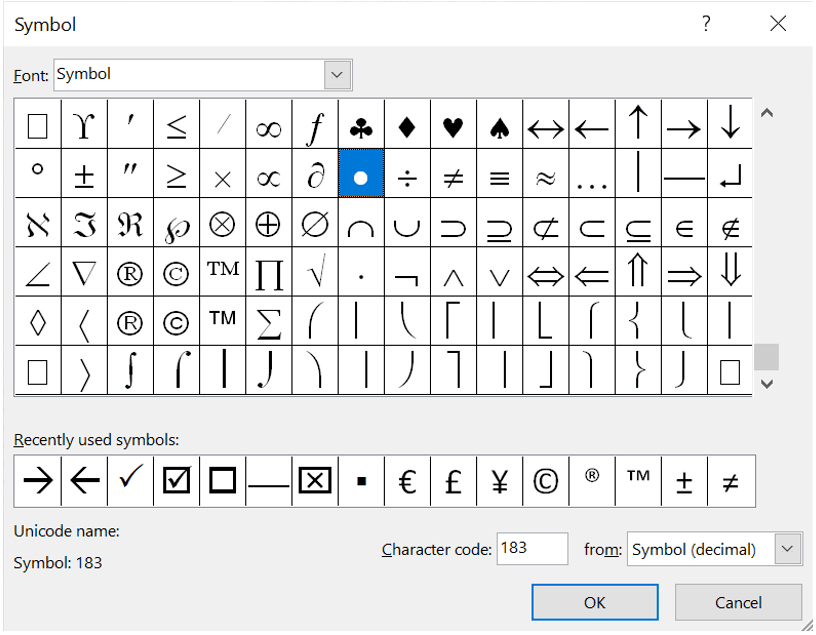
If you click Symbol, it will open the Symbol popup (same as the one found on the Insert ribbon in the Symbols group). Scroll through the list until you find the symbol you want to use, then click OK.
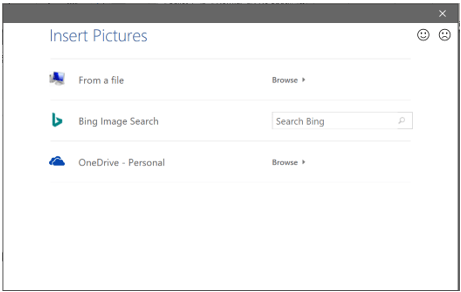
Click Picture and then browse for a picture from a file, or OneDrive if connected, or perform a Bing Image Search. Once you locate the desired image, click Insert. Review what the selected picture bullet will look like, then click OK to add it, or change the picture by repeating this step.
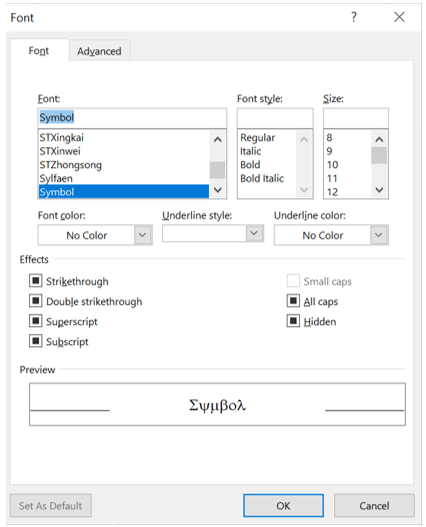
If you click Font, the Font popup will appear, allowing you to alter the font properties (font, style, size, color, underline style, underline color, and effects) of the currently selected bullet.
To change the alignment of the bullet, click the drop-down menu to justify left, right, or centered.
Click OK once the preview matches your desired changes.
Defining New Numbered Lists
If the Numbering Library doesn’t contain the visual style you are looking for, you can design a new list style or edit the preexisting models. You can use your new list/numbering style each time you begin a new list in the document in which you are currently working. The new list/numbering style is automatically added to the library of list styles (not the style gallery). On the Home ribbon in the Paragraph group, click the down arrow next to Numbering and then click Define New Number Format.

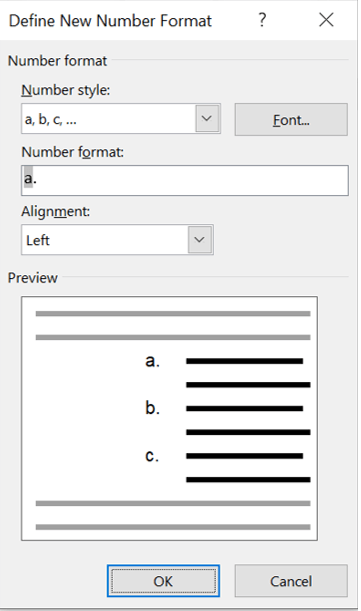
This will open the Define New Number Format popup menu, where you can choose the type of number style, format, and alignment.

Click the drop-down menu under Number style to select the specific type of sequenced numbering you desire.

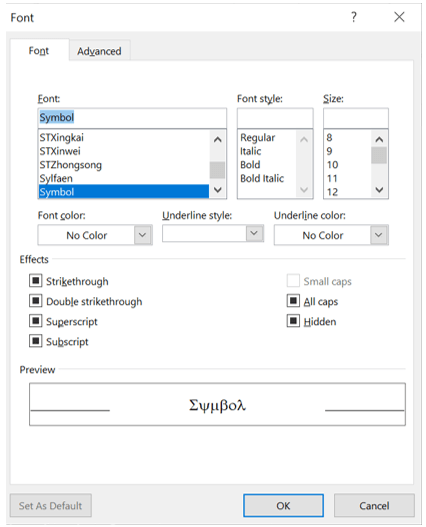
Use Font to open the font popup, where you can change the font style, size, color, and other features.
To further modify how the list appears, type into the Number format field dashes, parentheses, spaces, out-of-sequence numbering, or another value.


One response to “List Libraries and Defining a New List”
[…] need to edit the various levels of a list, you will use the Multilevel List option. Similar to the Bullets and Numbering libraries, multilevel list styles are provided in their own library. If those styles are not what you are […]
LikeLiked by 1 person