
To control how an image and text interact, in the Picture Format tab in the Arrange group, click the Wrap Text.
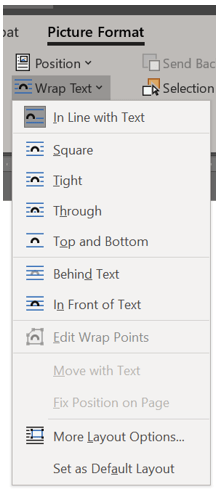
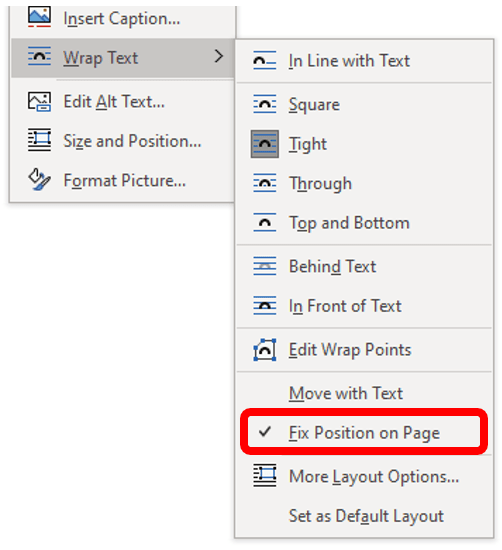
You may also right-click an image for these options.

Let’s define each of the displayed options.
- In Line with Text: The image is treated as text — specifically, like a large, single character. The image can have text before it or behind it, be in the middle of a paragraph of text, or be on a line by itself (most of the images in this booklet are displayed as In Line with Text). The image stays with the text while you edit, and the line that the image is on grows vertical space to accommodate the image.
- Square: The image sits on the same plane as the text, but the text flows around the image in a square pattern, regardless of the image’s shape.
- Tight: Text flows around the image and hugs its shape.
- Through: Text flows around the image as best it can, similar to the Tight option.
- Top and Bottom: Text stops at the top of the image and continues below the image.
- Behind Text: The image floats behind the text, looking almost like the image is part of the paper.
- In Front of Text: The image floats on top of your text like a photograph dropped on the paper.
- Edit Wrap Points: You can specifically control how text wraps around an image. By adjusting tiny handles and dashed red lines, you can make text wrapping as tight or as creative as you like. Of course, selecting the Tight option does much the same thing especially if your image is square. If your image is a non-standard shape, such as a star, you will have more wrap points. If the image is set to In Line with Text, this option will be grayed out.

Normally, images will anchor with the text you put them with. If you want an image to stay in a specific spot on the page, regardless of text changes, click Fix Position on Page. This will toggle off Move with Text.
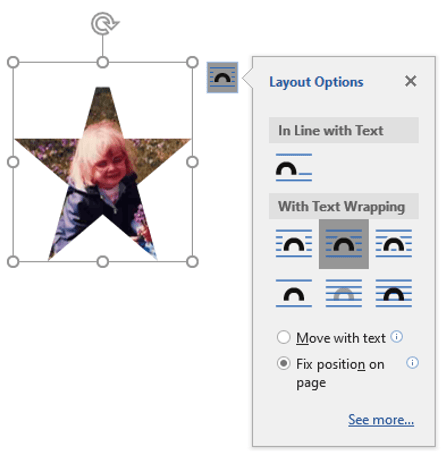
A third option for seeing Layout Options is to click the image, and you will see next to the upper right corner of the image box with blue lines and an upside-down horseshoe. Graphic versions of the text wrap options will appear.
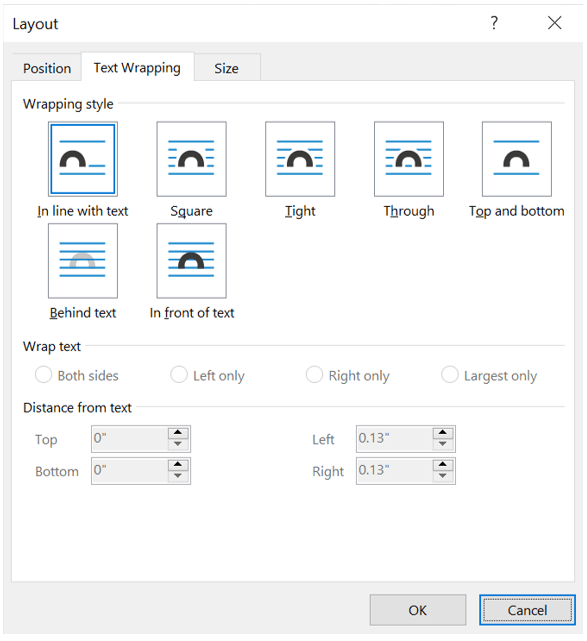
Selecting More Layout Options (or See more…) summons the Advanced Layout dialog box, which provides custom controls for image Position, Size, and Text Wrapping (default opening tab).
 Ryn Nicol