
We’ve discussed Themes this week both finding preset themes and saving customized themes, but what are these Templates I keep mentioning?
Templates are slide decks that include a preloaded theme and include content. Content is theme- or template-specific. Templates can include background formatting, images (pictures and icons), colors, fonts, text and image effects, and text placeholders. There are free stock templates you can search through when you go to the File tab, open New, and type in the search bar.
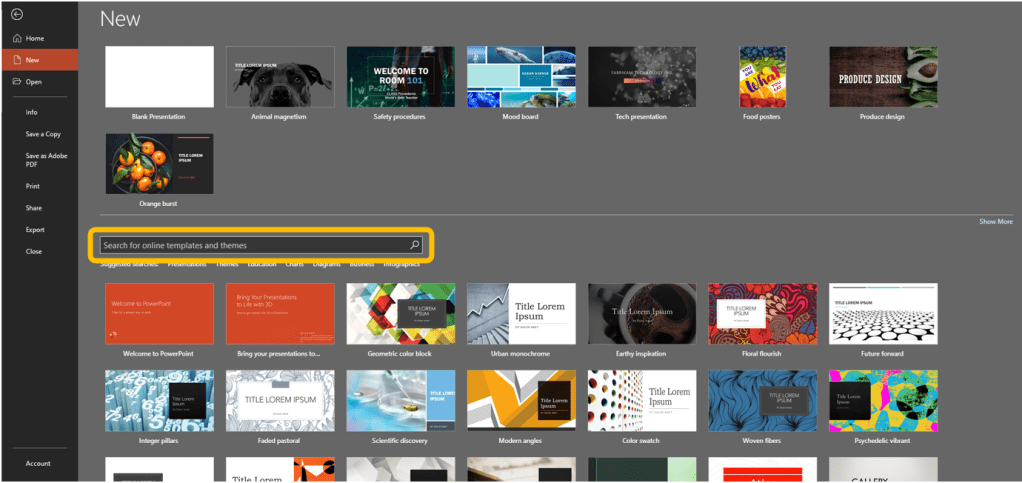
Why use themes and templates? Because you either don’t have time, or don’t have a design background that taught you things like the 5:1 or 70/30 and 80/20 rules (they have to do with layout and contrast). The best thing about templates is that they’re completely editable. The writer likes to first search through templates to find overall design elements she likes, and then swap-out colors or images to fit her subject. For instance, there’s a template called “Produce design” and another named “Food and cooking posters,” which the writer downloaded and swapped-out the pictures of food for images of flags to discuss healthcare in different countries because she liked the textures in one and the layering of images in another. Yes, you can pull from multiple themes into your slide deck, but if they have different Master Slides, your colors could change (unless you have secondary masters, which is not covered here).
Creating Templates
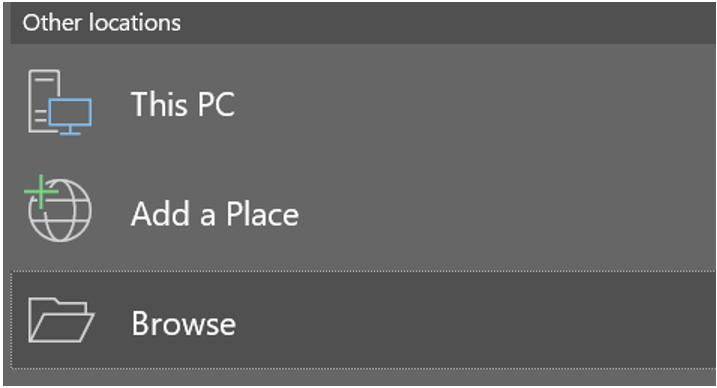
Say you create a presentation with a theme that you love, and your coworkers love, and even your mother passed mild approval of – which, why are you showing…? Never mind. Rather than simply sharing that presentation over and over, you can reuse elements as a template. This means you’ll need either those exact graphics/icons or indicators for those elements in the Master Slide deck. Check out the Slide Master section for how to edit your master slides, then once you have everything in its place on the Master Slide deck, save your presentation as a template by going to the File tab, clicking Save As, then choosing either Browse or, if the network drive appears, choosing that location.
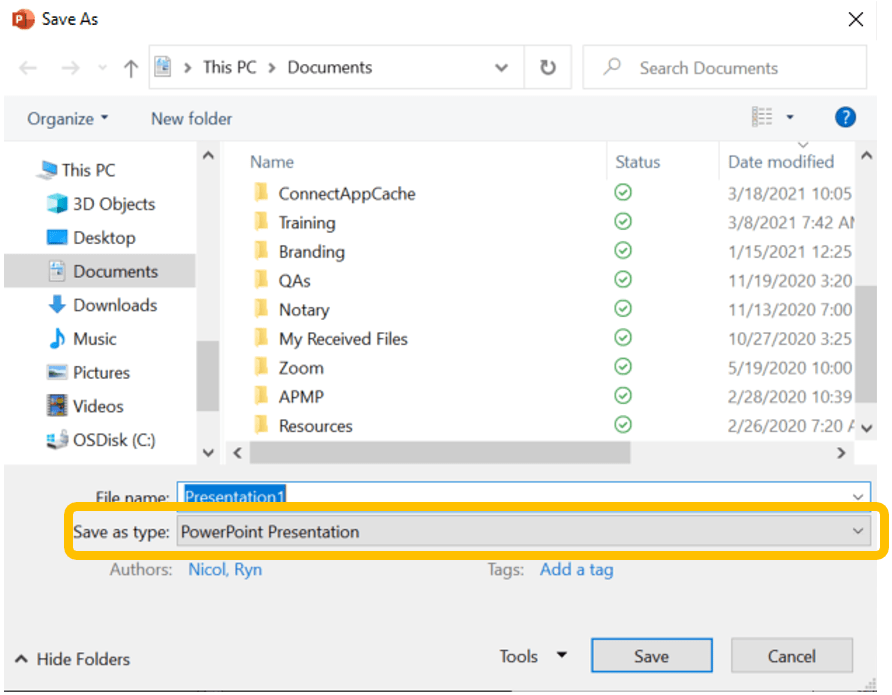
The Save As dialog box will appear. From here, don’t worry about the file location or typing in a File name just yet. Rather, open the dropdown menu under Save as type.
Chose PowerPoint Template (watch out because there are also options for a PowerPoint Macro-Enabled Template and the PowerPoint 97-2003 Template).
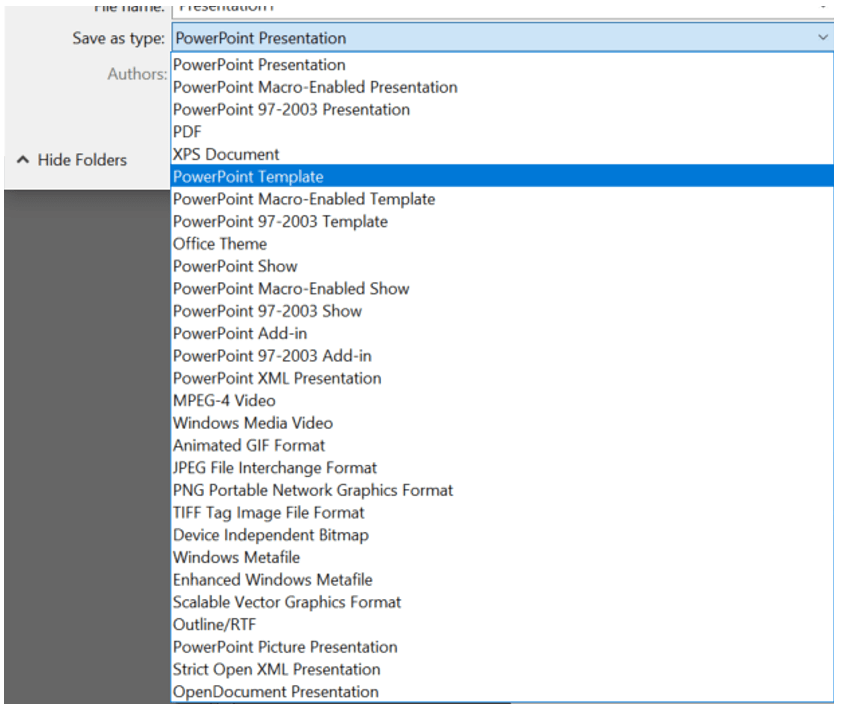
When you choose Template, the system opens the Custom Office Templates folder (the correct location). If you plan on sharing this template, you can save it elsewhere, but the system won’t automatically find the template. You’d have to open it from that other location. Also, if you go to that location before choosing the Save as type, you’ll have to find that location again as the system will instead default to where it wants to save. It’s not smart. If you do save it to the Custom Office Templates folder, then when you go to create a new presentation, you would go to File > New > Custom > Custom Office Templates. It may appear as a little preview box rather than a folder depending on whether you also have any custom Document Themes saved. If you have both, you’ll get folders.

 Ryn Nicol