This week is all about Themes and Templates as found in PowerPoint. You’ve seen these. You may be asking yourself what they are while not realizing you have likely used themes and templates. You’ve opened a new file, and there were all these pretty presentations splayed across your screen. But what is a theme, and how is that different from a template? First we’ll dive into Themes.
Using Preset Themes
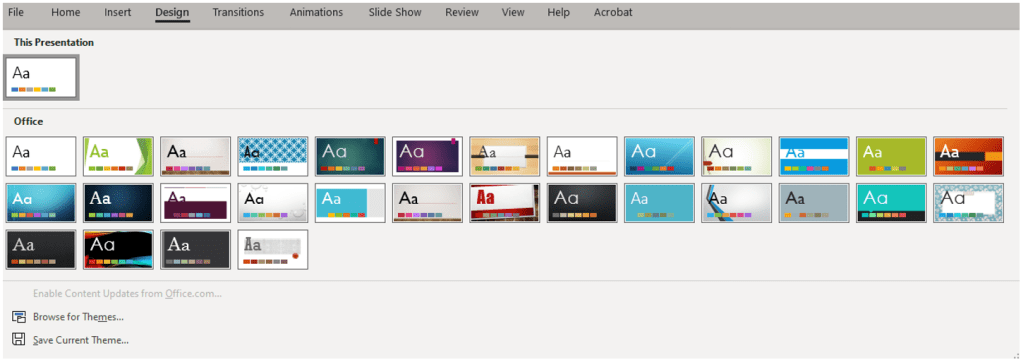
Themes are sets of fonts, colors, and occasionally visual effects to create an overarching look to your presentation. You may glance at the preloaded theme by going to the Design ribbon and expanding the Themes group. Browsing for more themes will take you to your PC or network to load a saved theme. If you create a theme you like, you can also save it to load into other presentations. Themes often affect the Master Slide (I’ll cover what that is in a later blog). Click on the thumbnail to apply a theme to all slides in your presentation, or hover-over for a preview. Themes do not apply to merely one slide.
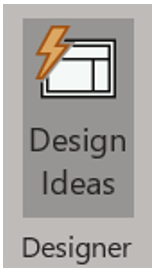
If you need variety on one slide, check out Design Ideas. You can find it by either heading to the Design ribbon or to the Home ribbon, and under the Designer group, click on Design Ideas. Yes, it really can be found in both places under the same group name.
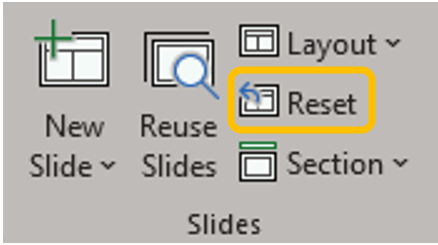
Each theme includes its own set of slide layouts controlling how content is arranged. Changes from one theme to another can dramatically alter the appearance of your slide deck. If you modify any part of a slide outside the built-in theme elements and then later change your theme again, the modified content will remain until you go to the Home ribbon, Slides group, and press Reset.
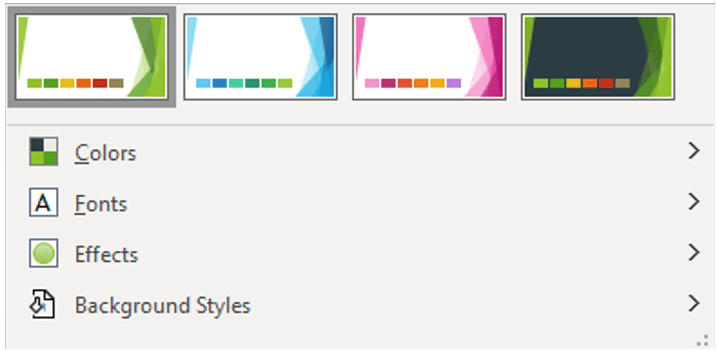
You can also make further variations to themes once you have applied a theme. On the Design ribbon under the Variants group, you can preview the same theme with different colors while the overall look and layout are maintained. Say, for instance, we chose the Facet theme, the following Variants would appear.
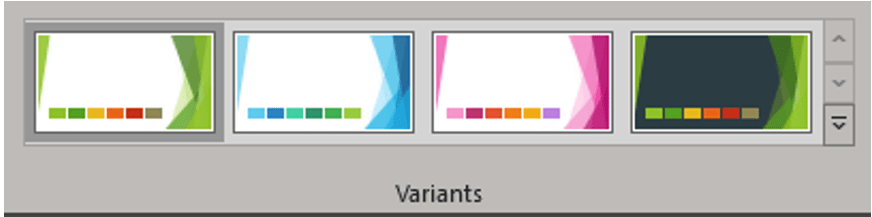
You can further edit these Variants by expanding the dropdown for either more options or to edit the colors, fonts, effects, and background styles.
Note: Applying new or different theme effects can change shape styles and SmartArt.