

Once you add captions to your document, you may create a table of figures. When you build a table of figures, Word automatically searches for the preset Caption style (unless told otherwise) and lists them by sequential appearance in the document meaning the listing is based on page number not if the caption numbers are out of order.
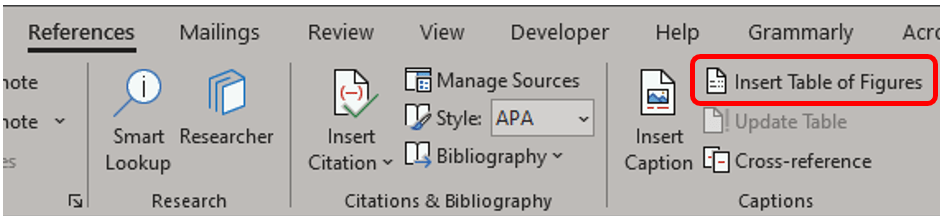
To build the TOF, place your cursor where you want to insert the TOF (usually after the TOC). On the References ribbon in the Captions group, click Insert Table of Figures.
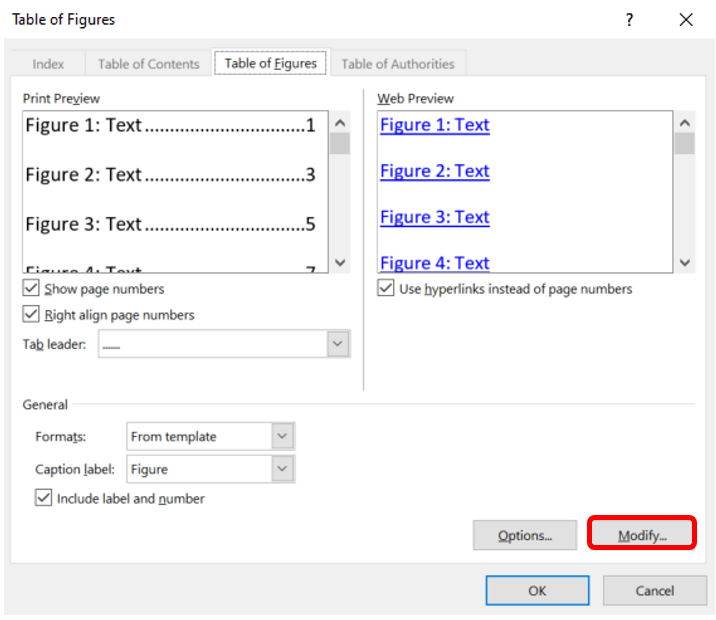
The Table of Figures dialog box will appear.
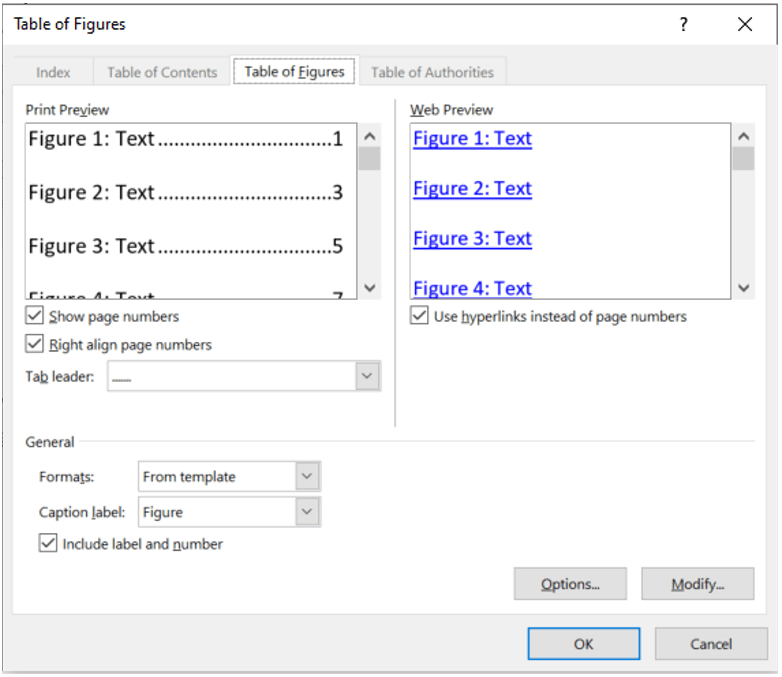
Stay on the Table of Figures tab where you can perform any of the following tasks.
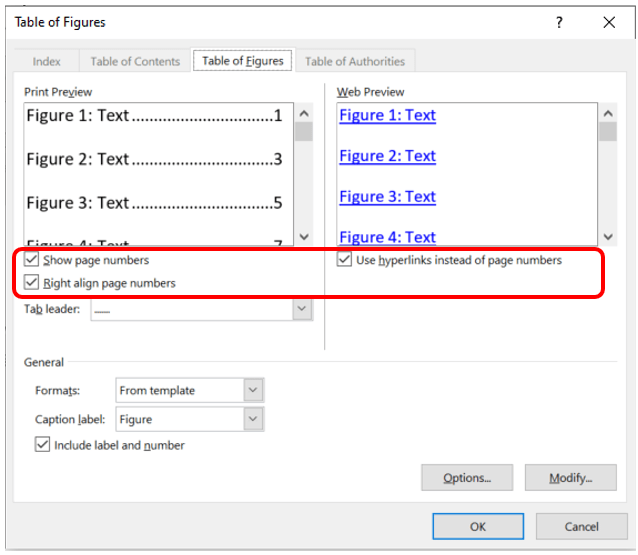
- Change the overall look of the TOF by unchecking or checking different formatting options such as whether to show page numbers, right align page numbers, or use hyperlinks instead of page numbers.
- From the Tab leader drop-down list under Print Preview, choose the type of line (dotted, dashed, solid, none) to appear between the entry text and the page number. Word defaults to a dotted line. You may view your choice in the Print Preview and Web Preview areas at the top of this dialog box.

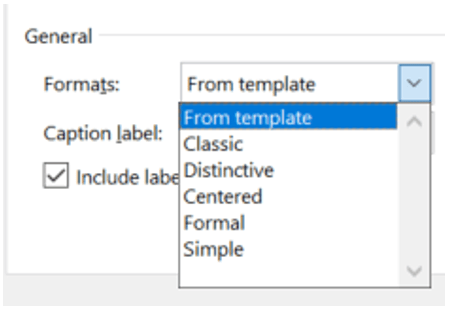
- You may change the overall look of the TOF in the General section of the dialog box. Click the drop-down options in Formats. You may choose from the list of visual options as shown below.
- Rather than listing captions with only the figure label, you may choose from the Caption label drop-down menu the preset labels (equation, table), any custom labels you’ve added (Awesome Image), or none.
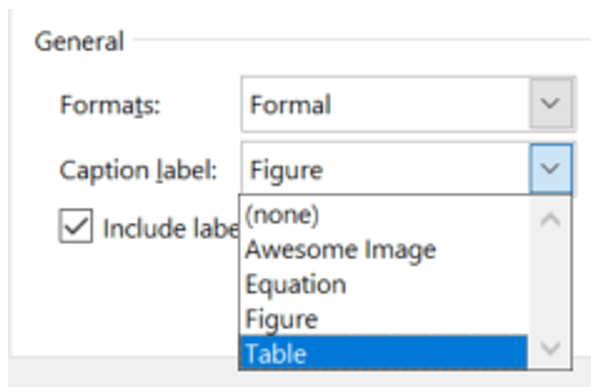
- The final General formatting option allows you to uncheck Include label and number which would list only the figure’s text.

- As mentioned, Word searches for the preset style Caption. This may be changed by clicking Options in the lower right corner.

- The Table of Figures Options pop-up will appear. Mark the checkbox for Style, then choose the style you want the program to search for when creating the TOF.

- A Table entry is a special code that indicates to Word to insert text not necessarily found in the caption (hidden text) but within the code into the TOF. A table identifier or field code is linked to the table entry. This is uncommon and will not be covered.
- To change the default font options of TOF styles click Modify in the bottom right corner.
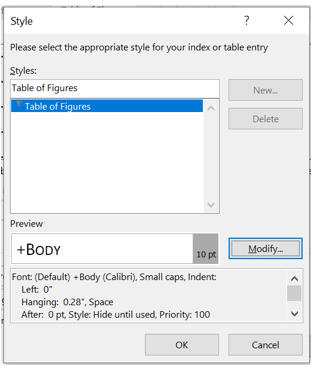
- The Style dialog box will display. The only option is the Table of Figures, so click Modify.
- Which opens the Modify Style box. Notice that this box is the same Modify Style box as found in the Style gallery which is identical to the Create New Style from Formatting box. Edit the Modify Style options using the same guidelines used to edit the Create New Style from Formatting box, but do not change the Name or Style type.
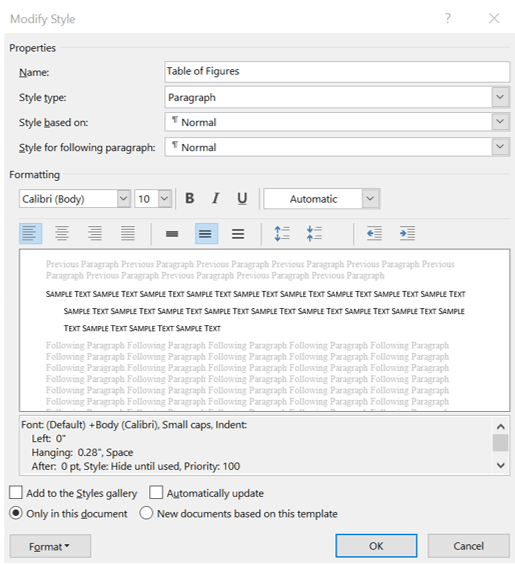
- Click OK when done.
If you change, move, or delete captions, be sure to update the TOF. To update the TOF, place your cursor anywhere inside the TOF and press F9 or right click then choose Update Field from the menu.
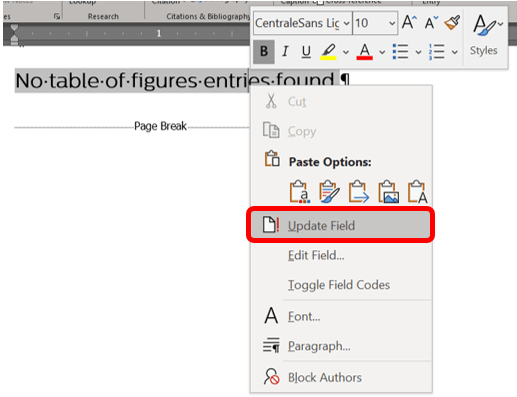
You will likely be prompted to choose either Update entire table or Update page numbers only.

Select the desired option and click OK.
Remember you can always add more captions and update as you go or upon completions. Automation is fabulous.
 Ryn Nicol