
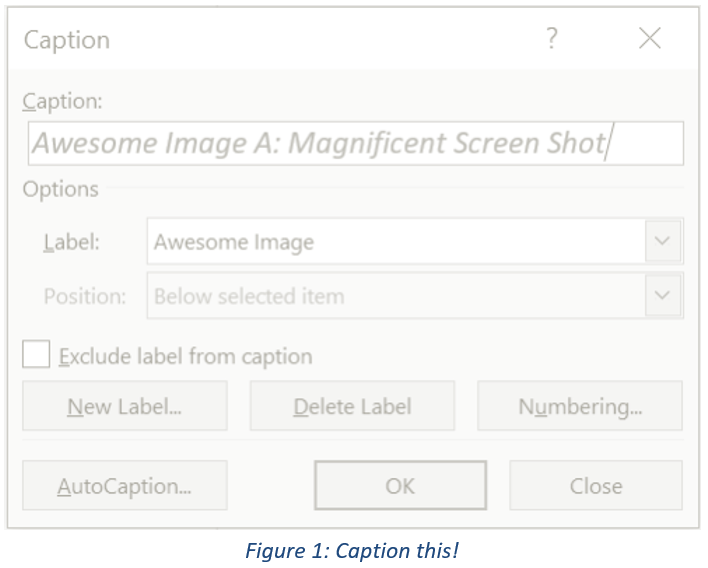
When drafting long documents with lots of illustrations, images, tables, etc., it is wise to use a table of figures (TOF). Listing pictorial information in it’s own table is important because it allows readers to focus on your graphics apart from the text. Unlike the table of contents (TOC) which is based on heading styles, a TOF is based on captioning, a singular, specific style. Before you can create a TOF you must insert captions.
Adding Captions
A caption is a numbered label using Field Codes. Typically this label is added to an image, an illustration, a figure, a table, an equation, or other kind of graphic object within a document. While you can manually enter descriptive labels, Word provides automatic numbering. If you later add, delete, or move captions, you can easily update these automatic numbers all at once which is why it’s a good idea to use the auto-numbering rather than typing in your captions.
To insert captions:
- Create an empty/blank line below the object (table, equation, image, etc.) you want to caption.
- Place your cursor on that empty line.
- On the References ribbon in the Captions group, click Insert Caption.
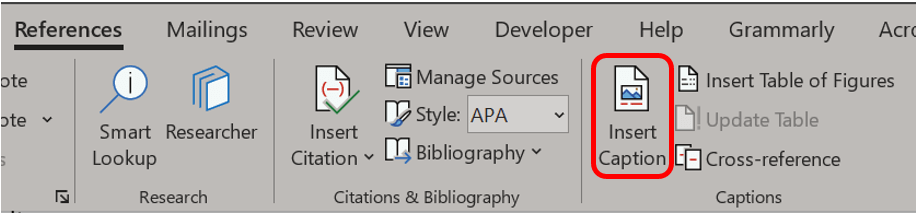
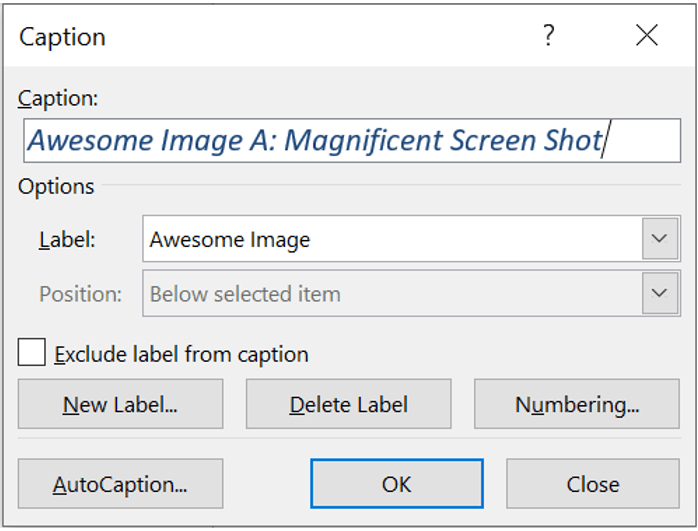
- The Caption dialog box will display. In the middle of the dialog box you’ll find the Label dropdown list, select the marker description that best describes the object, eg., a picture would be listed as a Figure, a table would be a Table, etc. The Label option defaults to Figure.

If you want to create a custom label, click the button for New Label, type the new name in the Label box, and click OK.
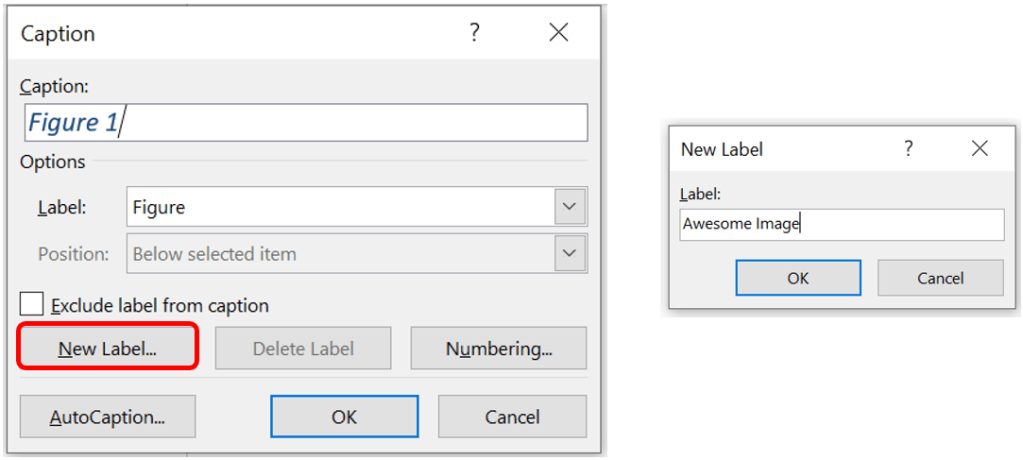
Word defaults to numbering all figures, but if you prefer letters or something other than Arabic numeral click on Numbering. (But also ask yourself why you’re attempting such uniqueness? Are you switching to Roman numerals? Will your new numbering system translate to other humans? Will it really? Oh and for that person reading who is thinking, “I don’t use Arabic numbers! I use American numbers.” Not cute. Google that.)

This will trigger the Caption Numbering pop-up. Under Format, select the ranking style from the presets in the drop-down.

In this pop-up, you may also state if you want your figure to list the chapter number by clicking the box then selecting the style. If you click the drop-down to indicate which style indicates the start of a chapter, you will note that only the pre-loaded heading styles are listed. You can also change the separator between the chapter number and figure number.
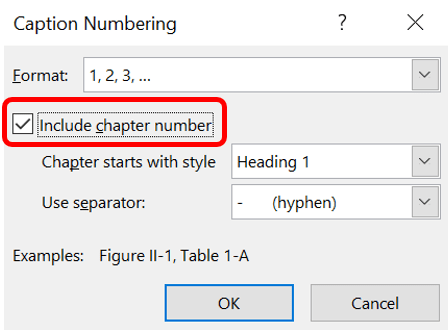
Click OK when done.
You may type your description in the Caption box, however, you can include this information later if you so please. If you type here, be sure to include any text including punctuation that you want to appear after the label. (The pop-up will not let you know about any spelling errors until you are back in your document.)
Word inserts captions as text, but it inserts the sequential caption number/letter as a field code. If your caption appears like this: {SEQ Table \* ARABIC} Word is displaying field codes instead of field results. To see the field results, press ALT+F9, or right-click the field code and click Toggle Field Codes on the shortcut menu.
Updating Caption Numbers
If you insert a new caption, Word automatically updates the caption numbers. However, if you delete or move a caption, you must force an update to the caption numbering. One quick way to do this is by selecting the entire document and pressing F9. You may also click anywhere in the document and press Ctrl+A to select the entire document. Then right-click and choose Update Field on the shortcut menu.

