

This week I’ve been talking about Styles. What it is and the various types. Today we’ll be discussing how to create, modify, and delete sytles.
Creating and Modifying Styles
If you want formatting choices that are not available from the built-in styles (like most of humanity) you can create custom styles to suit your requirements.
Creating a custom style is easy. Leave your cursor on the paragraph you want to modify or steal the formatting from. On the style task pane, select the New Style button which appears in the lower-left corner.

The Create New Style from Formatting dialog box will appear.
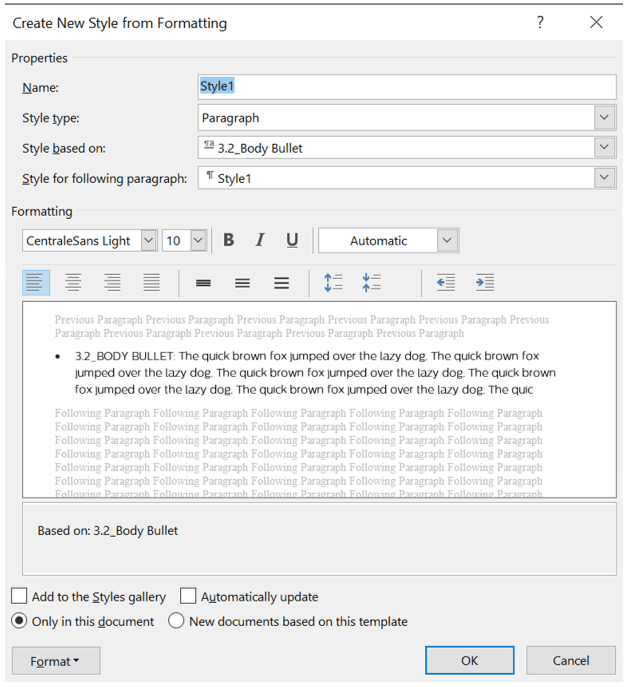
In the Name box, type a name for your new style. Select the style type from the drop-down list (e.g. paragraph, character, etc.). Paragraph is the default style option.
The Style based on option defaults to Normal or if the paragraph you are on is already styled it will provide that name. If you base a new style on any already existing style and update the base style in any way, that modification will be automatically applied to all other styles based on it. For example, if you create a new style based on the Normal style and change the new style to use Times New Roman font and later change the Normal style to use the Lucinda font, the new style will update to use Lucinda instead of the previously chosen Times New Roman. If you do not wish to have these sorts of auto-updates made, select (no style) from the Style based on drop-down menu.
NOTE: Style based on is especially important when working with lists, be they numbered or bulleted. If your base style is not a list, any time you edit the base your numbers or bullets could disappear which could lead to screaming at your computer.
When choosing Style for following paragraph think of how your document is logically formatted. If you type in a header and you enter a return, do you want the next paragraph to be the same header style? Do you want it to be a subheader style? Or do you want body text?
If you plan to use the style you are creating frequently it may be good to add it to the Style list. Check the Add to the Styles gallery box in the bottom left corner of the Create New Style from Formatting dialog box. If you want the style to automatically update with changes you make on the fly to any individual paragraph, check the Automatically update box. The radio buttons below this refer to templates. If you are creating a document template click the radio which states, New documents based on this template, otherwise leave it at Only in this document.
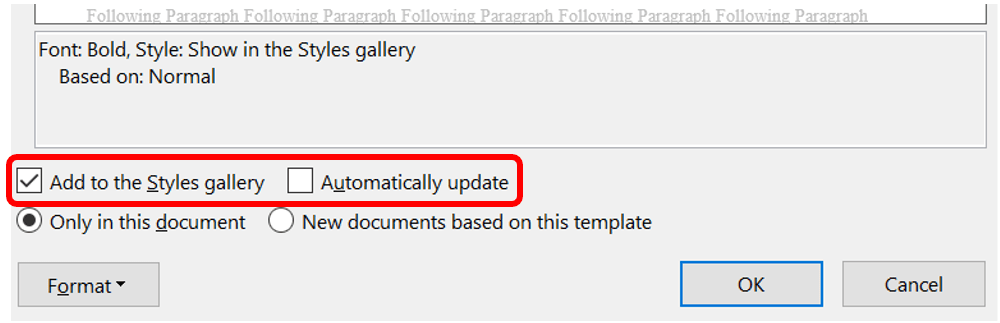
The Format drop-down menu allows you to make further modifications such as line spacing, font color, and numbering, to name a few.

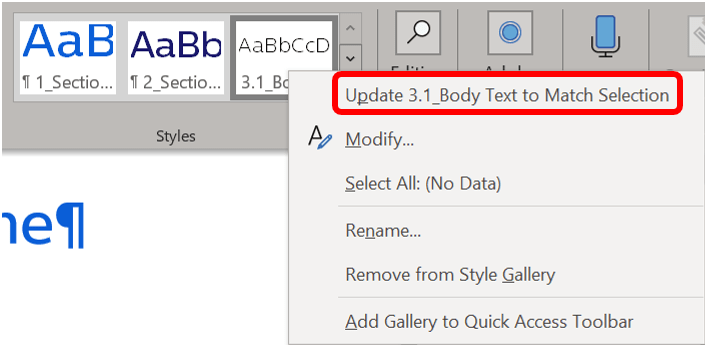
You can change a style’s settings to match the text in your document. Select the text or click anywhere within the paragraph which has the formatting you would like to use. Then right-click the style you want to modify in the Style Gallery. Select the first option from the drop-down menu (Update [style name] to Match Selection).
You can make further modifications by selecting the Modify option from the drop-down menu. The Modify Style dialog box will display. The Modify Style box is identical to the Create New Style from Formatting box detailed above. Edit the Modify Style options using the same guidelines used to edit the Create New Style from Formatting box.
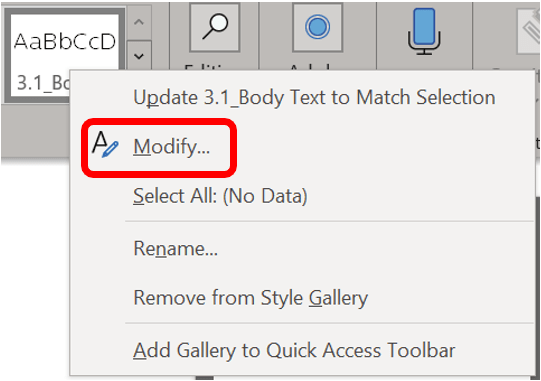
Removing Styles from the Style Gallery
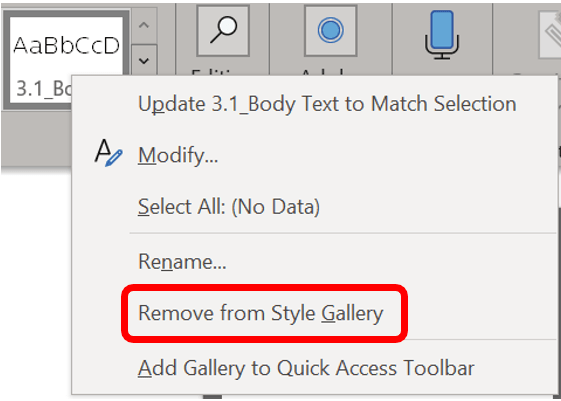
To remove a style from the Style Gallery, right-click on the style and click Remove from Style Gallery. Any style in the document’s repository can be removed from the gallery. This does not remove it from the document but merely hides it.
Deleting a Style
While styles can easily be removed from the Style Gallery, only “built styles,” those created by a user, can be deleted entirely from a document. Default styles, those auto-loaded by Word, on the other hand, cannot be removed. In the Styles task pane hover over the style and when a downward pointing triangle appears, click the drop-down option. You may also right-click if you prefer.

To permanently delete the style from the document repository chose Delete [style name] from the drop-down menu.

Now that you understand Style types and how to create your own, we’ll discuss Bulleted and Numbered Lists in more depth than you thought possible.
 Ryn Nicol