

Do you use your mouse for every action? Back in the bad old days, we didn’t have a mouse like these darn kids today, who, now that I think of it, use their phones for everything. Anyway you’re using a computer and all Microsoft products recall a time when using a mouse wasn’t an option. Yes there really was a time before the mouse. We used keyboard shortcuts to maneuver the screen and menu options. Those shortcuts, or hotkeys, are still there like a lingering artifact that’s still useful. Don’t believe me? If you’re not already in a Microsoft program, open a new document, presentation, spreadsheet, whatever. Or use the one you have open (don’t worry, all can be undone) and press Alt once on your keyboard.
Did a bunch of random letters and numbers appear in little yellow boxes? That’s a guide telling you if you press alt again, keep pressing it down and then tap any one of the letters or numbers that appear (then release the Alt key), the system will perform that action. For instance, if we were in Word and pressed Alt and the letter W on the keyboard (listed as Alt+W – don’t press the + on your keyboard) you would switch to the View ribbon.
The yellow indicators stay up until you press Alt again. Those yellow indicators only highlight how to open the various ribbons (also called tabs) in any Microsoft product, but keyboard shortcuts can do so much more.
Why talk at length about keyboard? If you increase your use of the keyboard and move away from using your mouse for everything, you’ll speed up your time to edit and save your shoulder from exercise that isn’t building muscle, burning calories, or lying to your Fitbit about how many steps you took today.
Below is a brief listing of common keyboard shortcuts that may help speed up or ease your editing of documents. The list below is mostly geared to Word. Other listings to follow.
| Alt + Enter | Adds a line break within a cell in Excel |
| Alt + F4 | Closes all open applications |
| Alt + F7 | Opens Spell Check from the mouse menu |
| Alt + Tab | Scrolls through open program tabs |
| Ctrl + A | Selects all contents of the document |
| Ctrl + B | Bold |
| Ctrl + C | Copy selected text |
| Ctrl + E | Center text justification |
| Ctrl + F | Opens Find |
| Ctrl + G | Opens Go To |
| Ctrl + I | Italicize |
| Ctrl + L | Left text justification |
| Ctrl + K | Create a hyperlink |
| Ctrl + P | Open the print window |
| Ctrl + R | Right text justification |
| Ctrl + S | Saves open document |
| Ctrl + U | Underline |
| Ctrl + V | Paste |
| Ctrl + W | Closes the current document |
| Ctrl + X | Cut selected text |
| Ctrl + Y | Redo the last action performed. |
| Ctrl + Z | Undo last action. |
| Ctrl + Enter | Adds a Page Break |
| Ctrl + F2 | Opens Print Preview |
| Ctrl + Shift + Enter | Column Break |
| Ctrl + Shift + Spacebar | Locked space |
| Ctrl + Space | Changes the language in Word |
| Ctrl + Space | Selects an entire column in Excel |
| Ctrl + Tab | Switches between browser tabs |
| F2 | Edit active cell at the end of text in Excel |
| F5 | Refreshes page in a web browser |
| F5 | Starts slideshow in PowerPoint |
| F5 | Opens Go To menu in Office applications |
| F7 | Open Spell Check |
| F9 | Sends and receives an email in Outlook |
| F12 | Save As |
| Shift + Enter | Soft return |
| Shift + F3 | Cycles through capitalization options in Word |
| Shift + F11 | Adds a sheet in Excel |
| Shift + Space | Selects an entire row in Excel |
| Windows + D | Minimizes all screens |
| Windows + E | Opens Windows Explorer |
| Windows + L | Locks computer |
| Windows + left arrow | Snaps window to the left |
| Windows + right arrow | Snaps window to the right |
The listed shortcuts work in most Windows apps not just Microsoft-based programs. Adobe products have their own set of shortcuts, which can be wildly different from those listed. I’ll post those in another blog. However, many shortcuts in Adobe are editable. Practice using the ones you think would be useful to train yourself and remember there are a ton of these for different programs and for different uses, such as inserting symbols or even emojis. This is not a complete list. If you wish there was a shortcut, perform an internet search for “keyboard shortcuts” plus the program or action you want to perform. If you’re unsure if there’s a shortcut for that in the program you’re using, hover your mouse over the option. For instance, say you want to bold text. Hover (no clicking, just hovering) your mouse over the B on the home tab.
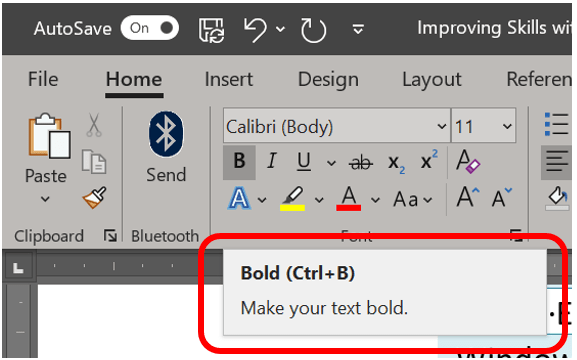
An explanation of the button you’re hovering over will appear. Test it. It works for all the menu options.


One response to “Keyboard shortcuts for Word”
[…] get enough of the hotkeys listed for Word? Craving more? Simply annoyed because so many don’t work in PowerPoint? Welp, here you go. […]
LikeLike