
Tag: track changes
-
Commenting in Comments – the Badness
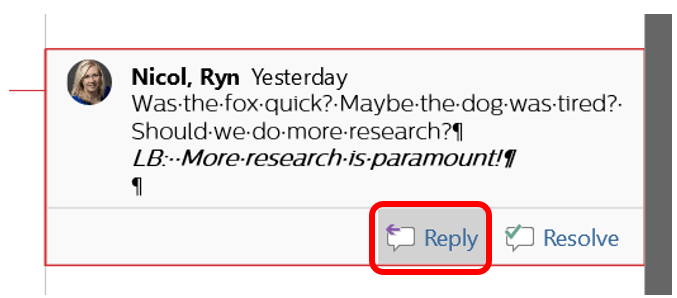
Now that you’ve learned how to isolate reviewers so that you can skip through a specified user’s changes and comments, it may seem obvious why it’s bad to leave notes in someone else’s comments. In the example below, you’ll notice Laura (LB) has responded to my comment within the same bubble. If we were to…
-
Changing View Options

As people make changes, such as deleting content, Word automatically strikes through the text and changes the color of the text. When a user changes the font options such as making something bold or italic, a balloon will appear at the right margin of the window. If markups such as these get to be too…
-
Track Changes Options

Like so many things in Word, how you view track changes is highly customizable. Today’s post will be long due to detail. Does the color red upset you? Are you colorblind and having trouble telling reviewers apart based on color? Do you not care about formatting changes and are sick of seeing them notated? If…
-
Isolating Specific Reviewers

From the Review ribbon in the Tracking group, expand the Show Markup dropdown menu, where you may enable or disable specific options if you only need to review certain types of changes or changes from specific reviewers. For example, if you want to observe any changes regarding insertion or deletion of content, then disable (uncheck)…
-
Lock Tracking On

If you’ve ever dealt with multiple editors in a document, you’re likely already familiar with the Tracking group on the Review ribbon. The Comments, Tracking, and Changes groups are used to track any and all changes or comments made to a document. For the Tracking and Changes groups to be effective, the Track Changes toggle…
 Ryn Nicol