
Tag: tab marks
-
Setting Tab Stops Using the Tabs Dialog Box
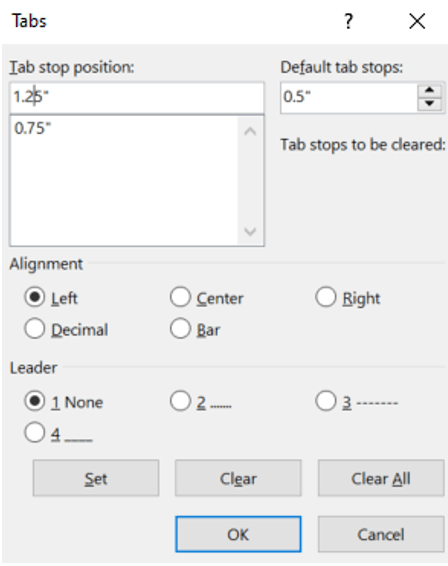
If you want your tab stops at precise positions or if you want to insert a specific character (leader) before the tab, use the Tabs dialog box. On the Home ribbon, open the Paragraph dialog box, then at the bottom of the window, click Tabs. The Tabs window will open. Under Tab stop position, type…
-
Setting Tab Stops Using the Ruler

First, ensure the ruler is visible. If you don’t see the ruler along the top and left sides of the document, go to the View ribbon, and in the Show group, click the Ruler checkbox. Now, you can click and then drag on the ruler where you want to set your tab stop. This method…
-
Indents and Tab Stops

What’s the difference between tabs and indents? Tabs impact only one line of text. Indentation influences the entire paragraph. You can click the indent marks and then click the ruler to position the indents, rather than sliding the indent markers along the ruler. Indents On the ruler, you’ll find markers for sliding indents into position.…
 Ryn Nicol