
Tag: quick tips
-
Formula Basics, Sums

For the next week, I’ll be discussing common formulas and when to apply them focusing on the Sum feature. I chose this simple formula because the basics apply to most of the other common functions. If you simply want to see the end results of the formulas and learn how they work later, skip to…
-
Remove a Placeholder

Today is a quick post. If there’s a Placeholder on a source slide you no longer want, click the placeholder and press Delete on your keyboard. Yep, it’s that simple. You can do this on a regular slide or in the Slide Master. If you delete while under the Slide Master you’ll change the layout.
-
Table Header Row Not Repeating
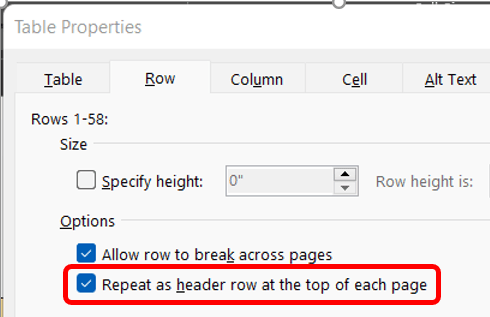
This week’s reader request for help involved a multi-page tale where the builder wanted the header row to repeat on each page. Easy enough. Click into the table then on the (table) Layout tab in the Table group click the Properties button. This prompts the Table Properties dialog box which opens on the Table tab.…
-
Commenting in Comments – the Badness
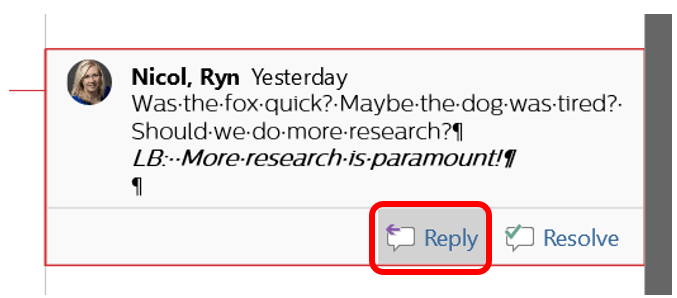
Now that you’ve learned how to isolate reviewers so that you can skip through a specified user’s changes and comments, it may seem obvious why it’s bad to leave notes in someone else’s comments. In the example below, you’ll notice Laura (LB) has responded to my comment within the same bubble. If we were to…
-
Changing View Options

As people make changes, such as deleting content, Word automatically strikes through the text and changes the color of the text. When a user changes the font options such as making something bold or italic, a balloon will appear at the right margin of the window. If markups such as these get to be too…
-
Lines vs. Borders
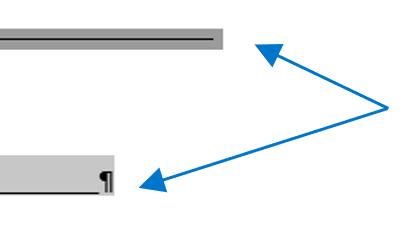
I received the following form a friend the other day. A simple enough form. The lines aren’t even vertically nor horizontally but all we need to do is add our information. The lines are fixable. Until you type in the form that is. Yes, looks… terrible. Awful. I’m sure it’s acceptable but… it could look…
-
Dude, Where’s My Document?

If you closed your document by accident without saving, or maybe you lost power, or the computer unexpectedly turned off because you spilled your margarita on it while “working” from the beach, you can recover unsaved documents. Go to the File tab and choose Info from the left side bar. You may need to scroll,…
-
AutoSave is Killing Me
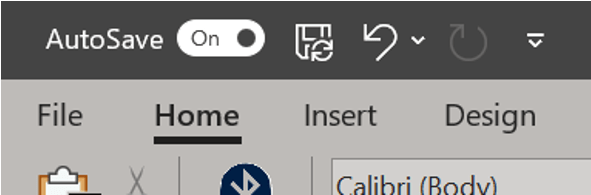
Sometimes our file is big and saving often means waiting a lot and often. Sometimes, we forget about saving and think we’ve lost all our work but AutoSave rescued us. By default, Word automatically saves your document at set intervals as part of the AutoSave feature. Not sure if you have AutoSave on? Look to…
-
Replace All Fonts at Once

Are you in a personal hellscape working on a collaborative presentation where everyone has sent you slides and all of them used different fonts? Sure, you sent them a template, but people decided to be creative and now this thing looks like an ugly patchwork. Or maybe life is less dramatic and you decided you…
-
Quick case change

Ever have a sentence or phrase that you need in all caps? Or maybe it’s a title and you need each word capitalized? Rather than retype, select the section you want to change. On the Home ribbon in the Font group, click the drop-down menu for the Change Case menu. Depending on the option, this…
 Ryn Nicol