
Tag: formatting
-
Setting Tab Stops Using the Ruler

First, ensure the ruler is visible. If you don’t see the ruler along the top and left sides of the document, go to the View ribbon, and in the Show group, click the Ruler checkbox. Now, you can click and then drag on the ruler where you want to set your tab stop. This method…
-
Indents and Tab Stops

What’s the difference between tabs and indents? Tabs impact only one line of text. Indentation influences the entire paragraph. You can click the indent marks and then click the ruler to position the indents, rather than sliding the indent markers along the ruler. Indents On the ruler, you’ll find markers for sliding indents into position.…
-
Hiding/Unhiding/Showing Headers or Footers

If for some reason you don’t want to see your headers and footers, or if you open a document and you can’t see them, first confirm that you are in the Print Layout by going to the View ribbon. Then, in the Views group, confirm that Print Layout is darkened. Now, hover your mouse pointer…
-
Different Headers and Footers for Sections or Linking
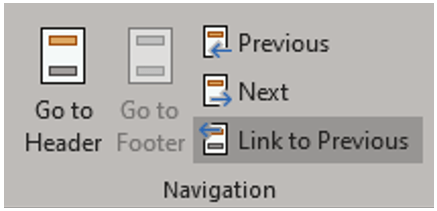
When you divide a document into sections, Word uses the headers and footers in the first section as the default for every subsequent section. All headers in the document and all footers in the document are initially connected so that their contents are identical. If you change the header in any section of the document,…
-
Header & Footer Options
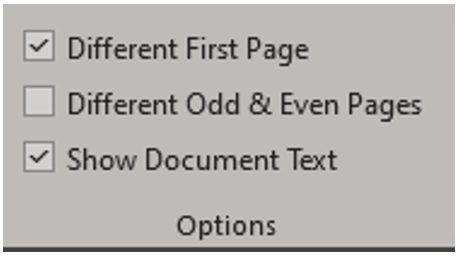
First Page Headers and Footers To create a different header or footer for the first page of a document or section, on the Header & Footer toolbar in the Option group check the Different First Page checkbox. If necessary, click the Next or Previous buttons to move to the first page header or footer in the…
-
Aligning Headers and Footers
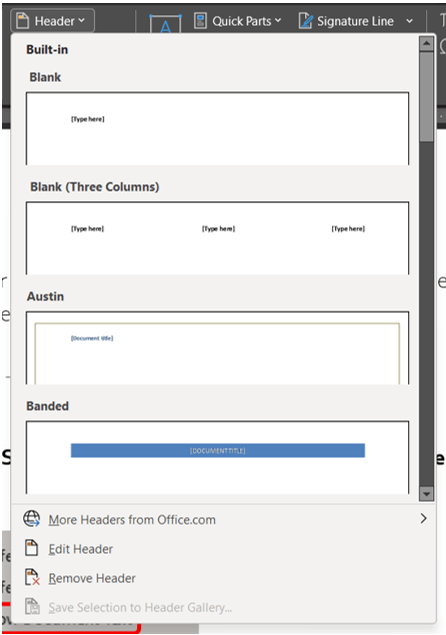
Adjust Horizontal Alignment of Headers and Footers You may want to change the horizontal position of headers and footers, which can be done by: Centering the header or footer between the left and right margins Aligning it with the left or right margin Running the header or footer text into the left or right margin The…
-
How Headers and Footers Affect Margin Settings (a lesson in printing)

First, let’s understand what full-bleed, zero-margin, edge-to-edge printing means. If you’re unfamiliar with these terms, that’s ok. It means you’ve never worked in graphics or with professional printers. It also means that it is highly likely that despite setting your margins to zero, the printer you are working with will still give you a white…
-
Formatting Headers and Footers
Headers and footers can be as simple as the inclusion of the document title and a page number, but you can also create headers and footers that contain graphics, multiple paragraphs, and fields. You can specify a different header or footer for odd and even pages or use a different header or footer for the…
-
Page Breaks as Formatting Options
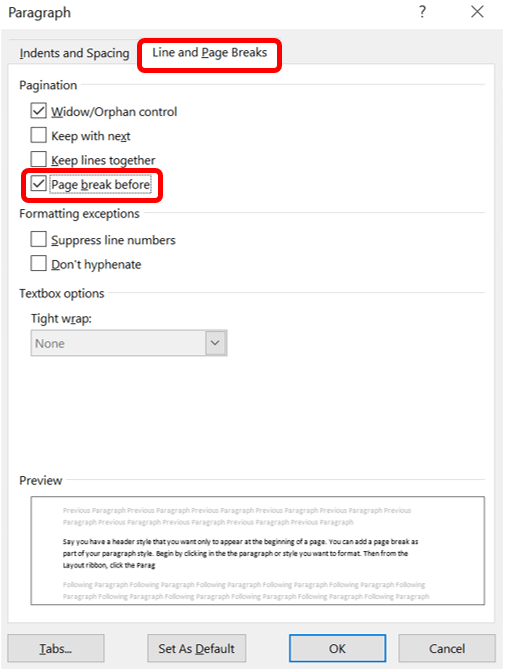
Say you have a header style that you want only to appear at the beginning of a page. You can add a page break as part of your paragraph style. Begin by clicking in the paragraph or style you want to format. Then, from the Layout ribbon, click the Paragraph dialog box launcher. Then, choose…
-
Using Section Breaks with Headers and Footers

By default, your document footers will have the same content including pages with section breaks. This works for most people, but one reason to have section breaks is to change the look of the footer for say different chapters or document parts (e.g., a letter has one footer different from attachments, but they’re all in…
 Ryn Nicol