
Tag: formatting
-
Image Anchors
The boat anchor attached to objects (eg., shapes, pictures, etc.) appears sometimes on floating objects, such as images when you click the object. Anchors indicate the specific paragraph to which an object is associated. This is important for object positioning especially when the paragraph the object is anchored to is spread over a page break.…
-
Text Wrapping
To control how an image and text interact, in the Picture Format tab in the Arrange group, click the Wrap Text. You may also right-click an image for these options. Let’s define each of the displayed options. In Line with Text: The image is treated as text — specifically, like a large, single character. The…
-
Remove a Placeholder

Today is a quick post. If there’s a Placeholder on a source slide you no longer want, click the placeholder and press Delete on your keyboard. Yep, it’s that simple. You can do this on a regular slide or in the Slide Master. If you delete while under the Slide Master you’ll change the layout.
-
A Place for Your Stuff

If you don’t know about Layouts please go back and read the last post. As discussed, those little boxes with dashed outlines on each layout are called Placeholders. They can contain text, one picture per box, a chart, a video, a sound clip, and other objects. They are boxes designated for content and used on…
-
Creating Alternate Layouts in PowerPoint

PowerPoint contains nine basic layouts although depending on the current theme you have open, more or less may appear. To view your current layout options, which again my look different than below, go to Home ribbon and in the Slides group find the dropdown for layout which may say Layout or look like this little…
-
Table Header Row Not Repeating
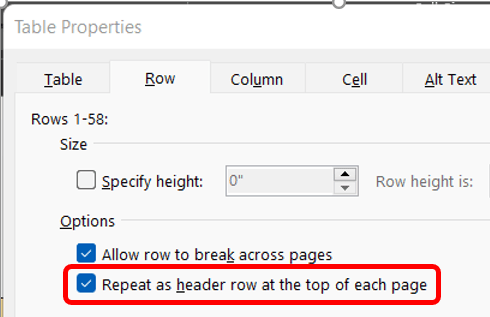
This week’s reader request for help involved a multi-page tale where the builder wanted the header row to repeat on each page. Easy enough. Click into the table then on the (table) Layout tab in the Table group click the Properties button. This prompts the Table Properties dialog box which opens on the Table tab.…
-
Secrets of the Review Ribbon – When It All Goes Wrong

You performed a Compare or Combine and you’re not seeing the changes you think should be there or there are so many differences that you can’t find the changes you’re looking for in the docs. First go back and restart the process but swap the documents. Whatever was your original make your revised and vice…
-
Secrets of the Review Ribbon – Combining Documents

Have you ever received a document where you know editors/writers worked on different sections, and you don’t need to review for approval their changes? Maybe you have more than one editor in your documents. You could compare documents, or you could combine. Before starting the two files will need to have different names for this…
-
Secrets of the Review Ribbon – Compare Documents from Different Editors

Have you ever received a document from two reviewers and both of them didn’t track changes? Or maybe you’ve spent all day updating a document only to receive an older version from someone who didn’t track their changes. After you quietly (or not so quietly – I don’t know your life) curse them, you could…
-
Setting Tab Stops Using the Tabs Dialog Box
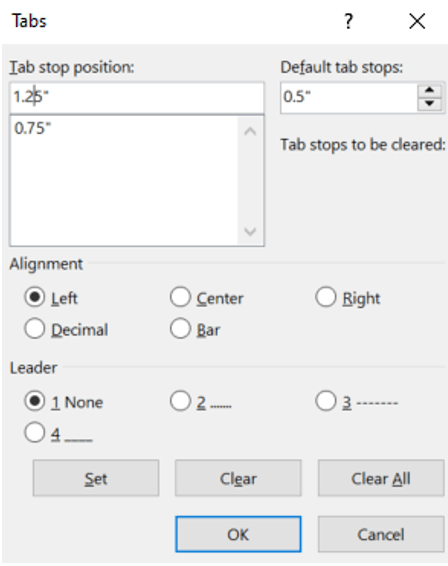
If you want your tab stops at precise positions or if you want to insert a specific character (leader) before the tab, use the Tabs dialog box. On the Home ribbon, open the Paragraph dialog box, then at the bottom of the window, click Tabs. The Tabs window will open. Under Tab stop position, type…
 Ryn Nicol