
Category: Word
-
Secrets of the Review Ribbon – Compare Documents from Different Editors

Have you ever received a document from two reviewers and both of them didn’t track changes? Or maybe you’ve spent all day updating a document only to receive an older version from someone who didn’t track their changes. After you quietly (or not so quietly – I don’t know your life) curse them, you could…
-
Secrets of the Review Ribbon – Compare Versions of a Document

Today using what we understand about version history we’ll compare documents. Say you’re working on a shared drive and multiple are working in a document, but you want to see what changed from a prior iteration of the document. To compare changes from a prior version head to the Review ribbon then to the Compare…
-
Secrets of the Review Ribbon – Version History
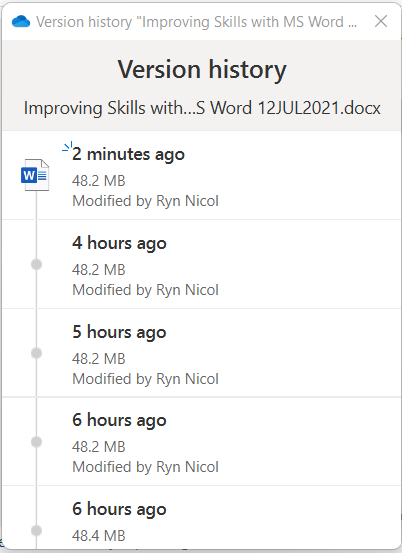
The Review ribbon is an ever-useful toolbar for tracking changes to the document when you have multiple writers/editors/reviewers and includes my much-beloved spell check. This month, we’ll deep dive into the underutilized tools this ribbon provides. Versioning in Word Before we get into things like Compare or Combine it’s good to know about versioning control. Did…
-
Setting Tab Stops Using the Tabs Dialog Box
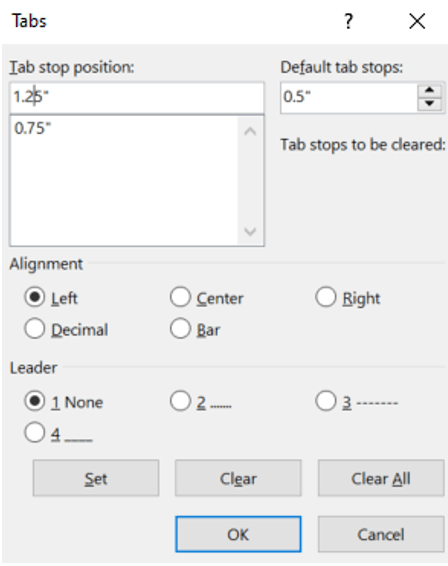
If you want your tab stops at precise positions or if you want to insert a specific character (leader) before the tab, use the Tabs dialog box. On the Home ribbon, open the Paragraph dialog box, then at the bottom of the window, click Tabs. The Tabs window will open. Under Tab stop position, type…
-
Setting Tab Stops Using the Ruler

First, ensure the ruler is visible. If you don’t see the ruler along the top and left sides of the document, go to the View ribbon, and in the Show group, click the Ruler checkbox. Now, you can click and then drag on the ruler where you want to set your tab stop. This method…
-
Indents and Tab Stops

What’s the difference between tabs and indents? Tabs impact only one line of text. Indentation influences the entire paragraph. You can click the indent marks and then click the ruler to position the indents, rather than sliding the indent markers along the ruler. Indents On the ruler, you’ll find markers for sliding indents into position.…
-
Hiding/Unhiding/Showing Headers or Footers

If for some reason you don’t want to see your headers and footers, or if you open a document and you can’t see them, first confirm that you are in the Print Layout by going to the View ribbon. Then, in the Views group, confirm that Print Layout is darkened. Now, hover your mouse pointer…
-
Different Headers and Footers for Sections or Linking
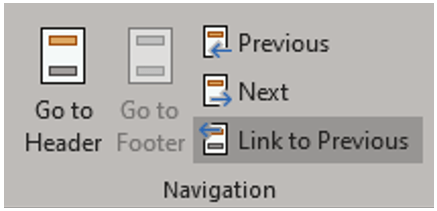
When you divide a document into sections, Word uses the headers and footers in the first section as the default for every subsequent section. All headers in the document and all footers in the document are initially connected so that their contents are identical. If you change the header in any section of the document,…
-
Header & Footer Options
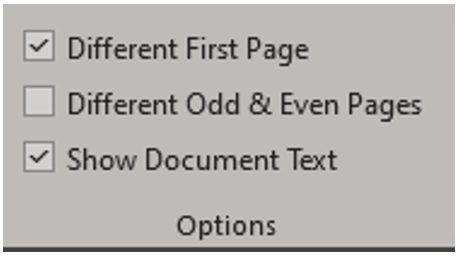
First Page Headers and Footers To create a different header or footer for the first page of a document or section, on the Header & Footer toolbar in the Option group check the Different First Page checkbox. If necessary, click the Next or Previous buttons to move to the first page header or footer in the…
-
Aligning Headers and Footers
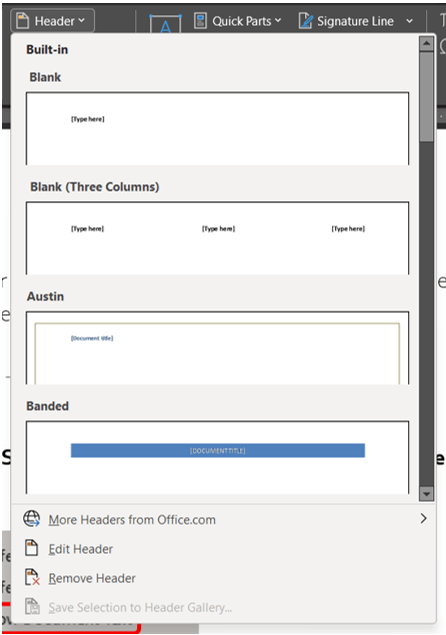
Adjust Horizontal Alignment of Headers and Footers You may want to change the horizontal position of headers and footers, which can be done by: Centering the header or footer between the left and right margins Aligning it with the left or right margin Running the header or footer text into the left or right margin The…
 Ryn Nicol