
I received the following form a friend the other day.
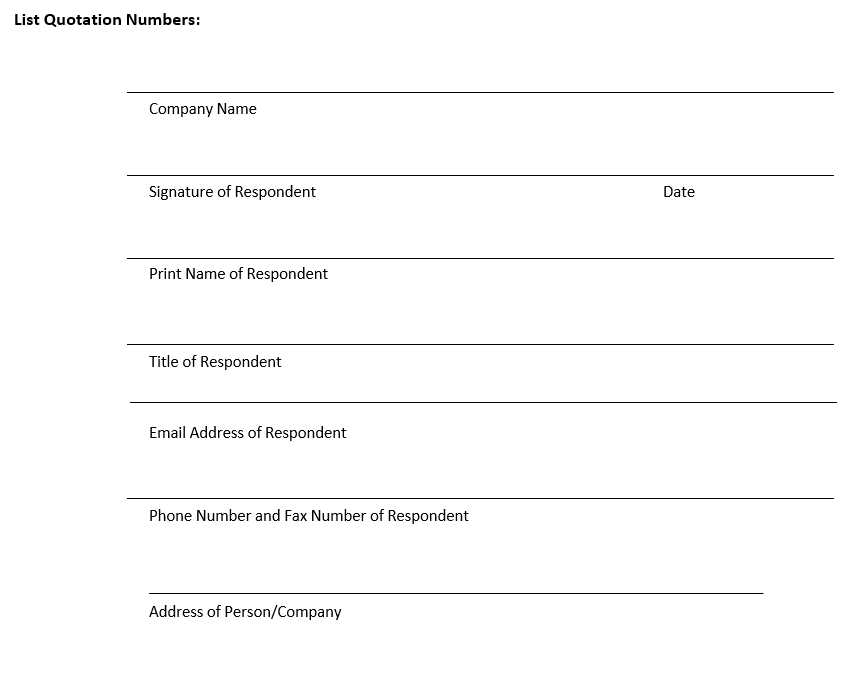
A simple enough form. The lines aren’t even vertically nor horizontally but all we need to do is add our information. The lines are fixable. Until you type in the form that is.
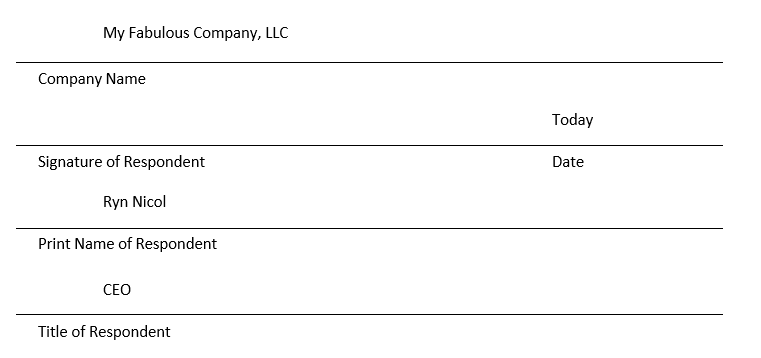
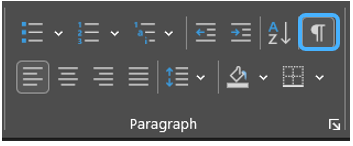
Yes, looks… terrible. Awful. I’m sure it’s acceptable but… it could look better. Turn on Show/Hide from the Home ribbon in the Paragraph group.
Oh wow. It’s worse than I thought.
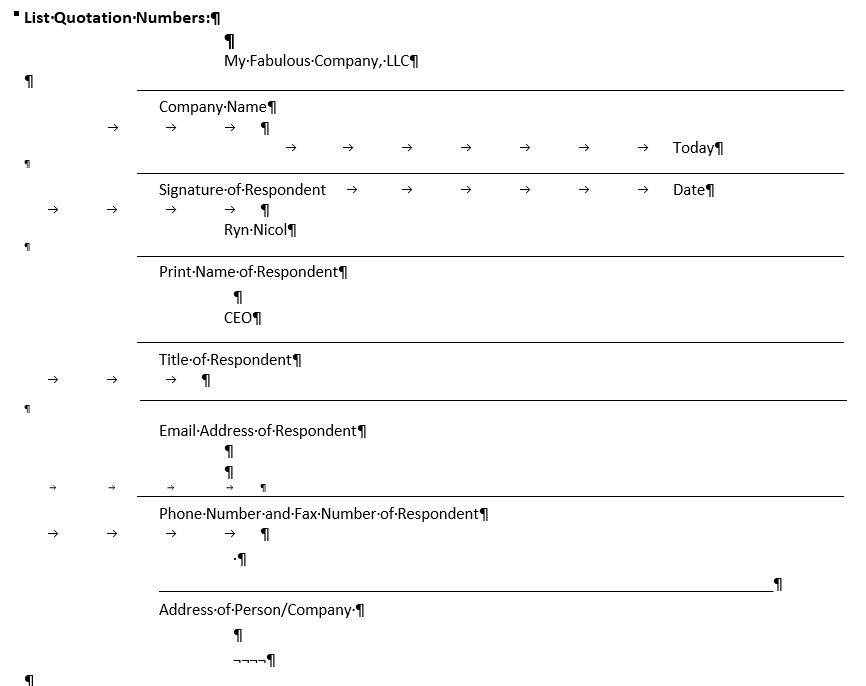
Whoever built this form did not know what they were doing. They used multiple tabs rather than controlling the tab stops, multiple lines with different font sizes, and differing indents. It’s a mess. If we select all by pressing Ctrl + A we see the following.
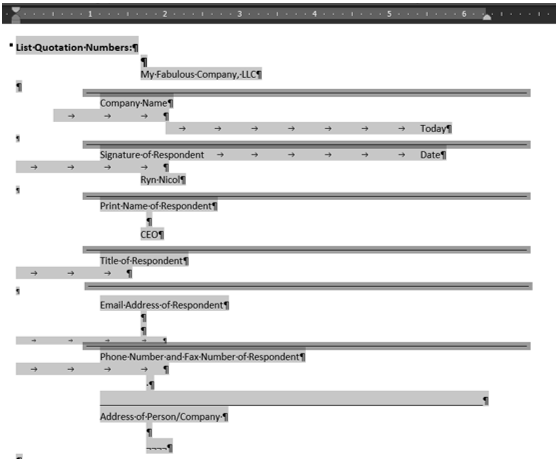
As I feared things are worse when highlighted. Look at the last two lines.
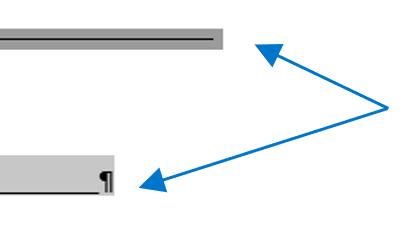
See how they are selected differently. The top one sits in the middle of the highlight while the other at the bottom. There is also a hard return at the end of the second line but none appears at the end of any of the other lines. That is because all but the last line are shapes. Someone inserted line shapes which means every time the end user types in the form and presses Enter/Return the shape will stay in the same place. The line could up through your text or very far away. As you can image that will be infuriating to the end user.
The last line is a bit more common though still annoying. The person used a series of underscores to create the line. The problem with that solution is when someone types the text will not be underlined and any text will push the underscores out to create a second line. The end user will need to delete the extra underscores. Reasonable enough to work with, far better than line shapes, but there’s a smarter way to make this form. In fact there’s two.
First remove all of the lines shapes and good luck to you they are hard to grab. Remove all the underscores. Unify the font size by selecting all (Ctrl + A) and making it one size. Select all but the header line and move the indent either using the Paragraph launcher or the Ruler. While on the Ruler insert tab stops which means you’ll need to remove excess tabs. Remove the extra returns while you’re at it. The form will now look as such.
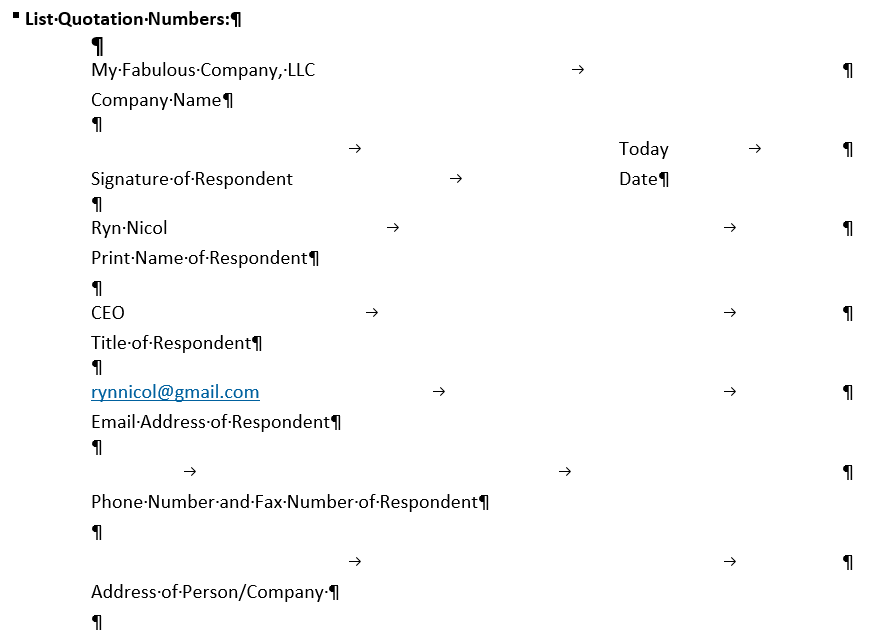
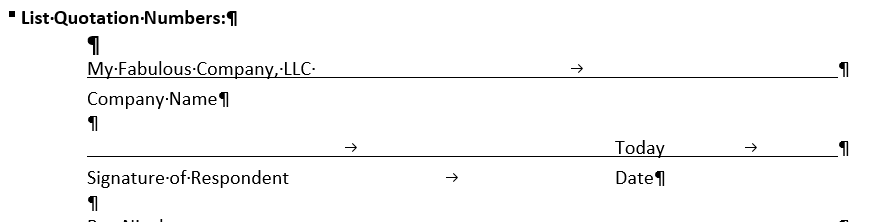
There are two ways to enter lines at this at this point. Either select the entry text including the tab and format Underline using Ctrl + U or on the Home ribbon in the Font group pressing the U.

These lines will allow the end user to type so long as they do not type more than where the tab stops land. That could cause spill over to the next line. Much easier to fix than the prior version. Also the best formatting option if the entry text will be more than one line. It will look like this.
Well enough though as mentioned there is a second way to format this document. Insert the cursor on the line under where entry text would go, and add a Top Border as found on the Home ribbon in the Paragraph group and using the dropdown.
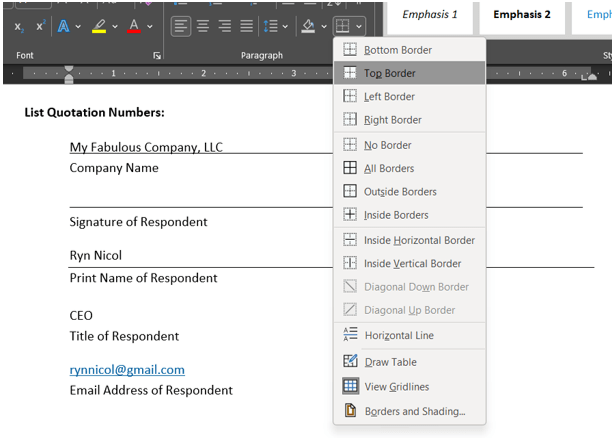
This line is a bit longer than where our tab stops were placed on the first two lines but it is stable in that it will always stay above the instruction text. In this instance, it will stay above the instruction, “Print Name of Respondent.” Tapping Enter/Return will only move the line down not add more underlining which the first option did.
Now you have two solutions to fix or build such a form.

