

You have a beautiful document filled with styles and formatted perfectly. We’ll call that doc Guinevere. Now suddenly you have to add content from another document because the customer/your boss/some random dude wants to keep the formatting from the second document, we’ll call that doc Vlad, when it’s inside the first document (the naming convention just went wrong on me). Your beautiful, perfect Guinevere is about to be infected. But when you paste the new content from Vlad to Guinevere the formatting from Guinevere takes over. Why?! Why God is this happening to us? No answer? Typical.
You go back and strip Vlad — I should not have given them human names — of headers and footers. That will fix everything, right? Right? RIGHT?!
No.
Why is everything going wrong? Ooo, let’s try the various paste options. No, no. Nightmare baby happening. Just give us the answer Ryn!
You were on the right track. You were so close.
Stripping Vlad of headers and footers was a good idea but stay in those headers by double clicking into the space where they should be.
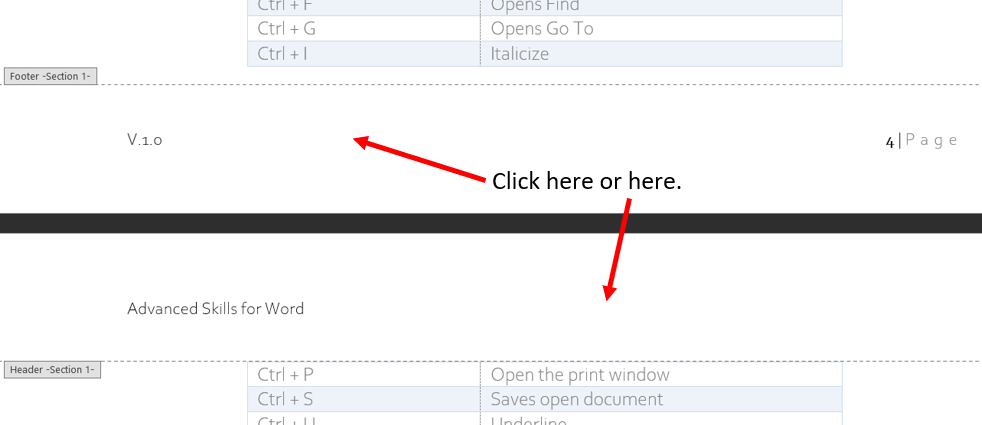
Now in the Header & Footer tab, under the Navigation group use the you’ll options that read Previous and Next. Click each of them. If the page preview changes it means Vlad–ehm your document has sections.
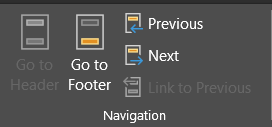
Page breaks won’t effect your formatting but Column and Section Breaks will. When you cheat and use the header and footer navigation you’re looking for hidden section breaks. Ideally all your breaks would like this.

However these breaks can hide at the end of a paragraph, and they end up looking more like this.
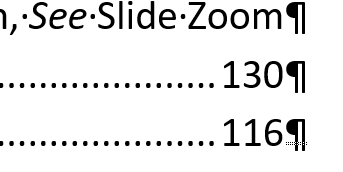
You have to know what you’re looking for to find it. Can you even see it? If not here it is again.

Again, using the navigation in Headers & Footers helps with this hunt. You can also look for large blank spaces. It may be due to a hidden break. Tap Enter at the end of a suspected line, hiding the break to reveal or Delete to remove.
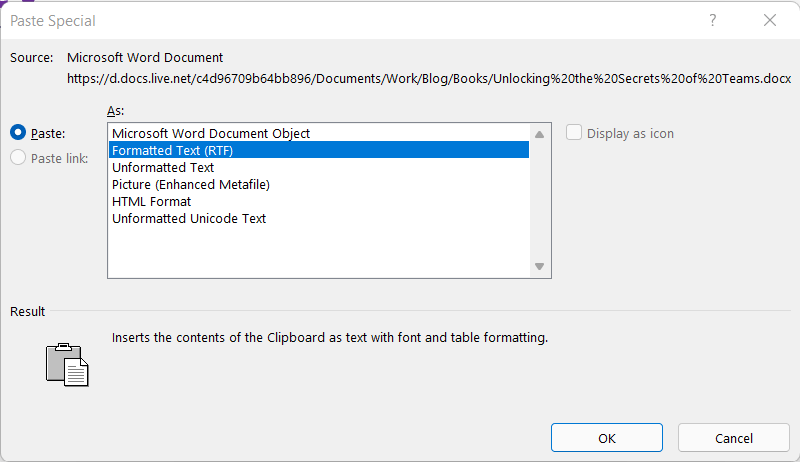
After you remove the section breaks copy Vlad, and place your cursor in Guinevere where you want Vlad to be. Then on the Home ribbon in the Clipboard group open the drop down under Paste. Be sure to click the carrot or down triangle rather than the top portion above the word Paste. Then choose Paste Special.
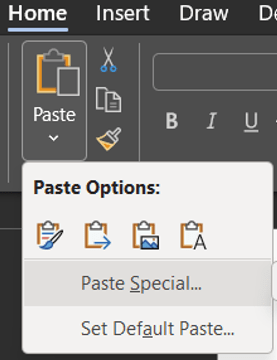
This will open the Paste Special pop-up menu. Select Formatted Text (RTF). RTF stands for rich text format which is a type of computer code that stores formatting information. Click Ok.
And now Vlad has been Frankensteined to Guinevere with each maintaining their pretty, pretty features as one document. You made a conjoined twin, a human centipede, a documentation and metaphorical regret. Yays you.

