

As graphics programs go, Word is not among them. However, there are some basic adjustments you can perform within the program. For any major editing Illustrator, Photoshop, PowerPoint, or even MS Paint are better performers. Yeah, I said it, Paint.
For this section, you will frequently use the Picture Format tab, which only appears when you click on an image. If you do not see the Picture Format tab, you have not selected an image.

To change the size of an image, start by selecting the image. In the ribbon, you’ll notice many of the same graphic features you find in other programs.
Use your mouse to drag one of the image’s four corner handles inward or outward to make the image proportionally smaller or larger.
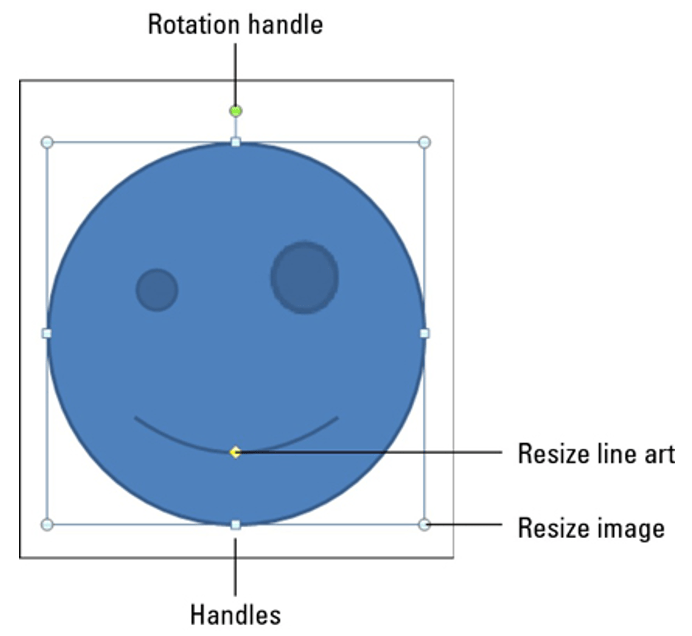
If you drag the lower right resize handle past the left side border, you will flip the image.

Within the Picture Format tab in the Size group, you may use the Shape Height and Width buttons to nudge the image size vertically or horizontally. Otherwise, type in specific values for the image’s size.
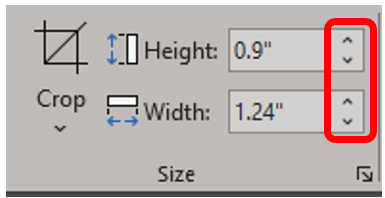
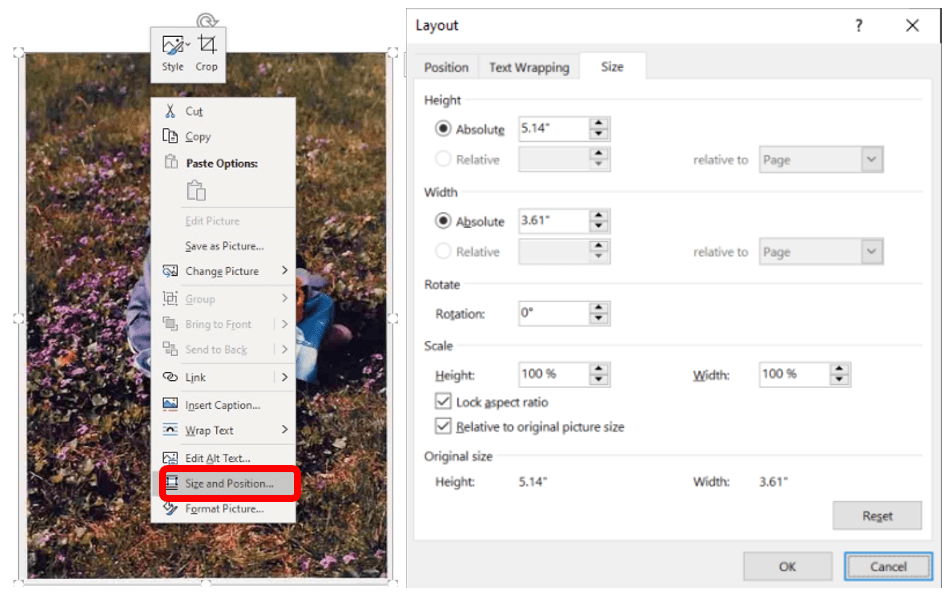
If you need to lock or unlock the aspect ratio, click the launcher in the Size group.
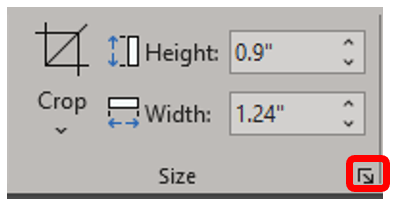
The Layout popup menu will appear and open on the Size tab.
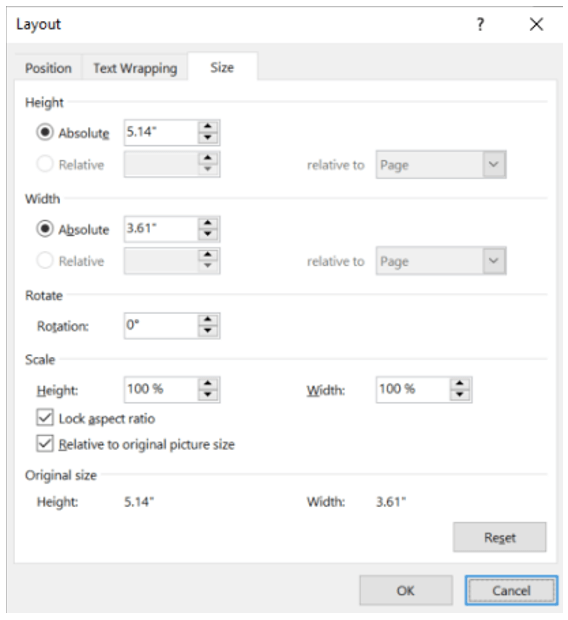
Here, you can check or uncheck the box for lock aspect ratio, change the size of the image, or change the rotation of the image. You also have the option to right-click any image and click Size and Position to alter the image, which will open the Layout popup.
 Ryn Nicol