

If you don’t know about Layouts please go back and read the last post. As discussed, those little boxes with dashed outlines on each layout are called Placeholders. They can contain text, one picture per box, a chart, a video, a sound clip, and other objects. They are boxes designated for content and used on source slides. You don’t need them to insert any of the items below but if you’re going to use a layout over and over again it’s good to set up your layouts with placeholders for visual consistency.
We created a new layout in the previous post, now let’s edit it. Since this is going to have three items, first reduce the size of the two current placeholders by selecting and reducing the size as you would with a shape, image, or text box.
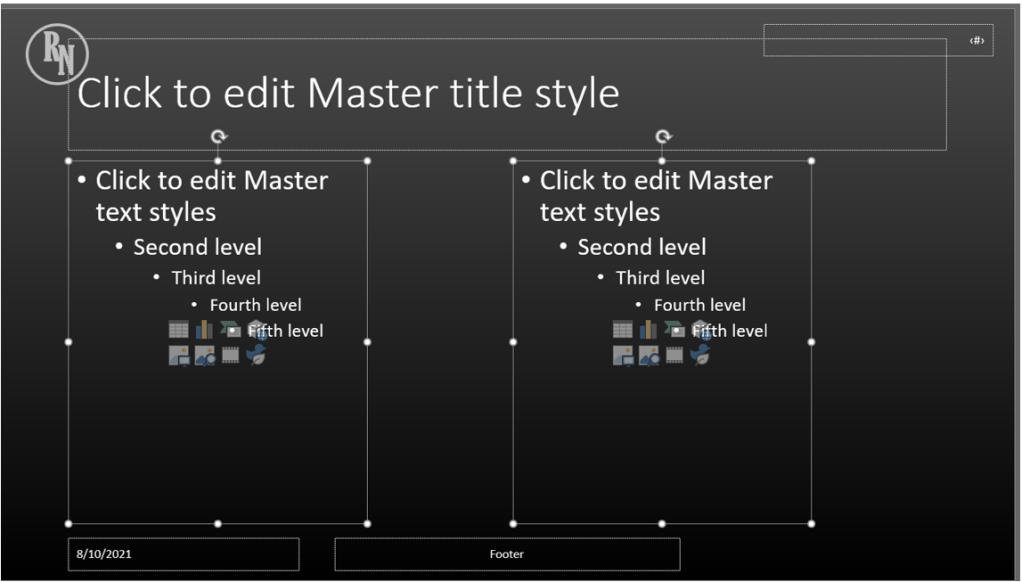
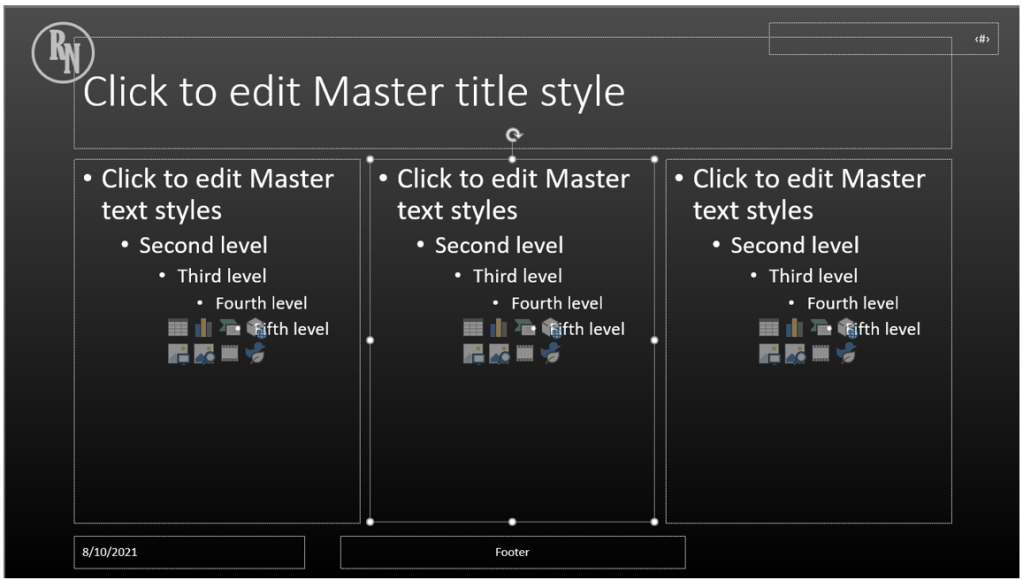
From here you have a few options, you can do a simple copy/paste of one of the current content boxes, and then evenly space them out.
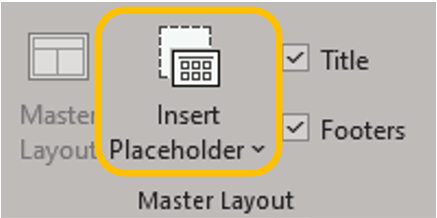
But if you want to be specific about the type of content, on the Slide Master tab in the Master Layout group click the dropdown for Insert Placeholder.
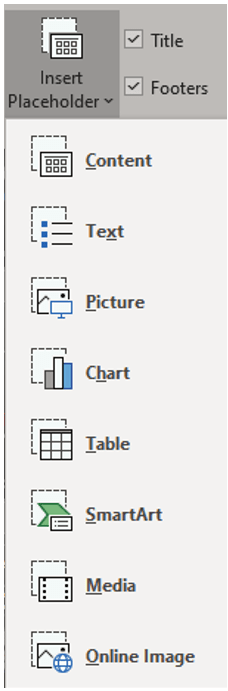
Here you can insert the type of Placeholder you want to add. For this example, click an option other than Content. Notice that even if you had a Placeholder selected, the system does not replace the box. You will need to click and drag the mouse to size the Placeholder which you can edit again later.
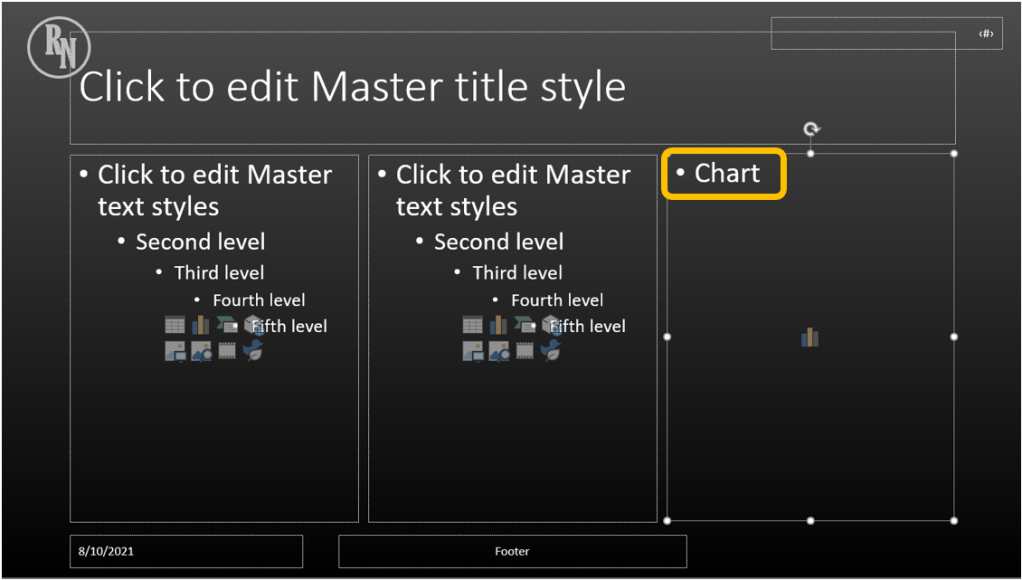
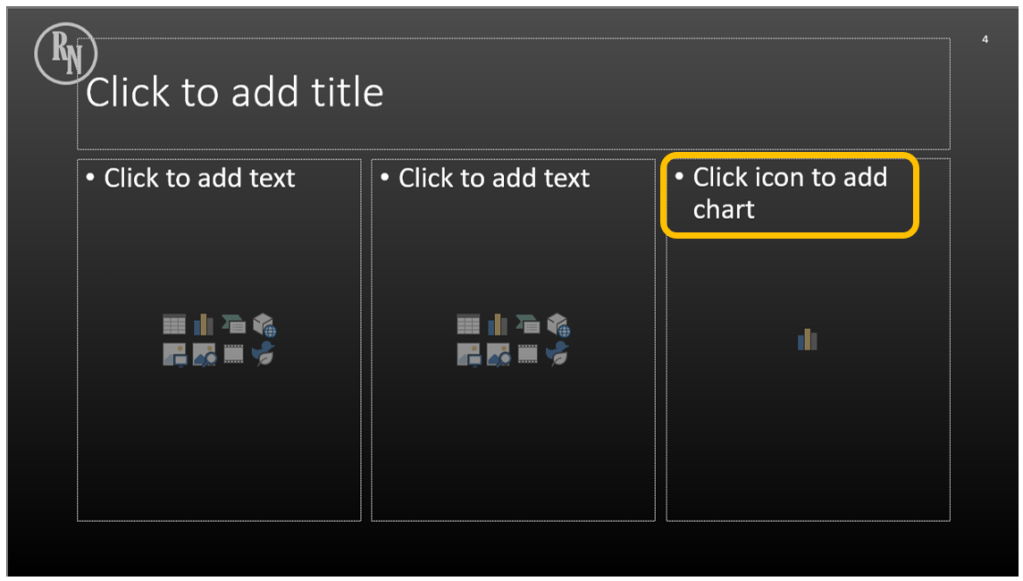
Whichever type you choose; the box will list what type of content is required (our example is for a Chart Placeholder) both on the source slide…
…and on the slide with that chosen layout.
 Ryn Nicol