
PowerPoint contains nine basic layouts although depending on the current theme you have open, more or less may appear. To view your current layout options, which again my look different than below, go to Home ribbon and in the Slides group find the dropdown for layout which may say Layout or look like this little button. You can also click New Slide in that same group to see even more possibilities depending on theme.

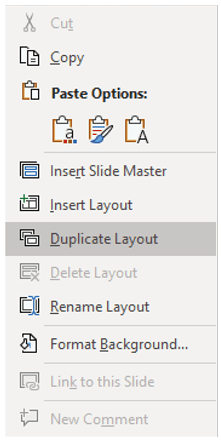
All of your layouts can be found in the Slide Master deck (View ribbon, Master Views group, Slide Master). All those little dashed outlines on the different layouts are called Placeholders. These can contain text, a picture per box, a chart, a video, a sound clip, and other objects. Let’s create a 10th layout so we can change the placeholders without messing up our other layouts. Open the Slide Master view first. If you don’t do this you won’t be able to follow along. The example shows a layout called Two Content but let’s create a Three Content layout. You’ll create the new slide like before by right-clicking in the slide menu and clicking Duplicate Layout. If you don’t see the option below it’s because you are in the Slide Master view.
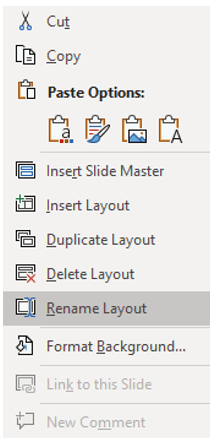
So that we can keep track of this one as different, let’s rename it by right-clicking again and choosing Rename Layout.
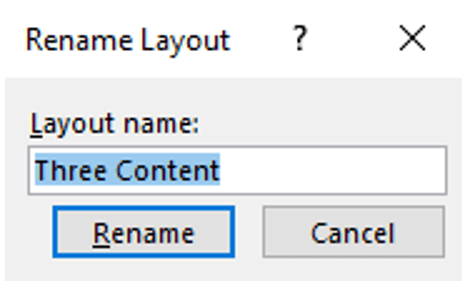
This will open the Rename Layout dialog box. Change the name and click Rename when complete.
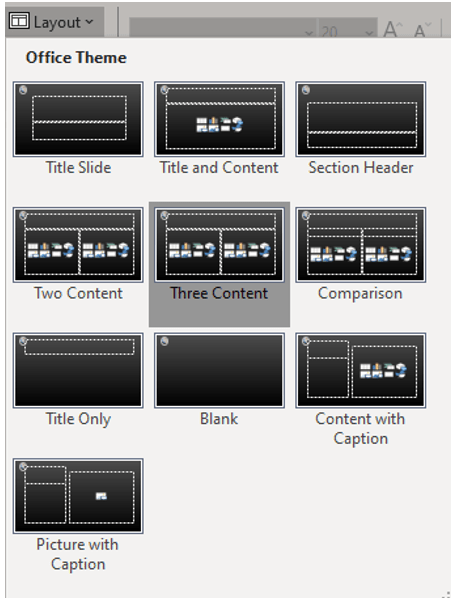
Now when we go back to our regular view and try to change layouts, we see the new layout listed in the order it appears in the Master Slide deck.
 Ryn Nicol