

Like many things, this can be a bit buggy. If you don’t have Office 365 or if you’re not connected to the web, then nothing will generate in Design Ideas. If you have mixed shapes on a slide, such as a photo and a line/rectangle/ink/chart/etc., Design Ideas won’t work. You can have the text and an image, then go to Design Ideas, and later add the extra element. Designer can work with up to six images. Once you have seven images, it breaks. It works with one table, but not two. Same issue with charts. Most annoyingly, Designer doesn’t work on custom slides or custom templates. Designer works best with Title Slides, Title and Content slides, Section Header slides, and Blank slide layouts.
To figure out which Layout your slide is, you can head to the Home ribbon and in the Slides group, click the dropdown for Layout. Otherwise, you can right-click your slide on the left-hand slide menu, and on the mouse menu, click the dropdown for Layout. The Layout of the slide will be highlighted.
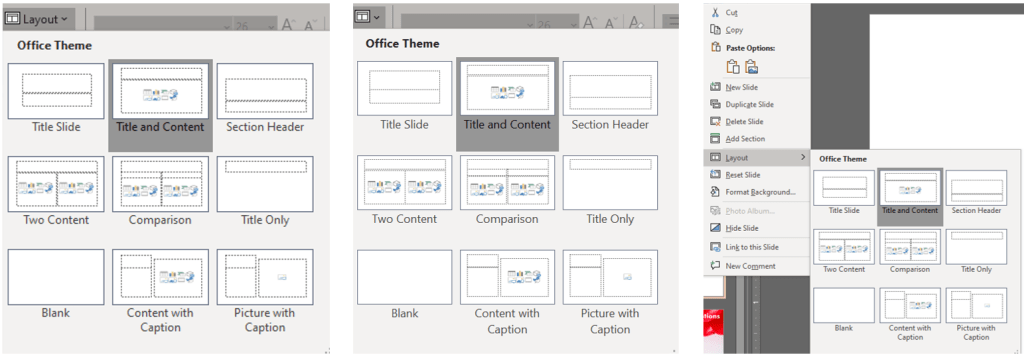
You can create a new slide either in your current presentation or in a new file with one of the above-mentioned Layouts and place the basic elements you want to create a design around into that new slide. Then, after you choose the desired design, make further edits by adding the other elements.
 Ryn Nicol