

If you’ve ever dealt with multiple editors in a document, you’re likely already familiar with the Tracking group on the Review ribbon. The Comments, Tracking, and Changes groups are used to track any and all changes or comments made to a document.

For the Tracking and Changes groups to be effective, the Track Changes toggle must be enabled (darkened or yellow). Some reviewers/editors get annoyed by all the strikethroughs and redlines so they turn off Track Changes, but did you know you can lock Track Changes to stay on? Yes, you now have power over others. If you click the lower portion of the toggle you’ll reveal a menu with an additional option.

Clicking the Lock Tracking opens the Lock Tracking dialog box.
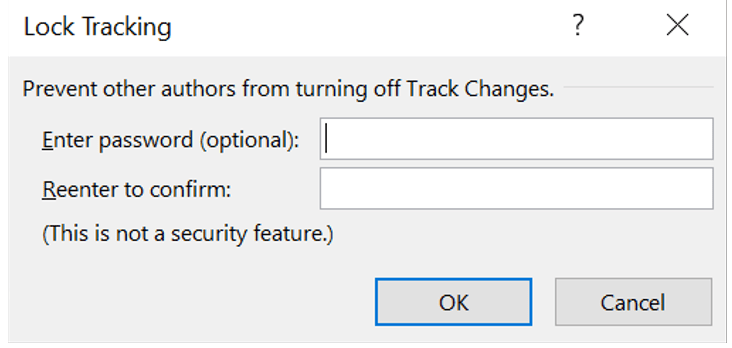
Enter a password as indicated and now you have prevented others from turning off Track Changes. Track Changes cannot be disabled until the correct password has been re-entered. This also prevents other users from accepting or rejecting changes.
 Ryn Nicol