

Today using what we understand about version history we’ll compare documents.
Say you’re working on a shared drive and multiple are working in a document, but you want to see what changed from a prior iteration of the document. To compare changes from a prior version head to the Review ribbon then to the Compare group. You’ll note the first three options talk about versions.
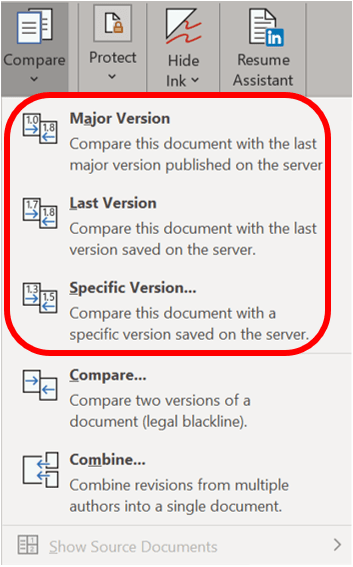
But what do those options mean?
- Major Version: This selection compares the current document with the last major version of the document. What’s a major version? Likely the same as your Last Version. You or your organization would have to set rules around what constitutes a major or a minor version, and most likely they haven’t. They’ve left the defaults on and every version is major.
- Last Version: Selecting this will compare the current document with the previous version regardless of if it is a major or minor version.
- Specific Version: Compares the current document with a previous version of your choosing. You will be presented with the Versions saved for…(filename) pop-up menu.

A benefit of selecting this option allows you to alter the settings Word uses to compare documents. Press the More button at the bottom of the window to expand for further options. The button will change to say, Less. Then you will have a series of checkboxes you can click off to see only certain types of changes such as removing changes to formatting, case, or whitespace.

 Ryn Nicol