
The Review ribbon is an ever-useful toolbar for tracking changes to the document when you have multiple writers/editors/reviewers and includes my much-beloved spell check. This month, we’ll deep dive into the underutilized tools this ribbon provides.
Versioning in Word
Before we get into things like Compare or Combine it’s good to know about versioning control. Did you know Word used to do versioning control? Well, sort of. No? Good, ‘cause it sucked, and thankfully they stopped that nonsense. The prior versioning control feature (from Word 2010) only saved versions within a single session. As soon as you closed the document all the “versions” disappeared. The current iteration of version control is a bit better. It allows you to retrieve prior document versions via the AutoSave feature or by accessing unsaved documents. Confused yet?
By default, Word automatically saves your document at set intervals as part of the AutoSave feature. Not sure if you have AutoSave on? Look to the top left corner where a toggle button labeled AutoSave appears.
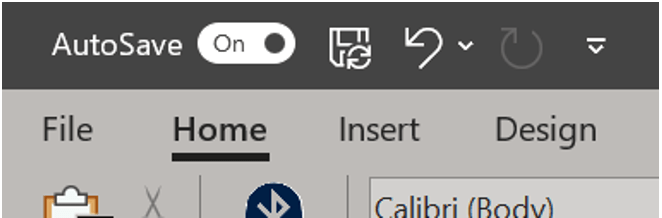
I’ll let you make wild guesses as to how the toggle button works. At this point, if you toggle AutoSave off Word will advertise to you its Version History controls.
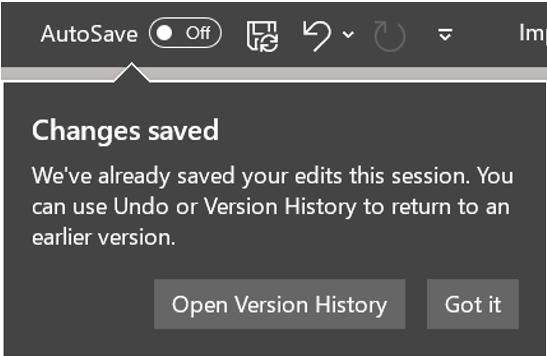
You can click the button or if you don’t want to turn off AutoSave to return to an older version of your document, open the File tab. Then on the left menu click Info.
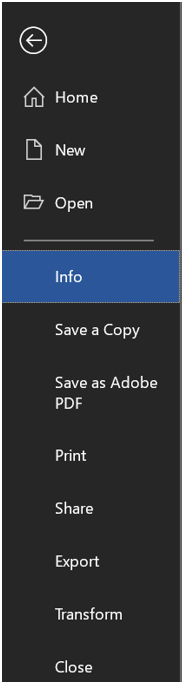
Scroll down on the right until you see the Version History button.

A new sidebar will now appear in your document.

Click on any version you want and Word will open the file in a second window. Depending on how your administrator has set up your SharePoint, you could have as few as 500 versions up to 400,000.
Why was any of that important? Because it’s good to have a foundational understanding of version control for the newest Compare features. There are quicker ways to get the last saved version, however, if you want one that was multiple iterations ago this is one way. This will also only look at what is saved on the drive(s) you have access to. It will not pull the version emailed to you and saved on your drive by another name. If you save over with the emailed version, you’ll lose your work because that may have the same name, but it has a different history. Think of them as twins separated at birth. Word knows they are different and treats them thusly.
Versioning with Windows 10, Office 365
Windows also does versioning control. You can do this by right clicking the file in question. If you’re using Office 365, the dropdown will appear as below. Click Show more options at the bottom.
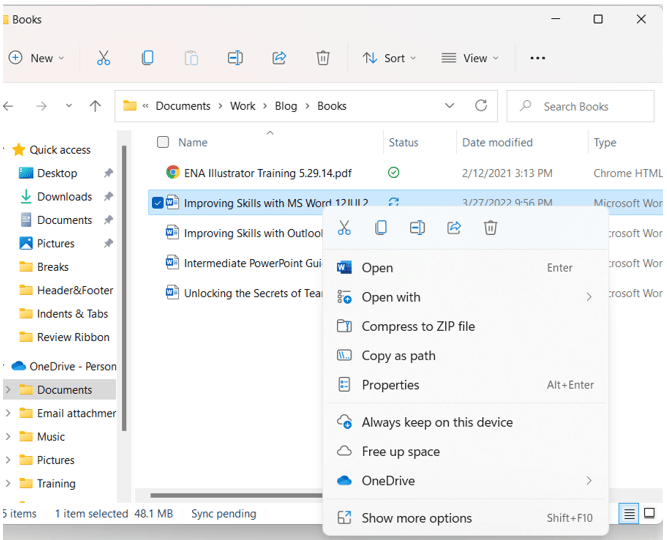
This will prompt a second dropdown. Click Version history. Be sure not to click Restore previous versions.
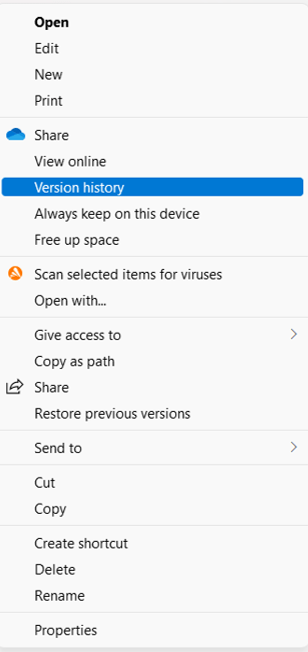
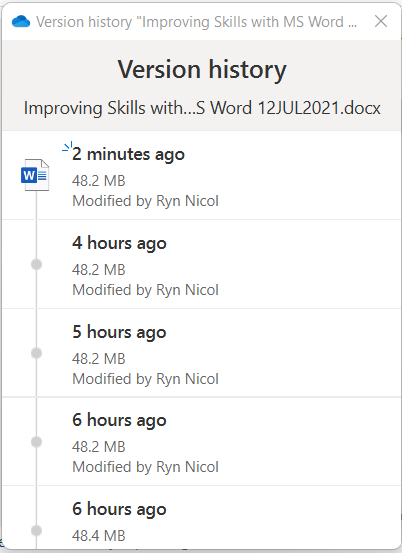
A pop-up window will appear with the entire history of the document since it appeared on your machine. Note the caveat. If you initiated the document on the computer you’ll see the full history of the document. If the file was transferred to your computer you will only see the history of the document since it arrived on your hard drive.
 Ryn Nicol