

What’s the difference between tabs and indents? Tabs impact only one line of text. Indentation influences the entire paragraph. You can click the indent marks and then click the ruler to position the indents, rather than sliding the indent markers along the ruler.
Indents
On the ruler, you’ll find markers for sliding indents into position.

First-line indent marker adjusts the indent of the first line. This option is also found on the tab selector, allowing you to click the position rather than slide into position.

Hanging indent marker (found on the left) adjusts the hanging indent. This option is also found on the tab selector, allowing you to click the position rather than slide into position.

Right indent marker (found on the right) adjusts the right indent. This is not the option found on the tab selector.

Left indent marker moves the first-line indent and the hanging indent markers at the same time, indenting all lines in a paragraph.

For more precise setting of the indents, open the Paragraph dialog box (use the launcher arrow), and on the Indents and Spacing tab, go to the Indentation section.
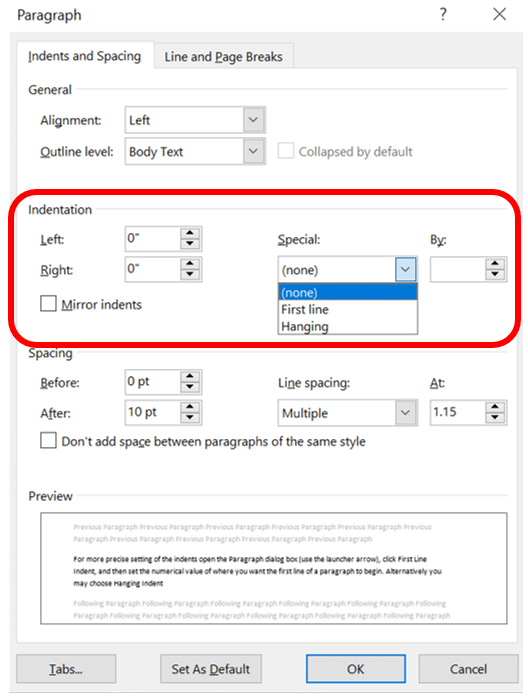
Left and Right indicate the adjustment of all paragraph lines to a specified distance from the left or right margin. The default setting is zero, but this may be manually adjusted.
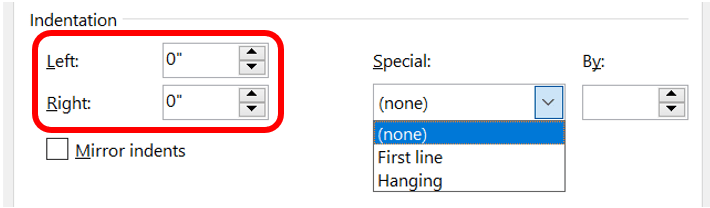
Under Special, a drop-down menu of three possible options appears. None is the default setting where the first line starts at the same indent as the rest of the paragraph. First Line moves only the first line of a paragraph based on the set numerical value indicated where the first line should begin. Alternatively, Hanging offsets all lines after the first line of a paragraph to begin adjusting them normally further to the right. An example of this would be with numbered lists where the number is further to the left and the text is to the right. You don’t have the second line start under the number but instead under the text portion. The amount of indentation auto-populates in the By option next to the drop-down with a default of half an inch; however, this can be manually adjusted by typing or using the up and down arrows.

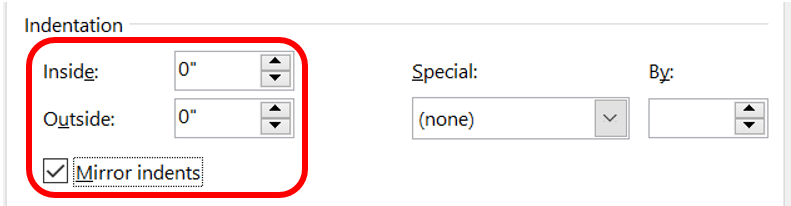
Checking the Mirror indents box changes Left and Right indent to Inside and Outside. This is because mirroring allows the indents to change relative to even/odd pages. It’s mirroring to allow for a gutter, such as when binding a book. This is uncommon.
Tab Stops
What even is a tab stop? A tab stop is a set point for indentation or tabbing to halt or begin. In word processing, whether you’re working with Word, WordPerfect, or modern typewriters, each line contains a number of tab stops placed at regular intervals (defaulted to every half inch). They can be changed, however, to stop wherever you want. When you press the tab key, the cursor jumps to the next tab stop, which itself is normally invisible. By default, there are no tab stops on the ruler when you open a new blank document. You can select the type of tab stop you want by clicking through the options on the Tab Selector next to the ruler.

Tab Selector
Word has five tab stop options each with its own representative symbol. The final two options on the tab selector are actually for indents.

A Left Tab stop sets the start position of text that will then run from left to right as you type.

A Center Tab stop sets the position of the middle of the text. The text centers on this position as you type. as you type.

A Right Tab stop sets the right end of the text. As you type, the text moves to the left.

A Decimal Tab stop aligns numbers around a decimal point. Independent of the number of digits, the decimal point will be in the same position. (You can align numbers around a decimal character only; you cannot use the decimal tab to align numbers around a different character, such as a hyphen or ampersand.)

A Bar Tab stop doesn’t position text. It inserts a vertical line at the tab position. This is best used in conjunction with other types of tab stops as it adds a visual element but otherwise serves no other purpose
As mentioned, the last two options on the tab selector are for indents. This is an option for clicking indents into place rather than sliding indents into position.
First-line indent marker adjusts the indent of the first line.
Hanging indent marker (found on the left) adjusts the hanging indent.
 Ryn Nicol