
When you divide a document into sections, Word uses the headers and footers in the first section as the default for every subsequent section. All headers in the document and all footers in the document are initially connected so that their contents are identical. If you change the header in any section of the document, Word changes all headers in the entire document to match. When headers and footers in a section after the first section will initially have the Link to Previous button darkened/highlighted in the Navigation group on the Header & Footer toolbar.
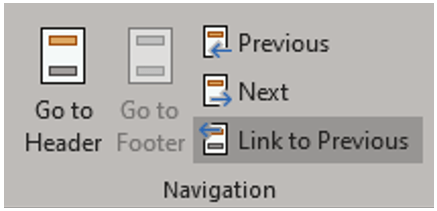
If you want to create a unique header/footer in one section, you must break the connection with the preceding header/footer by clicking off the Link to Previous button. Word will then use the header/footer you create in the current section for all subsequent sections. If you decide that you want to re-establish the connection between the header or footer in the current section and the preceding headers or footers, click the Link to Previous button again. Word will replace the information contained in the current header or footer with the information in the previous header or footer.
While headers/footers from one section are automatically connected to headers/footers from the previous section until you toggle Link to Previous, they are not connected to the First Page Header/Footer if that option is selected.
The following are the different possible connections between headers/footers even with section breaks.
- Headers are connected to headers.
- Footers are connected to footers.
- First Page Headers are connected to First Page Headers.
- First Page Footers are connected to First Page Footers.
- Odd Headers are connected to Odd Headers.
- Odd Footers are connected to Odd Footers.
- Even Headers are connected to Even Headers.
- Even Footers are connected to Even Footers.
To create a different header or footer for each section in a document, position the insertion point in the section with the header or footer that you want to change (disconnect from the previous header or footer). On the Header & Footer toolbar in the Navigation group, toggle Link to Previous to disconnect headers/footers in the current section from the previous section. Create the header/footer that you want for the current section. Bear in mind, Word also inserts the header and footer in all sections following the current one.
To reconnect a header or footer with the preceding header or footer, click Link to Previous. Word will prompt you to confirm that you want to delete the current data in the header/footer and connect to the preceding header/footer; click Yes. The preceding header or footer will now be repeated in the current section.

 Ryn Nicol