
First Page Headers and Footers
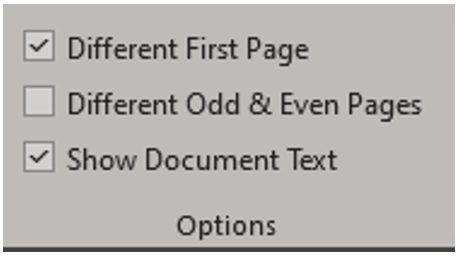
To create a different header or footer for the first page of a document or section, on the Header & Footer toolbar in the Option group check the Different First Page checkbox.
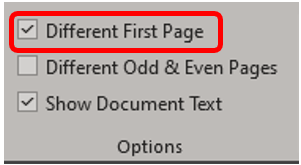
If necessary, click the Next or Previous buttons to move to the first page header or footer in the document or section. The words First Page Header or First Page Footer appear in the upper left of the dotted header or footer box.

Create the header or footer you want to appear on the first page. If you do not want a header or footer to appear on the first page, leave the area blank.
Click the Next button to move to the next page/section header or footer. The word Header or Footer appears in the upper left of the dotted header or footer box.
Create the header or footer that you want to appear in the rest of the document or section. If you do not want a header or footer to appear in the rest of the document or section, leave the header or footer area blank.
Odd and Even Page Headers and Footers
To create different headers and footers on odd and even pages, from the Header & Footer toolbar in the Options group, check the Different Odd & Even Pages checkbox. Word applies this option to the entire document.
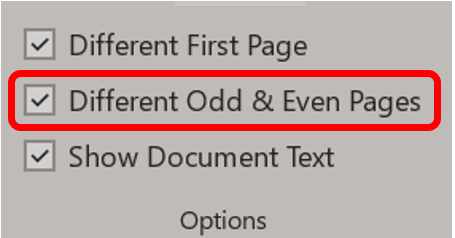
If necessary, click the Next or Previous buttons to move to an even page header or footer. The words Even/Odd Page Header/Footer appear in the corner now with the dotted non-printing border.

Create the header or footer that you want to appear in the even/odd pages of the document or section. If you do not want a header or footer to appear on one of the page options, leave the header or footer area blank.
 Ryn Nicol