

By default, your document footers will have the same content including pages with section breaks. This works for most people, but one reason to have section breaks is to change the look of the footer for say different chapters or document parts (e.g., a letter has one footer different from attachments, but they’re all in the same Word document or the document switches between landscape and portrait).
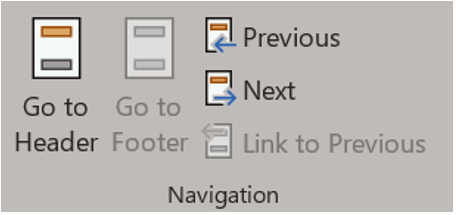
To change this, double-click inside a header or footer in the section of your document you want to alter. The Header & Footer ribbon will appear and only appears after you have clicked inside one or the other. Note from the verbiage, it is assumed you have inserted section breaks. It does not matter what kind as long as you have inserted them previously and click the Link to Previous button found on the Header & Footer ribbon (last one to the right) in the Navigation group. Toggling this button turns the connection that copies the prior header/footer on or off. The toggle is engaged if the button is darker (yellow in older versions of Word). Clicking off the button for each section means your headers and footers will be unique between your document sections. If you have, for example, three sections, and you toggle the button off in the second section but leave it on in the third section, the third section will copy the second, and the second can act independently of the first.

This button is grayed out if you’re in the first section because there is no previous section to copy.
You can choose to assign different headers and footers to your first page or your odd and even pages without inserting section breaks. To do this, check the appropriate box in the Options group in the Header & Footer ribbon.

I’ll post more next week about editing headers and footers.
 Ryn Nicol