
Continuing this week’s topic: Themes and Templates in PowerPoint. Today is all about how to save your customizations so you can use your chosen in other slide decks or even other programs. So you followed a link here looking for themes in Word or Excel rather than PowerPoint, all are covered here so keep reading.
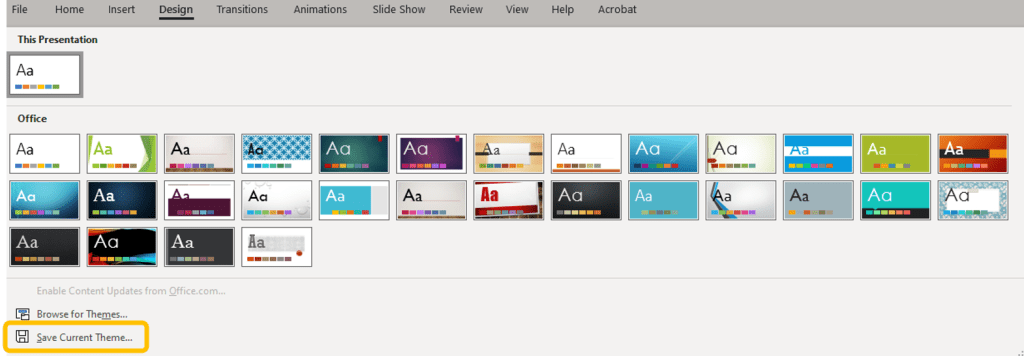
Once you have created your custom Theme, if you determine you’d like to use that theme again, head to the Design ribbon, expand the Themes group, and at the bottom of the dropdown click Save Current Theme.
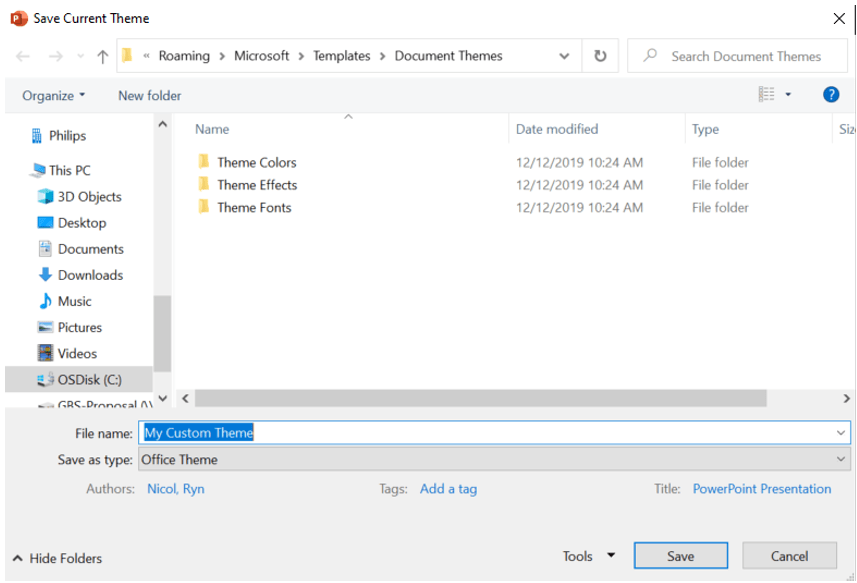
The Save Current Theme dialog box will appear opening to the location where PowerPoint searches for saved Themes. Save it here with your custom name.
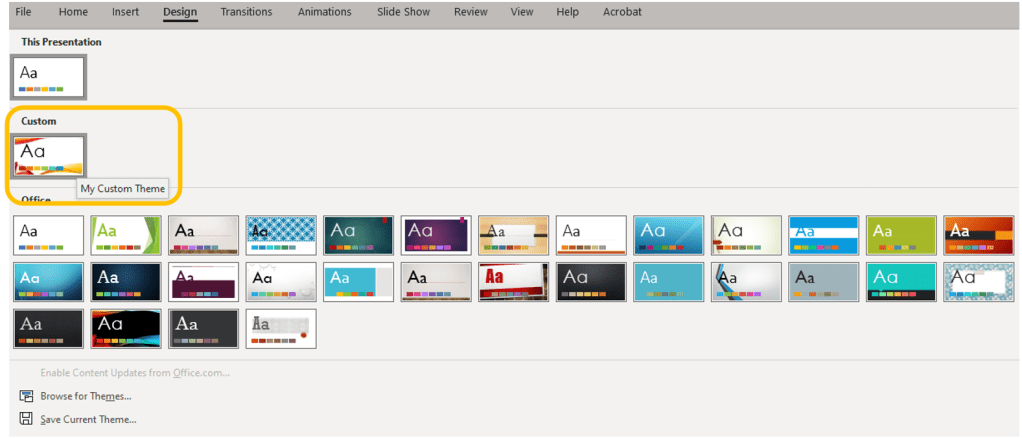
Now, even when you open another presentation, your Theme will appear in the dropdown menu when you go to the Design ribbon and tap the expand arrow for the Themes group.
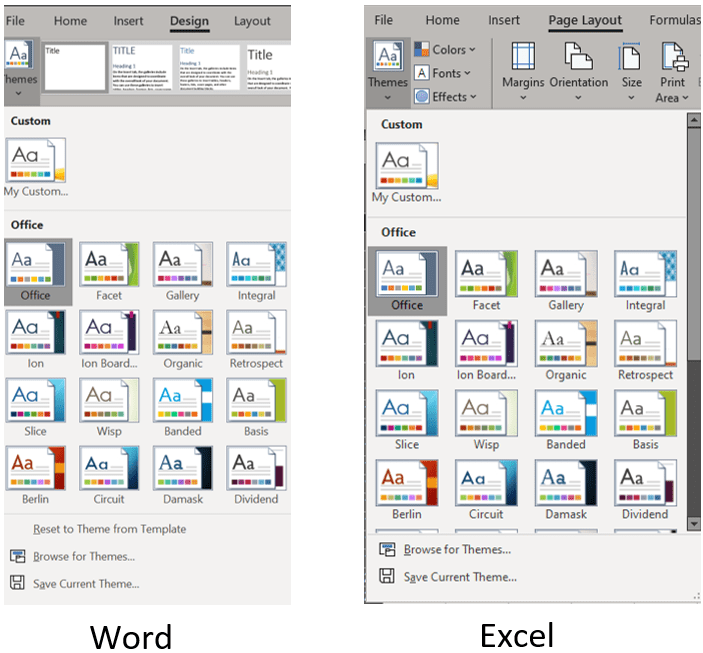
Pro Tip: Do you like your theme so much you wish you could bring those colors to Word or Excel? Did you read all this screaming but what about Word and Excel? You promised Ryn! Well you can. Once you’ve saved your Theme it will appear in those other programs so long as you saved it where prompted by the system and not in some other folder. Head to the Design ribbon in Word or the Page Layout ribbon in Excel, and click open the dropdown for Themes.
 Ryn Nicol