
Say you’re working on a document with a ton of slides to the point where it’s becoming difficult to find the one you need to work on by scrolling through. Or maybe you’re collaborating on a slide deck and you only need certain people to work on specific slides. If only you could turn them into chapters like in a book. This will help you find the ones you want to focus on and help your collaborators find the slides they need work on. You can with Sections. To create section breaks, on the left side listing of slides, between slides create sections by placing your mouse between the slides and right-clicking. Different options will appear if you click on the slides so be certain that your mouse is between the slides. Then when the menu appears, click Add Section.
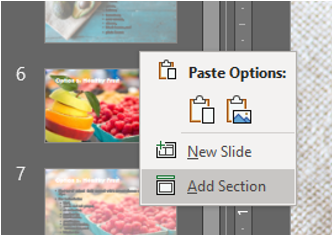
You’ll be prompted to rename the section.

We’ll name this section Fruit. Section breaks appear as such.

You can create as many sections as you want with as many slides as you want.

When you don’t want to see a section, you can collapse them and then expand the section again by clicking the triangle next to the section name.
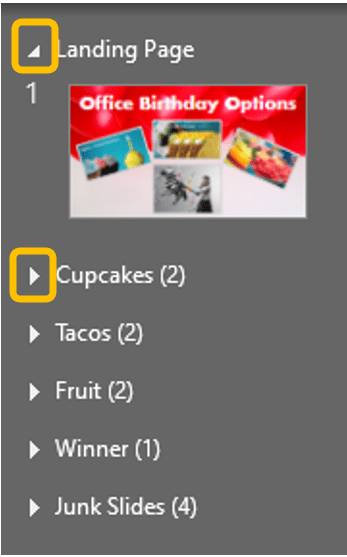
If you need to move a section, you can either click and drag the section or right-click the section name select Move Section Up or Move Section Down. Either option moves all slides from that section with it.

 Ryn Nicol