
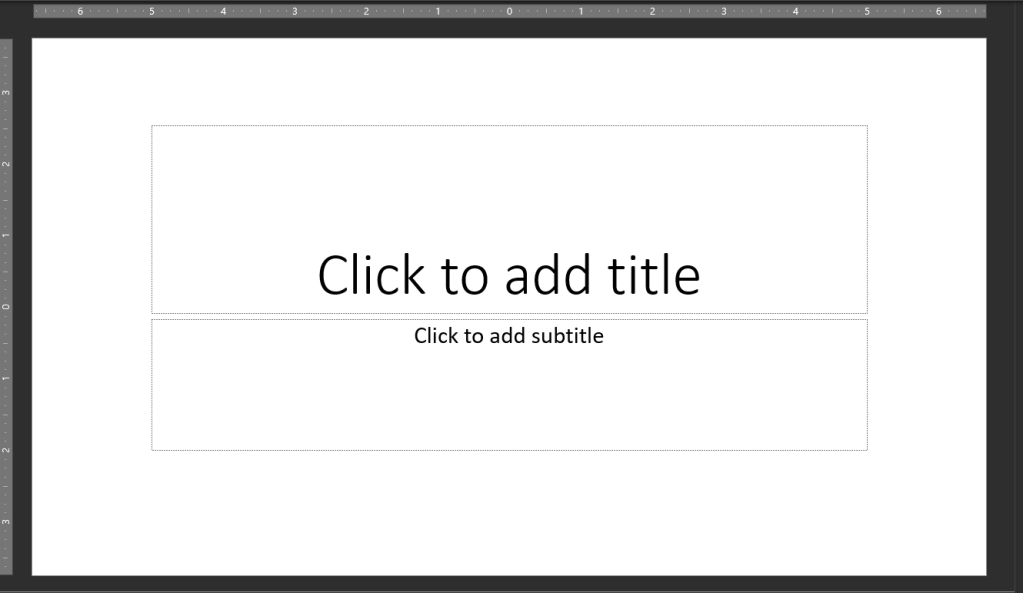
This is your slide on normal, on average, on same as everyone else.
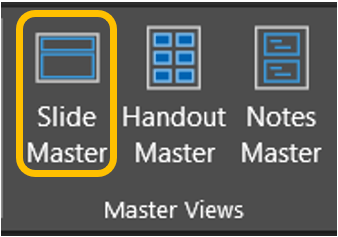
If you want to create slides or a Handout that is in a non-standard size or portrait rather than the usual landscape/widescreen view you’ll need to alter the slide orientation or size. Go to the View ribbon, in the Master Views group, open Slide Master.
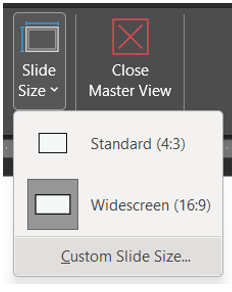
This will open the Slide Master tab, where under the Size group, open the dropdown for Slide Size.

This dropdown only shows two different-sized landscape views where the version currently in use is darkened. Click Custom Slide Size.
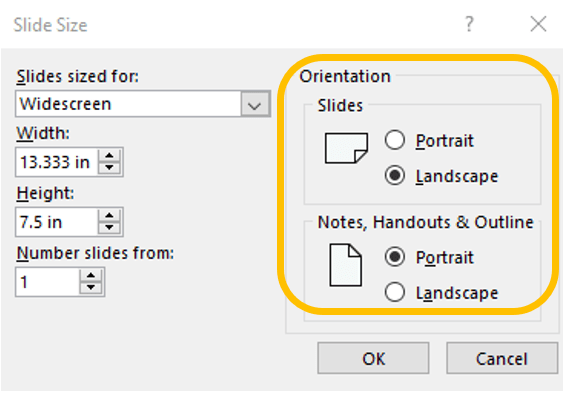
This will open the Slide Size dialog box where on the right side you can change the orientation of both the electronic slides and the printed versions.
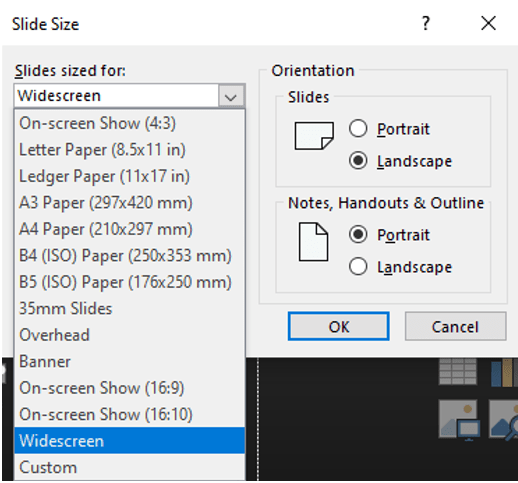
On the left side of the dialog box, if you click the dropdown for Slides sized for, you’ll see basic paper sizes to choose from.
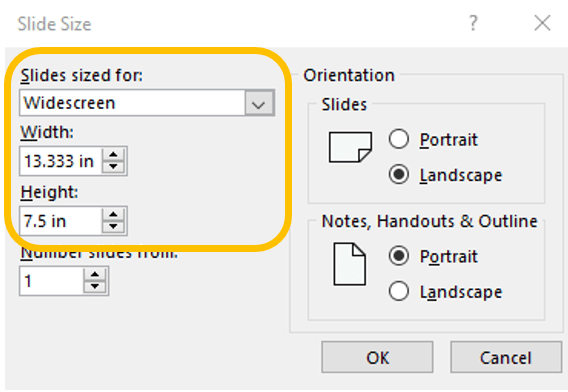
If these don’t fit you don’t have to click the Custom option. You can specify the Width and Height and the system will change the Slides sized for to Custom.
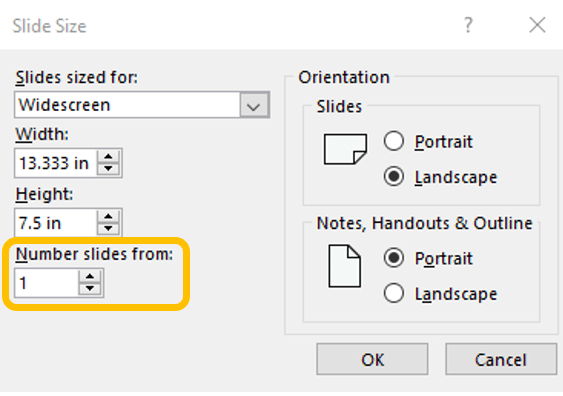
From here you may also alter the page/slide numbering to start at a number other than one.
 Ryn Nicol