

Continuing our conversation about Styles, today we’ll dive into the various types of Styles.
The Normal Style
The Normal style is a preloaded style from the normal style set as included in the normal template. Clear as mud? By default, Word automatically applies the Normal paragraph style to all text in blank, new documents. Similarly, Word automatically applies the List Paragraph style to items in a list — for example, when you use the Bullets command to create a bulleted list.
Style Types
Character and Paragraph styles determine the look of most of the text in a document. Some styles work as both character and paragraph types, and these styles are known as linked styles. Paragraph styles are the most common styles you’ll see. All of these styles appear on the Home ribbon in the Style Gallery. To see ones not in the gallery, click the Styles Dialog Box Launcher.
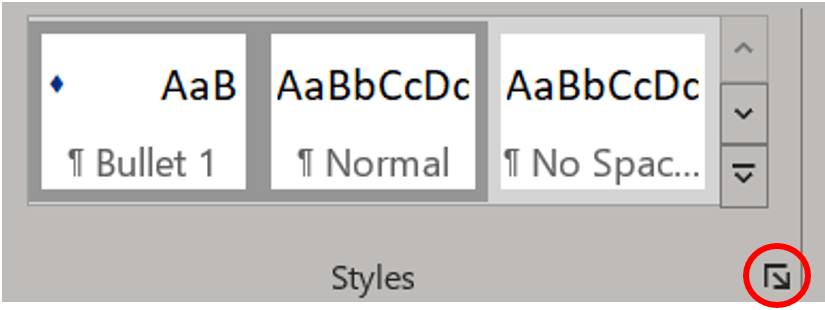
The Styles task pane will open.
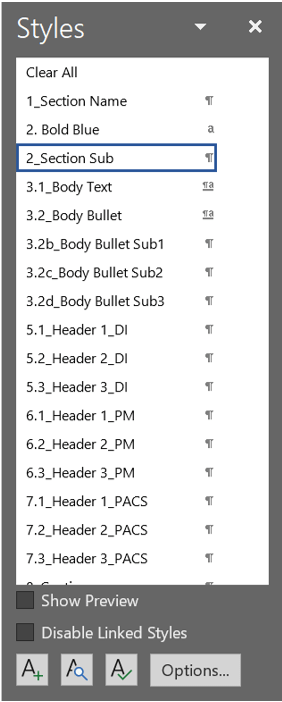
You can see the effect of a style set by placing your cursor over a style set before you click it. A preview of the new style will appear in the selected paragraph.
Paragraph styles are marked with a paragraph symbol (¶). You can see the paragraph symbol in the Style Gallery as well as in the Styles task pane. Click anywhere in a paragraph to apply the style to the entire paragraph.
Paragraph styles include everything that a character style contains, but it also controls all aspects of a paragraph’s appearance, such as text alignment, tab stops, indentation, line spacing, and borders.
For example, you can have a character style called Alert that formats text as bold and red. Additionally, you can have a paragraph style called Headline that formats text as bold and red. But the Headline paragraph style also centers the text horizontally and adds 24 points of space above the text.
In this scenario, if you select a paragraph and apply the Alert style, all the text in the paragraph is formatted as bold and red, but nothing else about the paragraph changes. However, if you select the paragraph and apply the Headline style, the text becomes bold and red, extra space is inserted before the paragraph, and the paragraph is centered between the left and right margins.
Word includes two built-in paragraph styles: Normal and List Paragraph. By default, Word automatically applies the Normal paragraph style to all text in a blank, new document. Similarly, Word automatically applies the List Paragraph style to items in a list — for example, when you use the Bullets command to create a bulleted list.
To select a single paragraph for applying a paragraph style, click anywhere within the paragraph. To select more than one paragraph, click anywhere in the first paragraph and drag to anywhere in the last paragraph you want to select. You do not need to select the entire paragraph.
Character styles are marked in the style task pane with a character symbol (a). Click anywhere in a single word to apply the style to the entire word. You can also click and drag to select multiple words and apply the style to all the words at once.
Character styles contain formatting characteristics that can be applied to text, such as font name, size, color, bold, italic, underline, borders, and shading. This type of style does not include formatting that affects paragraph characteristics, such as line spacing, text alignment, indentation, and tab stops.
Word includes several built-in character styles, such as Emphasis, Subtle Emphasis, and Intense Emphasis. Each of these built-in styles combines formatting, such as bold, italic, and accent color, to provide a coordinated set of typographic designs. For example, applying the Emphasis character style could format text as bold and italic in an accent color (this will change based on your normal template).
To apply a character style, select the text that you want to format, and click the character style that you want.
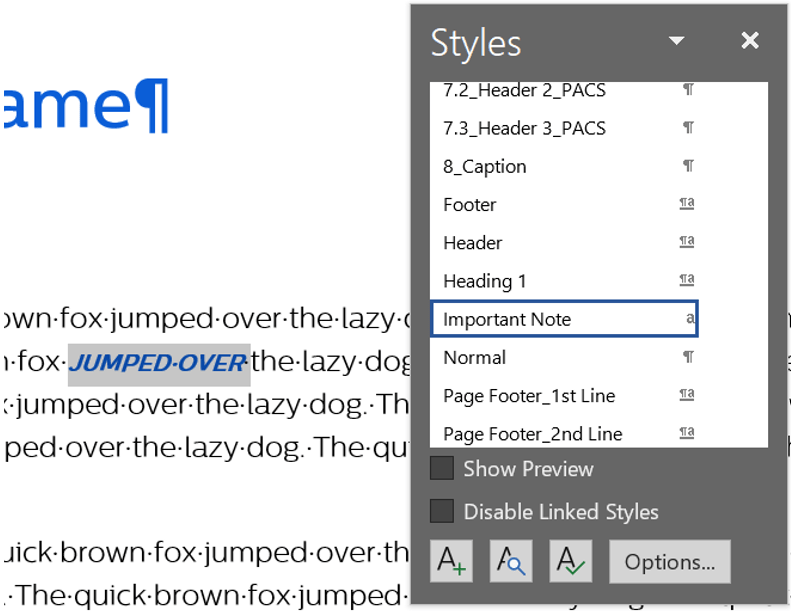
Linked styles are marked with both a paragraph symbol and a character symbol (¶a) because they can serve as either. Click anywhere in a paragraph to apply the style to the entire paragraph. You can also select one or more words to apply the style to only the words that you selected. Word includes many built-in linked styles, notably the heading styles (Heading 1, Heading 2, and so on).
A linked style behaves as either a character style or a paragraph style, depending on what you select. If you click inside of a paragraph or select a paragraph and apply a linked style, the style is applied as a paragraph style. However, if you select a word or phrase in the paragraph and apply a linked style, the style is applied as a character style, with no effect on the paragraph as a whole.
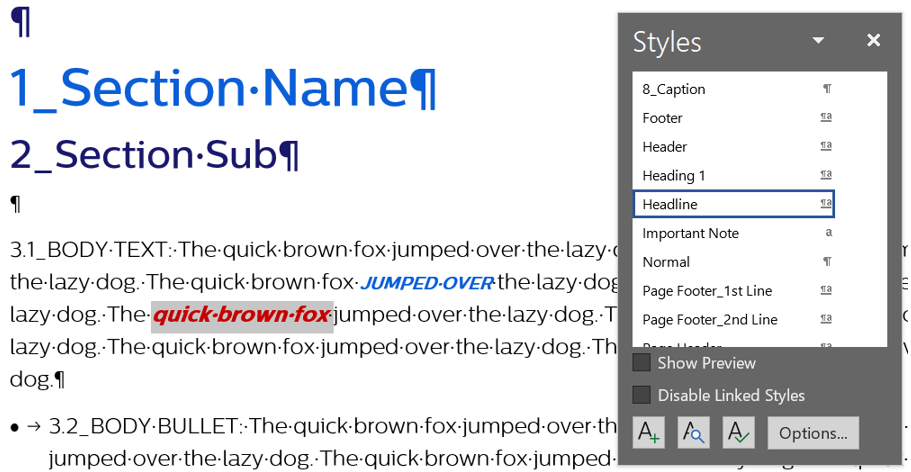
How is this useful? Consider the scenario above, in which an Alert character style and a Headline paragraph style each format text as bold and red. If the Headline style was a linked style instead of a paragraph style, you would not need a separate character style for formatting words and phrases. For example, if you select (or click inside of) a paragraph and apply the Headline (linked) style, the entire paragraph is formatted with the Headline text and paragraph characteristics.
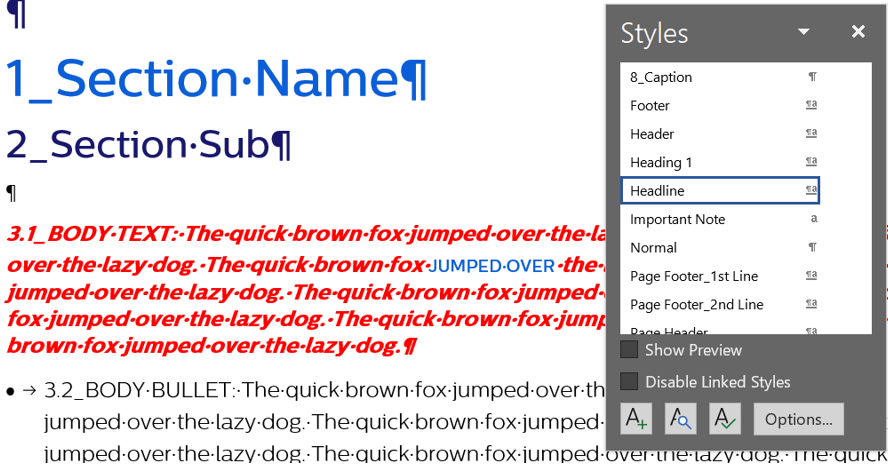
Note: In the image above even though we changed the entire paragraph our character style remained in place. Previously applied character styles will override the paragraph style unless you double click the paragraph style. This can be useful or annoying depending on what your goal is. To change the words which already have a character style applied to match the rest of the paragraph, select the words and click the chosen style once more or double click the style when applying to the paragraph.
However, if you select a word or a phrase and then apply Headline, the text that you selected is formatted with the text characteristics of the Headline style, but none of the paragraph characteristics are applied.
Other Types of Styles
List styles determine the look of lists, including characteristics such as bullet style or number scheme, indentation, and any label text. I cover this more in-depth later here.
Table styles determine the look of tables, including characteristics such as the text formatting of the header row, gridlines, and accent colors for rows and columns.
That’s likely plenty to fill your head for today. Tomorrow I’ll cover how to create, modify, and delete styles.
 Ryn Nicol