

Did you know you can customize autocorrect? Don’t like what it changes? Want to add what it changes? You can remove, replace, or add words that the program updates by going to the File tab and choosing Options.
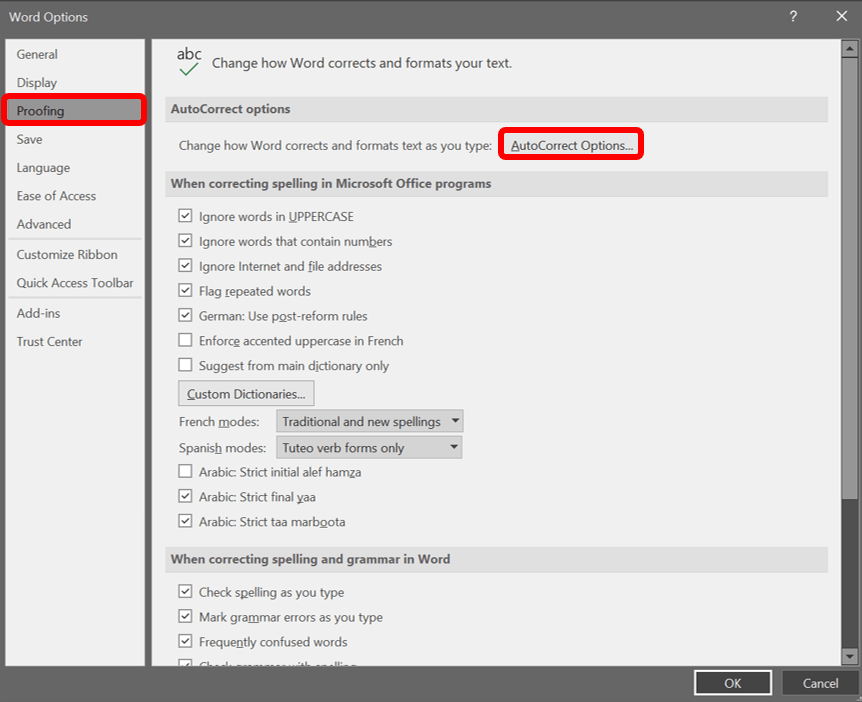
This will launch the Word Options menu. On the left click Proofing, then click the button for AutoCorrect Options….
The AutoCorrect dialog box will open on the AutoCorrect tab.
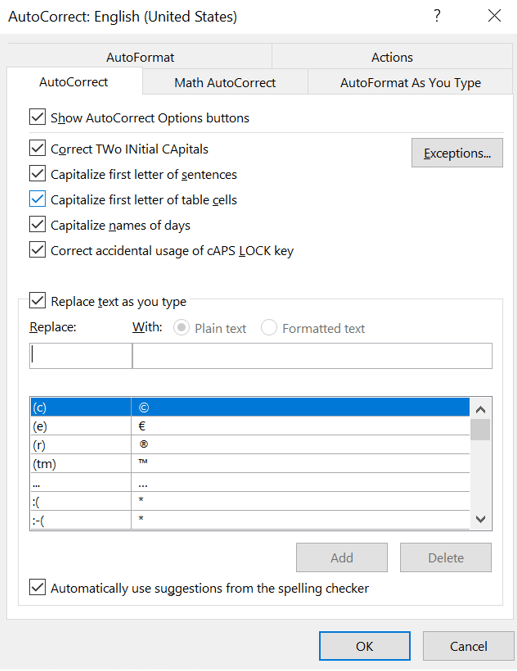
From here you can check on or off boxes based on how you want Word to update text as you type. You can also scroll through the list of text to remove any current options by clicking the line item then Delete. If you want to replace any items, select the line item to alter. Then in the Replace box, type in the often misspelled word, phrase, or keystrokes you want to update and click Replace when done.

For adding, follow the same instructions except do not select a line item and click Add when done.
 Ryn Nicol