

Are you in a personal hellscape working on a collaborative presentation where everyone has sent you slides and all of them used different fonts? Sure, you sent them a template, but people decided to be creative and now this thing looks like an ugly patchwork. Or maybe life is less dramatic and you decided you wanted to use different fonts. You could go through each slide and meticulously change each text box with the correct font or go to the Home ribbon and under the Editing group click the dropdown for Replace and chose Replace Fonts.

This will prompt the Replace Font pop-up.
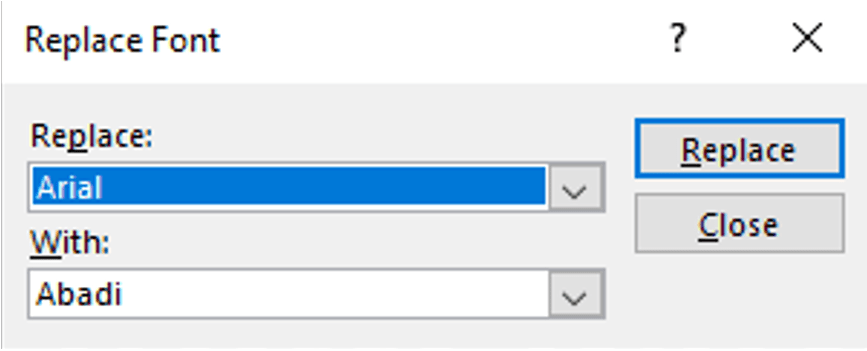
Here all of the fonts used in your presentation are listed in the dropdown under Replace. Whereas the dropdown for With lists all fonts available on your computer to use.
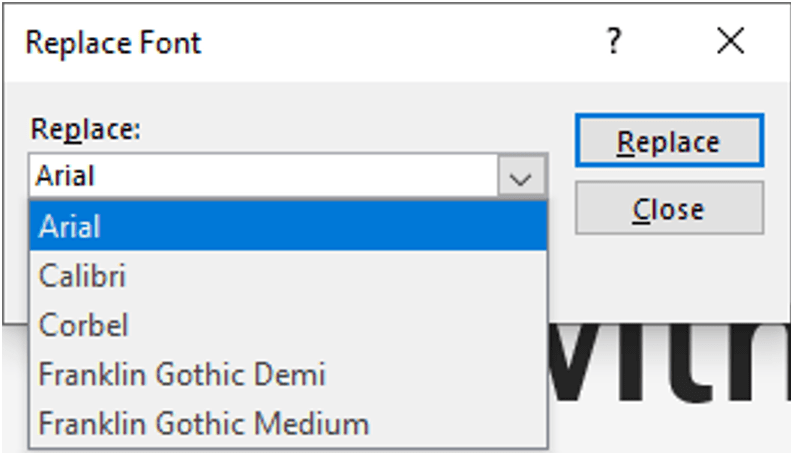
Once you click Replace, PowerPoint will search for all instances of the font listed under Replace, and change it to the font you choose under With. Repeat this process as needed.
Note: Arial may show up even when not used. It seems to be the program default so if you’ve replaced this font but it still appears on the list, the program is dumb and that’s why you’re still seeing it.
 Ryn Nicol