
Sometimes when dealing with footnotes, the separator (that line above the footnote text) isn’t landing quite where you want it. Maybe it’s giving you too much space. You know that no amount of changing the margins is fixing this problem because it’s not related to the margins at all.

This is an easy fix despite not being an intuitive route. Start by going to the View ribbon, and in the Views group, click Draft.
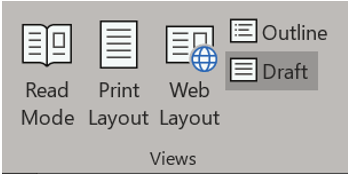
You’ll notice your layout has changed. Everything will be fine. Open the References ribbon and in the Footnotes group, select Show Notes.
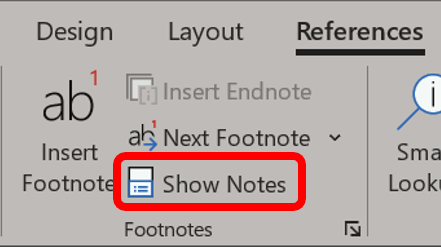
A separate Footnotes pane opens at the bottom of the Word window.

The Footnotes pane includes a drop-down that defaults to All Footnotes. Change this to Footnote Separator.
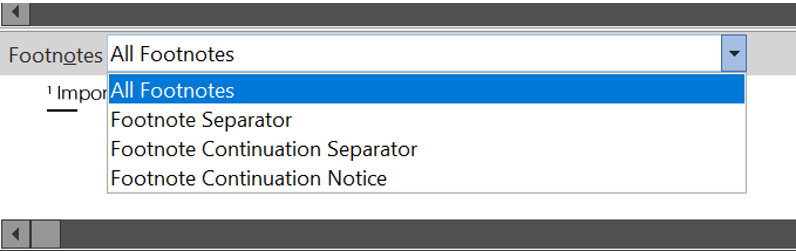
The Footnote Separator line appears by itself. You may click the line to remove it, change it to be another type of text separator, or go to the end of the line and press delete to remove the extra return. You can even edit the line spacing of any of the returns.
 Ryn Nicol