
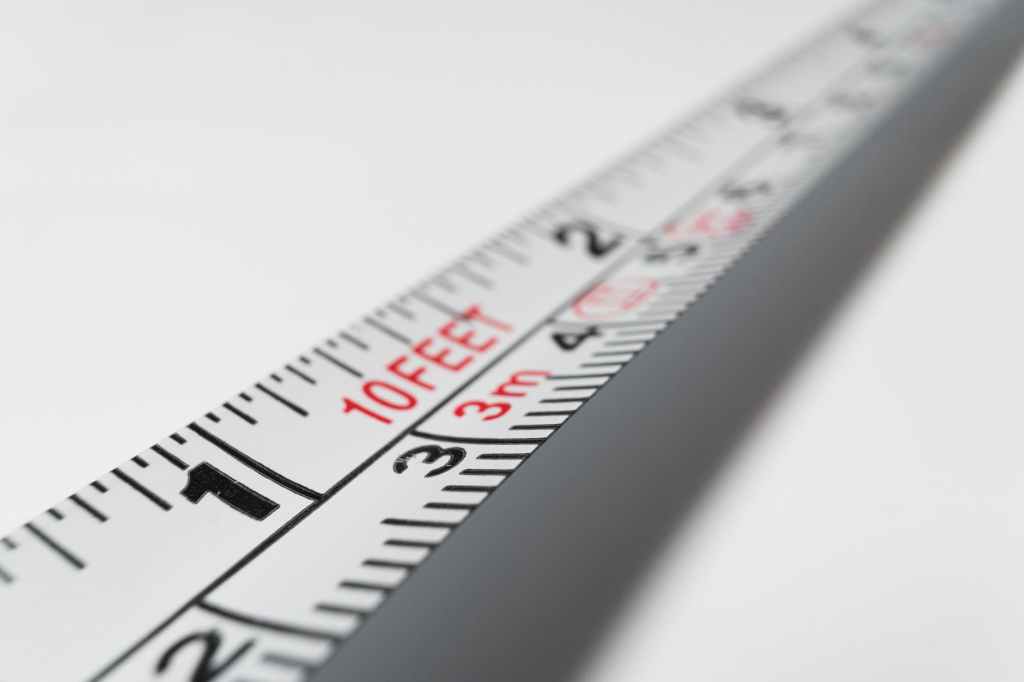
Did you know there’s a ruler in Word? It’s a simple tool that aids in formatting your document from assisting in the alignment of text, tabs, tables, graphics, and even margins. If the ruler doesn’t automatically appear when you open a document, go to the View ribbon. From the middle of the ribbon, you’ll see three checkbox options. Click the first one that says Ruler and a ruler will appear on both the horizontal and vertical axes.

If the vertical ruler does not appear go to the File tab, click Options on the left. This may be located at the bottom, and you may need to scroll. A pop-up menu will appear. On the left side of that window select Advanced, then scroll to the section labeled Display.

About midway through the list, you’ll see a checkbox option for Show vertical ruler in Print Layout view. Check the box. Do not unselect the Show vertical scroll bar. That refers to the general scrolling of the document. Click OK when done.
 Ryn Nicol