

Did you know your document can include hidden text? Like invisible ink, the message only appears if you know the secret. Sounds silly, immature, possibly get you fired for screwing this up, right? Perhaps, but let’s indulge. Why even have this option? Isn’t the point of a Word document to communicate everything in the file? Maybe you’re creating a document for customers and, rather than create a second document to track and update, you want an internal version with notes about discussion points. Word allows you to hide text so when you read or print your document, that text acts like it isn’t really there. Hidden text allows you to have one document to maintain to serve two audiences.
To be clear this isn’t a security measure. If someone knows what they’re doing or if they’re that special individual who happens upon things by accident your text can be read. If you don’t want someone to read your hidden text, delete the text or don’t send them a Word version of the document with the text revealed.
Hide Text
If you want to hide text, type it out first. Then select the text to be hidden. On the Home ribbon under the Font group launch the Font dialog box.
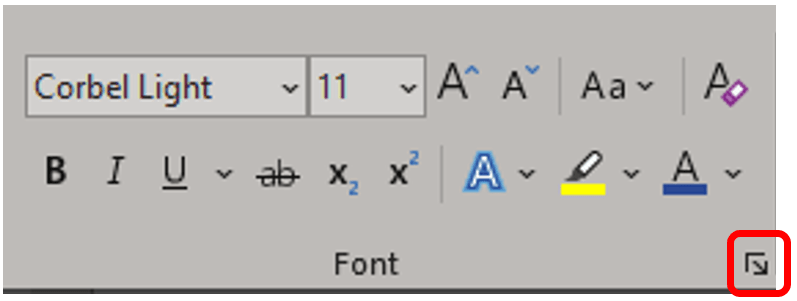
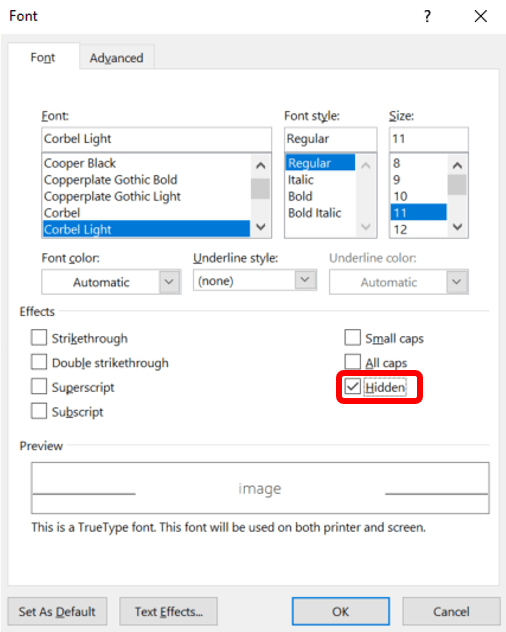
From this dialog box, check the box next to Hidden, and click OK. It’s that easy.
Whenever you want to see or unsee the text, or if you just know there’s something there somewhere (paranoid much?), toggle Show/Hide.
Unhide Text
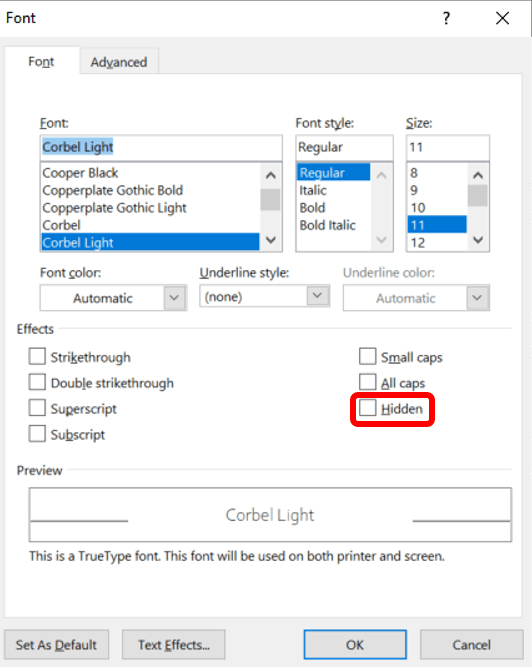
If you have hidden text that you no longer want hidden, select the text or image to be unhidden. Once selected go to the Home ribbon under the Font group launch the Font dialog box.
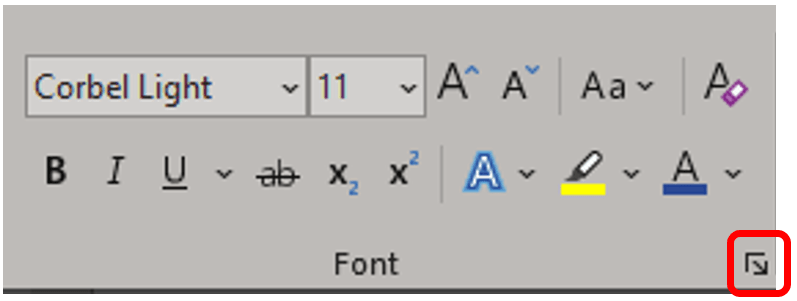
From the dialog box, uncheck the box next to Hidden, and click OK.
Remove All Hidden Text
The quickest way to remove all hidden text at once is to go to the File tab and chose Info from the left sidebar. Now open the drop-down under Inspect Document called Check for Issues. Click Inspect Document.

This will launch the Document Inspector dialog box. Check off/uncheck all the options as you scroll to the bottom. Leave only the box for hidden text checked.
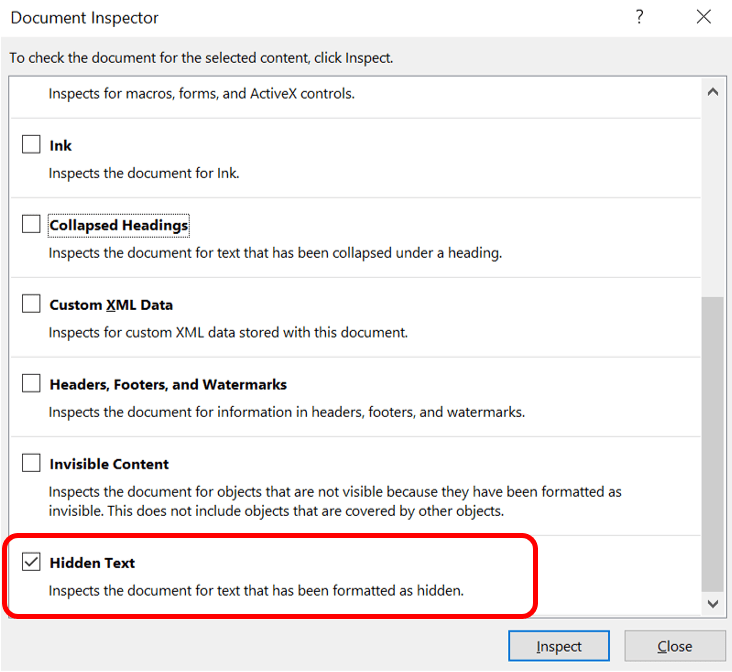
Click Inspect. The Document Inspector will run for a few moments then you receive back a report.
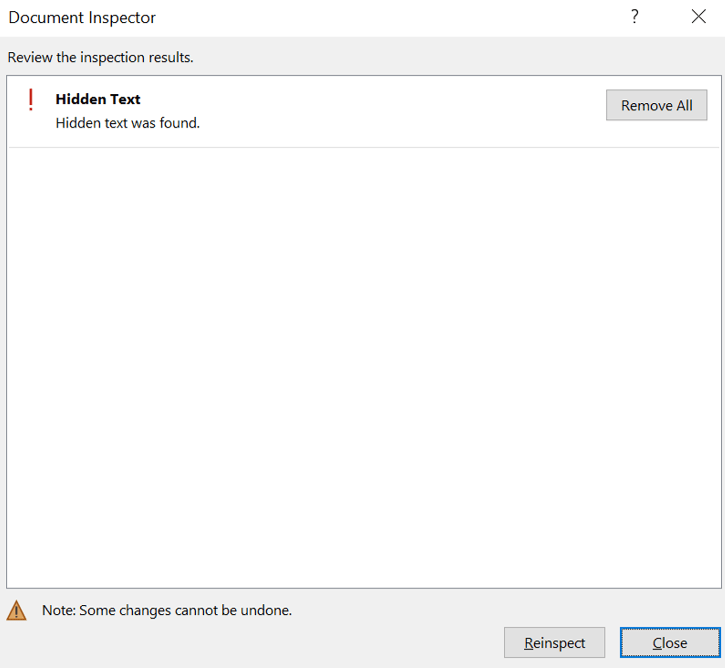
If the inspector finds anything you will have the option to click Remove All.
 Ryn Nicol